
You unlock the phone, tap Messages, and a gray box slides up from the bottom: "Sign in to your Apple Account." You type the password, it accepts it, and forty seconds later the same box is back.
Tap it away and it just keeps coming.
On iOS 26 this is one of the most reported account headaches, one Apple Community thread collecting 298 "Me Too" votes.
One naming note: since iOS 18, Apple calls your Apple ID an "Apple Account." Same login, new name.
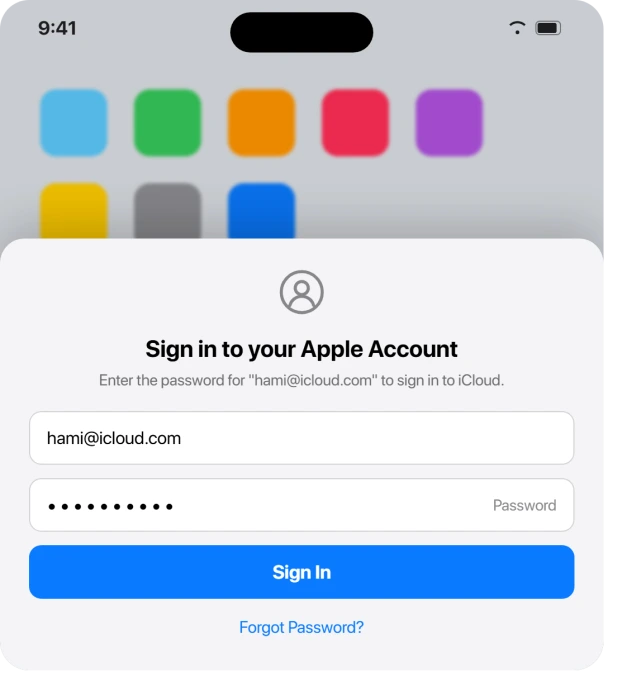
Let me show you how to break the loop, because typing the password again is not going to do it.
One safety rule before you type anything
Only ever enter your password inside the Settings app. Apple is blunt about this: "Apple will never ask you for this information."
A genuine iOS prompt lives in Settings or the App Store. A box that appears inside a random app, an email, or a webpage demanding your password can be phishing. When in doubt, close it and open Settings yourself.
Check whether it is Apple's servers, not your phone
This is the one step people skip and then waste an hour on. If Apple's sign-in service is having an outage, every device on earth throws the same verification prompt, and nothing you do locally will help.
Open a browser and go to apple.com/support/systemstatus. Look for the dots next to Apple Account & Sign In and iCloud Account & Sign In. Green means healthy.
Yellow or red means it is Apple's side, and the only real fix is to wait.
On February 10, 2026, Apple had exactly this kind of multi-service sign-in outage, and it produced mass sign-in prompts that cleared on their own once Apple fixed it.
Several people on iOS 26 also reported the loop simply stopping after a day or so, which fits a transient server state rather than a broken phone.
Restart, the real way
A force restart clears a stuck authentication session instantly and touches none of your data. It is worth trying before anything fiddlier.
Apple's force restart steps for any iPhone 8 or later: press and quickly release Volume Up, press and quickly release Volume Down, then press and hold the Side button. Keep holding past the power-off slider until the Apple logo appears.
For this particular bug a restart often buys only temporary quiet, with the prompt creeping back within a minute. If that happens, it is not the cure, so move on rather than restarting on a loop.
Make sure the clock is correct
A wrong date or time quietly breaks things. Apple's servers compare your phone's clock against their own when verifying your login, and if they disagree by more than a few minutes the sign-in is rejected and re-thrown.
Go to Settings > General > Date & Time and turn on Set Automatically. Apple's own instruction is "Open Settings. Tap General, tap Date & Time, then turn on Set Time Automatically", which uses a longer name than the one on the iOS 26 screen. Our page on why the clock goes wrong in the first place covers that mismatch and the second switch involved.
If that toggle is grayed out, that usually points to a Screen Time restriction or a work profile, covered further down.
Automatic time also leans on location, so it helps to have Settings > Privacy & Security > Location Services on, with System Services > Setting Time Zone enabled.
Did you change your password somewhere else?
This is the single most common trigger, and it is normal behavior rather than a bug. If you changed your Apple Account password on a Mac, an iPad, or the web, every other device keeps nudging you until it catches up.
As one widely repeated summary puts it: "If you updated your password on your Mac, iPad, or the web but not on your iPhone, iOS 26 will keep nudging you until everything matches."
The fix is simply to enter the current password when prompted in Settings so iCloud, the App Store, and Apple Music can re-sync.
Apple's own guide to repeated password prompts notes the same thing: after a password change "you might need to update your sign-in information with iCloud services you use." Once everything matches, the prompts stop.
Clear a stuck purchase or expired card
Billing problems are a sneaky cause. Because your Apple Account is one shared payment system, even opening the App Store can trigger a full account check that surfaces an old unpaid charge or a dead card.
First, check the card. Go to Settings > [your name] > Payment & Shipping and look for any method shown in red or marked expired. Update the number, expiration date, and security code, or remove the bad one.
Then hunt for a stuck charge. Go to Settings > [your name] > Media & Purchases > View Account > Purchase History and look for any line in red text.
On a heavily upvoted Apple thread, one user wrote: "Any purchase with red text is what is causing the trouble. For me, it was a pending in-app purchase." Pay it off and the prompt clears.
While you are in there, glance at Settings > [your name] > Subscriptions for anything flagged expired or with a billing problem, since one broken subscription can drive its app's auth prompt.
Reset the iMessage and FaceTime handshake
These two services sign in to your Apple Account separately from iCloud, so a stuck activation in either one can be the thing throwing pop-ups.
People on iOS 26 see variants like "Sign in to iMessage with your Apple Account" alongside "an error occurred during activation."
In iOS 26 these toggles moved. Go to Settings > Apps > Messages, turn iMessage off, wait a few seconds, and turn it back on. Then do the same at Settings > Apps > FaceTime.
Sign in again if asked. The toggles should settle to active and stay there.
If one keeps failing, that points to the date and time fix above, a network issue below, or a stubborn iMessage activation error.
When stuck downloads or an old Apple ID are the culprit
If you have automatic downloads on, a queued update can quietly re-ask for authentication on its own.
Open the App Store, tap your profile photo, run Update All, or delete and reinstall any app that sits stuck on Waiting.
There is a specific trap with apps you originally downloaded under a different or older Apple ID.
As one community member explained: "Any time those apps have available updates the App Store will ask for the Apple ID used to download them." The cure is to delete those apps and reinstall them under your current account.
Sign out, restart, then sign back in
This is the most-recommended fix across nearly every source, because it forces your phone to throw away the stale token and fetch a fresh one.
It is also the first step where you need to be careful, so read the warnings before you tap.
Go to Settings > [your name], scroll all the way to the bottom, and tap Sign Out. You will be asked for your Apple Account password to turn off Find My.
When asked, choose to keep a copy of your data on the device, and pick Sign Out But Don't Erase if offered.
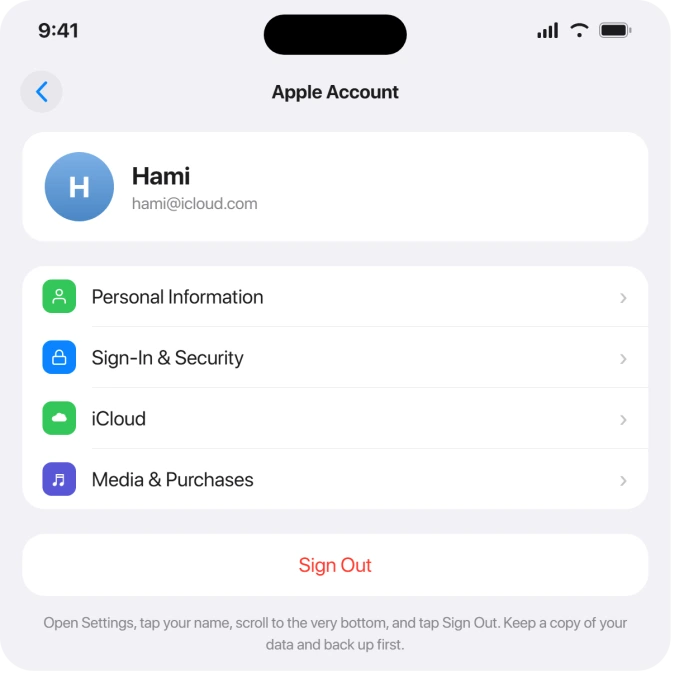
Two warnings worth heeding. While you are signed out you cannot use Find My to locate the phone, so do this somewhere safe.
And Apple's own wording is that iCloud data "will be removed from your device unless you choose to keep a copy of that data when prompted," so make sure you have a current backup first.
Now restart the phone. Then go back to Settings, tap Sign in to your iPhone at the top, and sign in again. Have a trusted device or phone number handy for the six-digit verification code.
If Sign Out is grayed out
If your name is dimmed or you see "Sign out is not available due to restrictions," Screen Time is blocking account changes. This catches a lot of people mid-fix, because they cannot run the step that would actually help.
Go to Settings > Screen Time > Content & Privacy Restrictions, scroll to Account Changes, and set it to Allow (enter the Screen Time passcode if asked).
If Content & Privacy Restrictions itself is on, you may need to toggle that off too.
If you are a child in a Family Sharing group, you cannot change this yourself. The family organizer has to enable account changes for your device.
The Family Sharing trap
If a prompt keeps asking for someone else's password, or the same account twice, Family Sharing may be the reason.
One person entered their password, was asked again, tapped Not Now, and then it asked "for the other account because I was linked to iCloud family."
The practical short-term move: if everything still works, tap Not Now to stop the repeat prompts.
The longer-term fix is that every family member should sign in to iCloud with their own unique Apple Account, then share through Family Sharing rather than sharing one login.
Network filters, VPNs, and work profiles
A network that blocks Apple's sign-in servers can cause a permanent loop. The quickest test is to turn off Wi-Fi and try over cellular for a minute.
If the loop vanishes, your Wi-Fi (a VPN, a content filter, or strict DNS) is the problem.
And if the connection itself has been unreliable since the iOS 26 update, sort that out first.
Fully remove third-party VPN profiles rather than just switching them off, under Settings > General > VPN & Device Management. One forum user fixed repeated prompts purely by removing a VPN profile.
You can also change DNS to 8.8.8.8 or 1.1.1.1, and Settings > General > Transfer or Reset iPhone > Reset > Reset Network Settings is the broader hammer.
If your phone is managed by a school or employer, check the same VPN & Device Management screen for a company profile. An expiring access token from that profile can force repeated sign-ins.
Do not delete a work profile or factory-reset a work device without asking IT, since supervised profiles cannot be removed by you anyway.
A wrong prompt entirely: the work email password
Sometimes the box that looks like an Apple prompt is really your work mail account asking.
One person chased an "Apple Account required" message for ages before realizing the cause: "I changed my work app password a week before but didn't update it on my iPhone work profile."
If you have an Exchange or Outlook account on the phone, open Settings > Apps > Mail > Mail Accounts, find that account, and update its password. Updating that one credential stopped the loop for them entirely.
Update iOS, and what to expect from iOS 26.1
Apple ships authentication bug fixes in point releases, so installing the latest version at Settings > General > Software Update is a legitimate fix when the cause is OS-side.
The results are mixed, though. iOS 26.1 helped some people and hurt others.
One user wrote: "This was happening to me as well but now I have iOS 26.1 and it miraculously stopped." Another reported the opposite: "I was not having a problem on OS 26, but OS 26.1 is giving me the problem."
So update and see, but do not treat any single build as a guaranteed cure.
As of the sources reviewed through iOS 26.2 (released December 12, 2025), Apple has not publicly acknowledged this as a known bug and no release note names a fix for it.
When 2FA or the verification code is the snag
If you are stuck on a "Signing in…" spinner, two-factor authentication can be involved.
One person whose iPhone 13 Pro Max hung after upgrading to iOS 26 found a fix worth repeating: "I tried temporarily enabling 2 factor authenication… after waiting 2 hours and then power cycling the iPhone, I was able to get past the Signing in… screen and all now seems to be working."
Turn it on at Settings > [your name] > Sign-In & Security > Two-Factor Authentication.
Apple's design is that once a device has signed in with 2FA, it should not keep asking, which is precisely why an endless loop signals a glitch rather than normal security.
If the automatic push code never arrives, pull one by hand instead.
On a trusted device, go to Settings > [your name] > Sign-In & Security > Get Verification Code and type that six-digit number into the prompting iPhone.
Heavier resorts, in order
If softer steps fail, Settings > General > Transfer or Reset iPhone > Reset > Reset All Settings clears cached network and login settings without deleting photos, messages, or apps.
You re-enter Wi-Fi passwords afterward. Back up first.
You can also remove the looping device from your trusted list at appleid.apple.com > Devices, then sign in fresh, which clears stale server-side associations.
A full erase and restore is the last device-side option and only worth it when the loop survives sign-out and clearly points to deep corruption. Never do it without a verified backup.
When it is genuinely Apple's problem, not yours
Some loops are account-side and no amount of resetting will help. The signs are specific: your password is accepted and then immediately rejected, 2FA codes never arrive, or the loop survives a full erase and restore.
Those symptoms point to a security hold that only Apple can lift. Stop erasing the phone and contact Apple Support with your account email, the device serial number, and roughly when it started.
Several people on iOS 26 only got fully clear after Apple stepped in.
And to set the right baseline: being asked for your password once after an update, a password change, or a new sign-in is completely normal. It is the endless reappearance after correct entry that is the bug.
The Short Version
- Check apple.com/support/systemstatus first. If sign-in is yellow or red, wait it out.
- Force restart, then set Settings > General > Date & Time > Set Automatically on.
- Did you change your password elsewhere? Just enter the current one in Settings so devices re-sync.
- Clear billing problems: red items in Payment & Shipping and red lines in Purchase History.
- Toggle iMessage and FaceTime off and on under Settings > Apps.
- Main fix: Settings > [your name] > Sign Out, restart, sign back in. Back up first; Find My is off while signed out.
- If Sign Out is grayed out, allow Account Changes under Screen Time.
- Test over cellular to catch a blocking Wi-Fi, VPN, or work profile. Update a work email's password if that is the real prompt.
- Update iOS and see, but 26.1 helped some and broke others.
- If the password is accepted then rejected, or 2FA never arrives, it is account-side. Call Apple Support.
Where to Next
Where it is iMessage specifically that keeps asking rather than the whole account, that has its own short answer.
Where the account is signed in and a recovery contact will not add, seven things block that.
More iOS 26 headaches sorted out, easiest first, on our iOS 26 problems and fixes hub. Or start fresh at the pcglance homepage.

Isaac Smith is the founder and editor of PC Glance, a website that covers computers, laptops, and technology. He is a tech enthusiast and a computer geek who loves to share his insights and help his readers make smart choices when buying tech gadgets or laptops. He is always curious and updated about the latest tech trends.