

You press Command-Space, start typing the name of a file you have opened a hundred times, and nothing comes up. Or apps show but your documents do not. Or the little spinner just turns and turns. Losing search on a Mac is genuinely disabling, so let me get it back for you.
After the Tahoe upgrade this is everywhere, and it is actually three different problems wearing one complaint. Sorting out which one you have saves you from rebuilding an index that was never the issue.
So start by telling them apart, then fix the one you actually have.
First, is it broken or just redesigned?
Tahoe rebuilt Spotlight from the ground up.
Results now come back in one ranked list instead of tidy groups, there are new Actions and Quick Keys, a clipboard history, and the old Launchpad is folded in as an Apps view.
That redesign trips people up. You type "Music," the app does not jump to the top because the web and settings results crowd it out, and it feels broken when it is just sorting differently.
Two quick checks settle it. With Spotlight open, press Command-1 to filter to apps only, or Command-3 for actions, and see if your result appears once it is isolated.
Then confirm the category is even on. Go to Apple menu > System Settings > Spotlight (its own pane now, where older macOS called it Siri & Spotlight) and make sure the apps and file types you want are switched on.
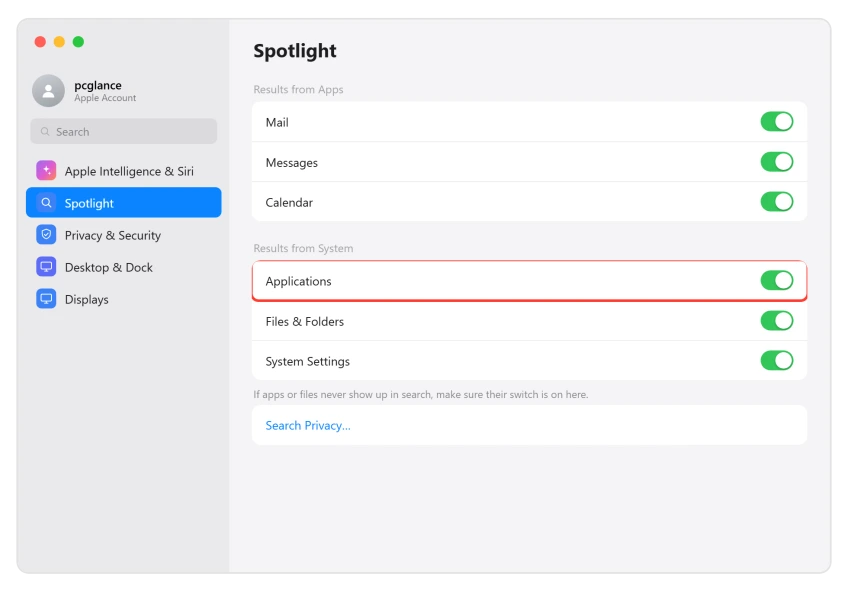
To confirm the index itself is fine, open Terminal and run mdfind yourfilename. If that finds the file but Command-Space does not, your problem is the Spotlight window, not the index, and a restart usually clears it.
Quick wins before you rebuild anything
Most people skip these and go straight to nuking the index. Try them first.
Restart the Mac. This alone clears a stuck indexing process, frees up any swap it has eaten, and often brings search back without any further work.
Check your free space. A nearly full disk stalls indexing cold, and on low-storage Macs a stuck index can pile up swap files and make it worse. Clear some room before anything else.
If you just upgraded, give it time. A major update reindexes your whole drive, which can run for hours. Leave the Mac plugged in and awake, and let it finish before you decide it is broken.
Check the Privacy list for your own disk
This one catches a surprising number of people, and it is a thirty-second look.
In System Settings > Spotlight, click Search Privacy at the bottom. This is the list of places Spotlight is told to ignore.
The Tahoe upgrade has been landing people's startup disk, usually Macintosh HD, into that exclusion list. If your whole drive is in there, nothing on it will ever be indexed.
If you see your disk listed, select it and click the minus button to remove it, then let it reindex.
Rebuild the index, the gentle way
If the categories are on and nothing is excluded but search is still empty, rebuild the index. Apple's own rebuild method needs no Terminal.
In System Settings > Spotlight > Search Privacy, click the plus button and add your disk, Macintosh HD, to the list. Click OK if asked.
Wait a few seconds, then select that disk again and click the minus button to remove it. Click Done and quit System Settings.
That forces macOS to throw away the old index for the disk and build a fresh one. A progress indicator shows at the top of the Spotlight window while it works, and Apple gives no set time, so let it run.
Rebuild from Terminal if you prefer
The command-line version does the same thing and is quicker to repeat. Open Terminal (Applications, then Utilities), and first check the status:
mdutil -s /A healthy drive answers "Indexing enabled." To erase and rebuild the index from scratch, run:
sudo mdutil -E /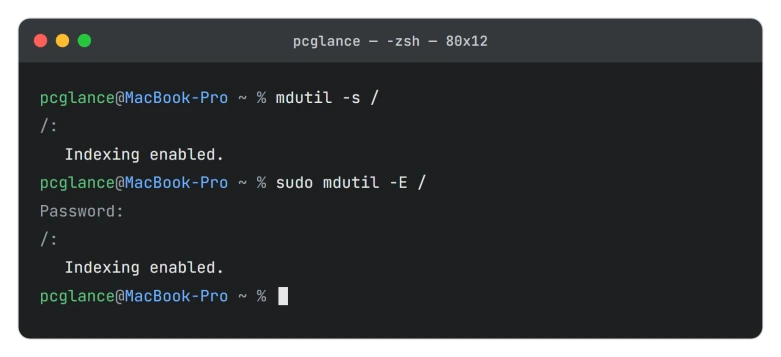
Enter your Mac password when asked. The characters do not show as you type, which is normal. Then give it time to reindex.
When the index is truly stuck
Sometimes the gentle rebuild starts and never finishes, and even a restart does not hold. The index files themselves are corrupted, and you need to clear them out.
Add Macintosh HD to Search Privacy as above, then in Terminal delete the Spotlight caches:
rm -rf ~/Library/Metadata/CoreSpotlight
rm -rf ~/Library/Caches/com.apple.Spotlight
rm -rf ~/Library/Caches/com.apple.corespotlightd
Restart into Safe Mode, then reboot normally, remove Macintosh HD from the Privacy list, and let Spotlight index from a clean slate. This is the step that finally worked for people the standard rebuild left stuck.
If your fans never stop
A process called mds_stores pinning your processor, with the fans roaring and the battery draining, is the indexer at work.
Right after an upgrade this is normal, and it settles once indexing finishes, so leave it plugged in for a few hours.
If it is still hammering the chip days later, or restarts never calm it, treat it as a stuck index and use the rebuild steps above.
Force-quitting mds_stores in Activity Monitor only buys a minute, since it relaunches. A real restart is the cleaner reset.
Check what else you installed
A few third-party apps have been caught breaking Tahoe search, and turning them off has fixed it for a lot of people.
The repeat offenders are Adobe Creative Cloud, Logitech Options+, and some HP printer software.
Go to System Settings > General > Login Items & Extensions and switch the suspect off, then restart and test.
If search comes back, that app was the problem, and you can update it or leave it switched off.
And if the printer goes quiet without its HP software, Tahoe printing problems have their own fixes.
What not to do
A few popular tricks online do more harm than good.
Skip any guide that tells you to disable System Integrity Protection or run a long scary script to "fix" Spotlight. A normal rebuild never needs that.
Turning off every category in Spotlight settings does not stop indexing either, it just hides results, so it is not a fix.
And if it is specifically your Mail search that is empty, that is a separate index with its own quirk in Tahoe, not this problem.
On macOS 27, if you only want to know whether indexing has finished, the indexing progress page shows where to look.
The Short Version
- It is three problems in one. Decide which you have before rebuilding anything.
- Just redesigned? Use Command-1 for apps, Command-3 for actions, and confirm the category is on in System Settings > Spotlight.
- Quick wins: restart, free up disk space, and if you just upgraded, let it finish indexing overnight on power.
- Check Spotlight > Search Privacy and remove your own disk if the upgrade dumped it in the exclude list.
- Rebuild gently by adding then removing the disk in Search Privacy, or in Terminal with
sudo mdutil -E /. - Still stuck? Delete the CoreSpotlight and Spotlight caches, Safe Boot, then reindex.
- Roaring fans are usually normal indexing right after an upgrade. Check for Adobe Creative Cloud, Logitech Options+, or HP software in Login Items if search stays dead.
Where to Next
Where the search index is fine and the Mac is simply slow, start with Apple's own list. Five causes, and the free space one catches most people.
If only an external drive's files go missing from search, rebuild that drive's own index instead.
- More Mac fixes: macOS Tahoe problems and fixes
- Sound glitching too: macOS Tahoe audio crackling or dropouts
- Back to the start: pcglance home

Isaac Smith is the founder and editor of PC Glance, a website that covers computers, laptops, and technology. He is a tech enthusiast and a computer geek who loves to share his insights and help his readers make smart choices when buying tech gadgets or laptops. He is always curious and updated about the latest tech trends.