
Your external display worked perfectly last week and now it comes and goes, and you are probably eyeing up a new cable. Hold off on that until you know which of the two faults you have.
Your monitor lights up, reads "No Signal," and the Mac behaves as if you only own one screen.
Which one you are hitting decides everything below, and most people land it in the first two sections.
Let me show you how to tell the two apart, because one is a two minute fix and the other is a cable you should not have to buy twice.
Which kind of "not detected" is this?
Match your situation, because the fixes split hard.
- It worked before the update, now nothing. Usually the remembered-displays cache or the cable. Start at the top.
- It works until the Mac sleeps, then the second screen goes dark. That is the Tahoe sleep-wake bug. Jump to that section.
- One monitor works but a second or third never shows. That may not be a bug at all, just the display limit of your chip. See the limits section.
Start with the three-minute checks
Do these before anything fancier, because one of them clears a lot of cases.
Unplug the video cable, wait ten seconds, and plug it back in firmly. Then power-cycle the monitor itself: hold its power button until it is fully off, then on again.
Apple's own troubleshooting steps start the same way.
A frozen monitor handshake is more common than it sounds.
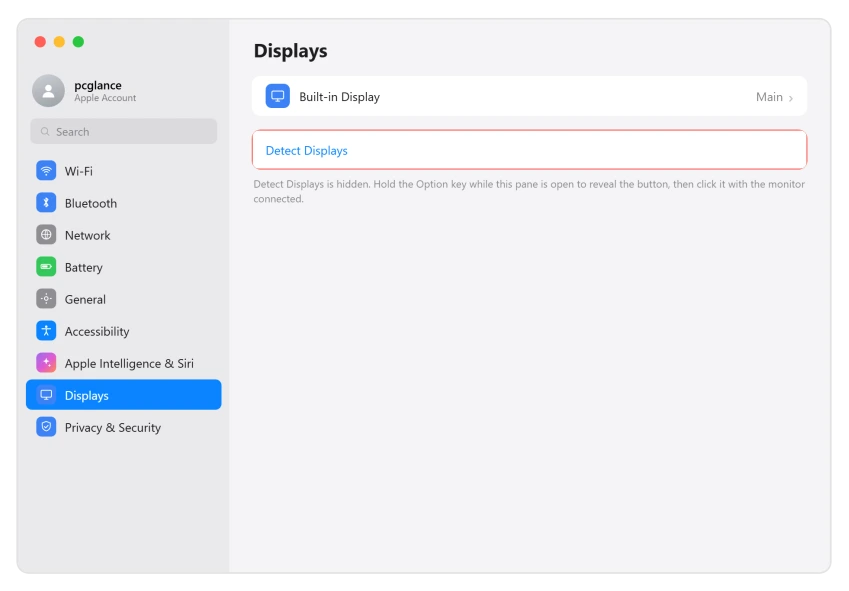
Next, force a scan. Open Apple menu > System Settings > Displays, then hold the Option key, which makes a Detect Displays button appear at the bottom. Click it a couple of times with the monitor connected.
If that does nothing, restart the Mac with the monitor plugged in. A clean restart after the update fixes a surprising number of these on its own.
Reset Tahoe's display memory
This is the fix that resolved it for the most people, and it targets the exact thing Tahoe tightened.
Your Mac keeps a file listing every display it has ever connected to.
Tahoe started validating that file strictly, so where Sequoia would shrug off a stale entry, Tahoe can choke on it and refuse to light up the screen. Clearing the file forces a fresh, clean detection.
Open Terminal (Applications, then Utilities), and move the display cache to your Desktop so it is easy to undo:
mv ~/Library/Preferences/ByHost/com.apple.windowserver.displays.*.plist ~/Desktop/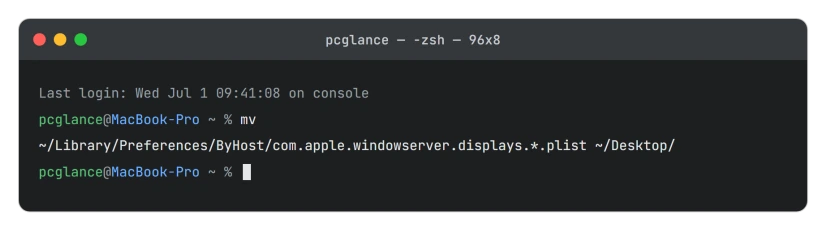
Then restart the Mac and reconnect the monitor. macOS rebuilds the file from scratch, and the display is often detected immediately. If it does not help, you can drag the file back from the Desktop to undo the change.
If it is the cable or the signal
When the cache reset does not do it, suspect the link itself, because Tahoe genuinely got pickier here.
Swap in a short, certified cable. For HDMI that means one labeled Ultra High Speed or Premium High Speed, and for Thunderbolt or USB-C, keep it under about a meter.
A long or no-name cable that scraped by on Sequoia can fail the stricter Tahoe handshake.
Try a one-piece USB-C to HDMI cable instead of a USB-C plug with a separate HDMI adapter hanging off it, since each extra connector is a place for the signal to drop.
If the monitor is detected but flickers or freezes, go into the monitor's own on-screen menu and turn off DSC (Display Stream Compression) and any VRR or Adaptive Sync option, then lower the refresh rate.
Those high-bandwidth features are exactly what Tahoe handles poorly right now.
If it only drops after the Mac sleeps
A specific and very common Tahoe complaint: everything works until the Mac sleeps, and on wake only the main display comes back while the second sits on "No Signal." If the whole Mac refuses to wake, see Mac won't wake from sleep on Tahoe.
The reliable recovery is to unplug that one cable and plug it back in, or power-cycle just that monitor, which forces the handshake again. It is annoying, but it works every time until Apple patches it.
To cut down how often it happens, stop the Mac from sleeping so aggressively while docked.
In System Settings > Lock Screen (and Battery > Options on a laptop, or Energy on a desktop), lengthen the time before the display and the Mac sleep, or keep it awake while the lid is open.
If you connect through a dock
Docks add their own failure points, so test around them first.
Plug the monitor straight into the Mac. If it works direct but not through the dock, the dock is the problem, not Tahoe. Update the dock's firmware from the maker's site.
Many docks drive displays through DisplayLink, which needs its own driver. Install the latest DisplayLink (Synaptics) software, since the version that worked before the update often does not after it.
One more, specific to Apple Silicon.
The first time you connect a dock after the update, macOS may pop up an Allow accessory to connect prompt, and the dock and its displays stay dead until you approve it.
Check System Settings > Privacy & Security and allow the accessory.
Maybe your Mac cannot drive that many screens
Before you chase a bug, rule out a hard limit, because this catches people who added a second or third monitor.
The base M1, M2, and M3 chips in the MacBook Air and the smaller MacBook Pro officially support only one external display, per Apple's display support page.
The base M3 can add a second, but only with the laptop lid closed, and M4 raised the base to two. Only the Pro, Max, and Ultra chips drive three or more.
High refresh rates eat into that budget too.
Running displays above 144Hz can quietly drop the number of screens your Mac will accept, which is why a third monitor "vanishes" when the first two are set high. Drop everything to 60Hz to test.
If you are past your chip's limit, no setting will add a screen. A DisplayLink dock is the only way to push beyond it.
Update, test in Safe Mode, and what to skip
A few last moves, and an honest word on where this stands.
Install the latest macOS at System Settings > General > Software Update, and skim the macOS Tahoe fixes roundup if other things broke alongside the display.
Be straight with yourself, though: this was still happening on 26.5 as of mid-2026, and Apple has not acknowledged it, so an update may or may not help.
Boot into Safe Mode (on Apple Silicon, shut down, then hold the power button until you see startup options, pick your disk while holding Shift).
If the monitor works in Safe Mode, a third-party extension or login item is the cause, so remove recent ones.
Skip the old NVRAM and SMC resets. On an Apple Silicon Mac there is no such reset to do, a normal restart covers it, and any guide telling you otherwise is written for Intel.
If nothing works, file it at Apple's macOS Feedback page so it gets counted, and as a last resort, some people rolled back to Sequoia where their displays "work like a dream again."
The Short Version
- "Not detected" is usually one of two things: Tahoe's strict display cache, or a cable it no longer trusts.
- Quick wins: replug, power-cycle the monitor, and hold Option in Displays to click Detect Displays, then restart.
- The top fix is resetting the display cache: in Terminal, move `~/Library/Preferences/ByHost/com.apple.windowserver.displays.*.plist` to the Desktop and restart.
- Cable side: use a short, certified Ultra or Premium cable, a one-piece USB-C to HDMI, and turn off DSC, VRR, and high refresh in the monitor's menu.
- Drops only after sleep? Unplug and replug that cable on wake. Through a dock? Test direct, update DisplayLink and dock firmware, and approve the accessory prompt.
- Check your chip's display limit. Base M1, M2, M3 drive one external screen; M4 drives two. Skip NVRAM resets on Apple Silicon, and know this was still unfixed on 26.5.
Where to Next
Where the Mac restarts rather than failing to detect the screen, a high refresh rate monitor is a known trigger.
And if the rear ports themselves stopped responding, that is a separate Tahoe problem.
- More Mac fixes: macOS Tahoe problems and fixes
- Audio glitching too: macOS Tahoe audio crackling or dropouts
- Back to the start: pcglance home

Isaac Smith is the founder and editor of PC Glance, a website that covers computers, laptops, and technology. He is a tech enthusiast and a computer geek who loves to share his insights and help his readers make smart choices when buying tech gadgets or laptops. He is always curious and updated about the latest tech trends.