
You moved a few hundred photos into a Shared Library and now you cannot find them, or your partner cannot see one of them. I know that particular sinking feeling, and I want to shorten it for you.
Nothing has been deleted. Start with the sentence that explains almost every version of this.
1. They moved. They were not copied
Read this first. It is the whole mechanism, and Apple states it in one line.
Apple: "When you contribute photos and videos to iCloud Shared Photo Library, they move out of your Personal Library and into the Shared Library."
Moved. Not duplicated.
So a photo you contributed is no longer in your Personal Library. If that is where you are looking, you will not find it.
That is why people describe hundreds of photos vanishing on the day they set this up. Nothing vanished. They are exactly where they were sent.
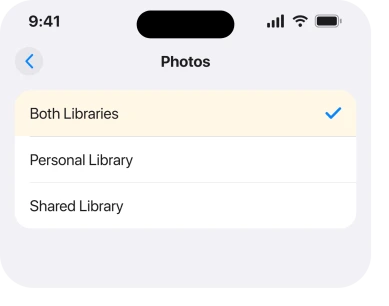
Tap the icon at the top right of the Photos app and switch the view. Both Libraries shows everything at once. I would leave it there while you sort this out.
If photos are missing from your own library rather than a shared one, an iPhone whose photos will not show covers that instead.
2. The other person is on a version that cannot see it
Second. This is the answer whenever one person sees the photos and another does not.
Apple documents the cutoff on its missing photos page exactly: "iCloud Shared Photo Library is only available on an iPhone with iOS 16.1 or later, an iPad with iPadOS 16.1 or later, a Mac with macOS Ventura 13 or later, an Apple TV with tvOS 16 or later, or a PC with iCloud for Windows 14 or later."
And then the consequence, in Apple's words: "If you open the Photos app on a device that hasn't been updated to a supported version, you won't see the photos that you moved from your Personal Library to your Shared Library."
So an old iPad in the kitchen shows a library with a hole in it. The same account on a current iPhone looks complete.
There is a way round it that costs nothing. Apple: "To see your photos, use a device updated to a supported version of iOS, iPadOS, macOS, tvOS, or from any device with any software version on iCloud.com."
That last part is the useful bit. iCloud.com in a browser works from anything, whatever it runs.
3. Give it a night before you conclude anything is wrong
Cheap, and it asks nothing of you but patience. It is also a real owner outcome rather than a guess.
A Shared Library syncs in both directions, across two accounts and Apple's servers. On a big library that is not quick, and the halfway state you are staring at looks exactly like a fault.
One owner posted that they and their wife could not see each other's photos after adding to the library. The next morning: "It looks like whatever the issue was resolved over night because now I see her photos."
Another member on the same thread put the delay down to library sizes, connection speeds and Apple server load.
Ours, and marked as ours: that is a sensible reading rather than a documented rule, and Apple publishes no expected sync time anywhere I could find.
Leave both phones on Wi-Fi and on power. Unlock them from time to time. Then look again tomorrow.
4. Check iCloud Photos is actually on, on both devices
Narrower. It catches the case where nothing syncs at all for you, rather than slowly.
A Shared Library sits on top of iCloud Photos. Turn that off and the whole thing has nothing to stand on.
Apple's requirement: "To set up or join a Shared Library, you need a device with iOS 16.1, iPadOS 16.1, or macOS Ventura or later with iCloud Photos turned on."
On each phone, go to Settings, tap your name, then iCloud, then Photos, and confirm syncing is on.
Do it on the other person's phone too. One side being off produces a one-way library that looks broken from both ends.
5. Anyone in the library can delete anything
Worth knowing before you go hunting. It surprises people.
Apple states the rule without softening it: "All participants can add, edit, and delete content in the Shared Library."
So a genuinely missing photo may have been removed by somebody else. Deliberately, or by accident while they cleared their own camera roll.
Look in Recently Deleted first. Deleted items sit there for a while, and either of you can restore them.
If your photos are disappearing from your own library rather than a shared one, that is a different subject and an iPhone that will not delete photos covers the other end of it.
6. When you want out, and want your photos back
Last, and the rung that matters most. Getting it wrong is permanent.
Leaving gives you a choice, and you are only asked once. Take everything, or take only what you contributed.
If you helped build the library, take everything and sort it later. Copies land back in your Personal Library. You cannot go back and ask again.
One more thing catches people out. Apple: "The library creator, the person who set up the Shared Library, provides iCloud storage for all of the content."
So if the creator leaves, or their storage runs out, everyone else is affected. Agree that before anyone sets one up.
You can also only be in one at a time. Apple: "You can join one Shared Library."
What does not help
- Signing out of your Apple Account. It risks the local copies and it does not make a sync finish faster.
- Turning iCloud Photos off and on. On a large library that starts an expensive re-check and can make things look worse for a day.
- Deleting and rebuilding the Shared Library. You lose the shared history, and in every thread read for this page the cause was a view setting, an old device or an unfinished sync.
- Restoring from a backup. A Shared Library lives in iCloud, not in your device backup.
Status: iOS 26.6.1, checked 19 August 2026. Apple documents the move-not-copy rule and the version cutoff. The only owner outcome found was a sync that completed overnight on its own.
Where did my photos go after joining a Shared Library?
Into the Shared Library. Apple states that contributed photos move out of your Personal Library rather than being copied, so they are no longer where they used to be. Switch the Photos app to Both Libraries and they reappear.
Why can my partner not see the Shared Library photos?
Usually because their device is on an older version. Apple says iOS 16.1 or later is required, and that a device below it will not show photos moved into a Shared Library. iCloud.com in a browser works from any device on any version.
Can someone else delete my photos from a Shared Library?
Yes. Apple states that all participants can add, edit and delete content. Check Recently Deleted before assuming anything is permanently gone.
Do Shared Library photos use my iCloud storage?
Only if you created the library. Apple states that the creator provides the storage for all of the content and that everyone else gets access without it counting against theirs.
The Short Version
- Contributed photos move out of your Personal Library rather than being copied.
- Switch the Photos app view to Both Libraries and most of this resolves itself.
- iOS 16.1 or later is required, and an older device shows an incomplete library.
- iCloud.com works from any device on any version, which is the quickest proof nothing is lost.
- A slow first sync can take overnight, and one owner's fixed itself that way.
- Anyone in the library can delete anything, so check Recently Deleted.
- Leaving asks you once whether to keep everything, and there is no second chance.
Where to Next
The reason this feels so alarming is that Apple made a design choice, moving rather than copying, and the app does not explain it at the moment it happens. Once you know that, most of the panic goes away.
If your photos are genuinely gone rather than in the other view, tell me whether you were the creator or a member, and roughly how big the library is. Those two things change what is worth trying, and I answer every comment.

Isaac Smith is the founder and editor of PC Glance, a website that covers computers, laptops, and technology. He is a tech enthusiast and a computer geek who loves to share his insights and help his readers make smart choices when buying tech gadgets or laptops. He is always curious and updated about the latest tech trends.