
Before you blame your router, check one sharing setting, because a Windows update can quietly switch it back and lock you out of your own shared folders. I would start there, then work down this list.
One question about this on Microsoft's Q&A forum has more than 100 people marking it as theirs. Owners found three different causes, and each has its own fix.
Three faults that look alike
The first owner described the mess well: "Since early this year, I've had issues with workstations losing network connectivity to shared folders."
Three different things sit behind that sentence. A password setting can block a share. A share can work by IP address but not by name. And newer Windows security can refuse a NAS box.
Find yours in the list, then jump to the matching step. Between two Windows PCs, start with the first one.
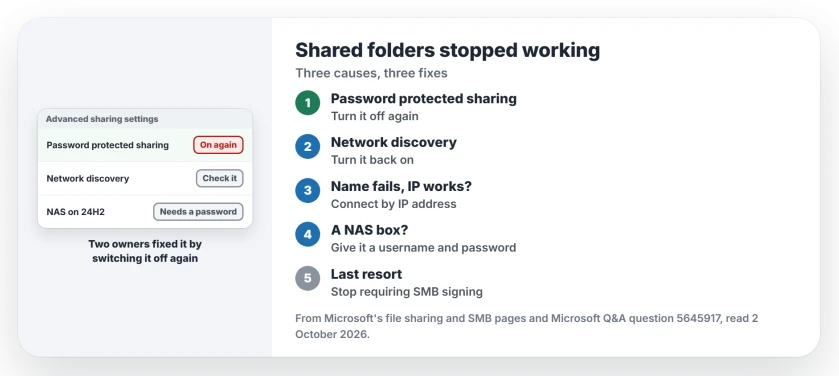
Status: checked 2 October 2026. Turning password protected sharing off again fixed shares for two owners. A NAS refused since Windows 11 24H2 needs signing or a password, Microsoft says.
1. Turn password protected sharing back off
One owner shared folders to Everyone and then lost them. In their words: "Turns out after a Windows update" the password protected sharing option "had been turned on".
Their fix took one click. "Turning it off again fixed it." Two months later another owner replied to it: "You solved the problem for me."
Microsoft's file sharing page gives the route. Search for manage advanced sharing settings, then under All Networks, "turn off password protected sharing".
Ours: change it on the PC that holds the shared folder. With it off, anyone on your home network can open those open shares. Keep it for networks you trust.
2. Turn network discovery back on
The first owner had a second culprit: "Sometimes it's because Network Discovery just decides to disable itself."
Microsoft says that if File Explorer shows a "Network discovery is turned off" banner, "you'll need to turn on network discovery to see devices on the network that are sharing files".
In the same advanced sharing settings, under Private networks, turn on Network discovery and File and printer sharing. Check that your home network is set to Private, not Public.
3. Connect by IP address when the name fails
This one is odd. Names fail, numbers work. The same owner wrote: "I can connect via IP, but not UNC." In other words, \\192.168.1.20 opened and \\OFFICE-PC did not.
A Microsoft moderator pointed at name lookup. The owner's own stopgap: "The only fix I have found is to flush/register the DNS, and rebooting the pc."
Ours: map the drive by IP address until names behave, and give that PC a fixed address in your router. Months later the owner found the fault had stopped on its own.
4. A NAS box: give it a username and password
Windows 11 24H2 changed two defaults. Both bite a NAS. Microsoft's file sharing team wrote: "By default, SMB signing is required on all connections." And "Guest fallback is disabled on Windows 11 Pro edition."
A NAS that relies on guest access then shows this error: "You can't access this shared folder because your organization's security policies block unauthenticated guest access".
Microsoft's safest order is to turn on signing in the NAS, turn off guest access, then "Enable a username and password in your third-party NAS." If the NAS cannot do that, update its firmware.
The last resort: stop requiring signing
One owner with a WD My Cloud Home went further: "I removed the requirement for securitysignature with powershell." Their result: "Now it's working well."
The command, in PowerShell as administrator, is Set-SmbClientConfiguration -RequireSecuritySignature $false. Running it again with $true turns the protection back on.
Microsoft is blunt about it: "We don't recommend disabling SMB signing as a workaround for third-party servers." Use it only for a NAS you trust, while you plan its update.
What to skip
A popular comment also deletes a registry folder called MSLicensing. Ours: that folder holds Remote Desktop license data, and Microsoft's file sharing pages never mention it.
The same comment turns on insecure guest logons. The WD owner found that step was not needed once the signing change was made.
If your network itself is broken, not only shares, the network reset page says what a reset costs. And Mac owners reaching a Synology box can use the Synology shares page.
Why can't I open shared folders on Windows 11 anymore?
An update can switch password protected sharing back on. That blocks open shares. A NAS can also be refused since 24H2, because Windows now demands signing or a password.
How do I turn off password protected sharing in Windows 11?
Search for manage advanced sharing settings and open it. Under All Networks, turn off password protected sharing, on the PC that holds your shared folder.
Should you switch off SMB signing?
Not as a habit. Microsoft does not recommend it. Turn on signing or a password in your NAS first, and switch the requirement back on once the NAS is updated.
The Short Version
- Three faults look alike.
- Updates can switch password protected sharing on.
- Turning it off again fixed it for two owners.
- Turn network discovery back on too.
- If the name fails, connect by IP address.
- A NAS needs signing or a password since 24H2.
- Turning off signing is the last resort.
Where to Next
Open advanced sharing settings on the PC that holds your folders and look at password protected sharing first. That one switch fixed it for two owners.
If your NAS still refuses Windows after a firmware update, tell me its make and model. I will log what works for it.

Isaac Smith is the founder and editor of PC Glance, a website that covers computers, laptops, and technology. He is a tech enthusiast and a computer geek who loves to share his insights and help his readers make smart choices when buying tech gadgets or laptops. He is always curious and updated about the latest tech trends.