
Your new Apple Watch goes on its charger every night and comes off at 100 percent, every time. Your old watch stopped near 80 by now, and Optimized Charge Limit is on.
I would check the location settings on your iPhone first. Then give the watch time, because Apple ties the feature to both.
Owners of the newest watches are comparing notes on MacRumors this week. One Ultra 4 began stopping short after a few days, while another, with Significant Locations on, is still waiting.
What owners are seeing
One owner put it plainly: "I have not gotten optimized 80% limit charging yet on my Watch (AWU4)." They had checked the obvious. "Significant locations is on."
Their older watches behaved differently: "All the AW Ultras I had before were doing 80% limit by now."
Another owner had better news: "Yes, my U4 started the optimized charging a couple days ago".
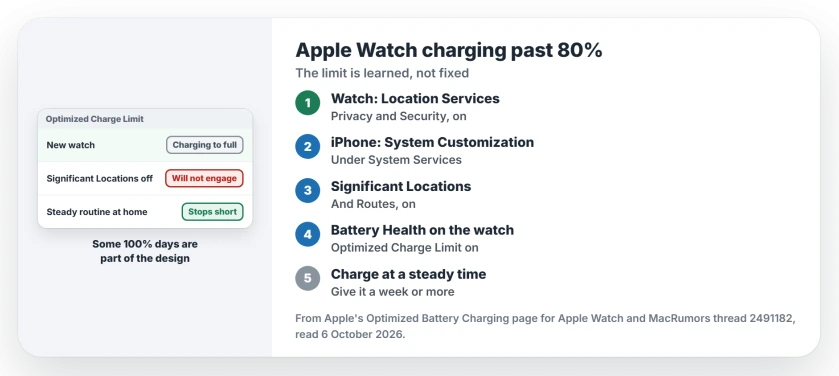
Status: checked 6 October 2026. A new Apple Watch keeps charging to 100% with Optimized Charge Limit on. Apple says it needs time and three location settings, and varies by day.
So one model behaves differently on different wrists. That fits what Apple describes, since your watch decides from your own habits and routine alone.
1. Know what Apple promises
Apple's Optimized Battery Charging page is clear that the limit is not fixed: "Optimized Charge Limit changes dynamically depending on how you use your watch."
Apple says more. "Based on your usage patterns, your watch might charge to 100% on some days, and less on others." So the odd full charge is normal.
Look at the ring as you set the watch down, because it tells you. Apple's wording: "With Optimized Charge Limit active, an open charge ring appears when you connect your Apple Watch to its charger."
2. Turn on the three location settings
Apple writes that "Optimized charging is designed to activate only in locations where you spend the most time, such as your home and place of work." So it needs location data.
- Watch: Privacy & Security, Location Services, on.
- iPhone: Location Services, System Services, System Customization, on.
- Same list: Significant Locations & Routes, on.
Owners report this one matters. One asked whether Significant Locations was required, and another said yes. Apple adds that none of that location data is sent to Apple, so switching these on does not send your trips anywhere.
3. Check the setting, then give it time
On the watch, open Settings, then Battery, then Battery Health. Make sure Optimized Charge Limit is on. Apple notes that turning it off can add wear to your battery.
Then charge it in the same place at about the same time every night, ideally at home where the pattern is easy to learn.
A new watch shows a clue on its charging screen. Apple says: "If your watch is new, the charging screen will say Charging to full."
An owner on the thread agreed: "The process requires time and a steady charging routine."
Ours: a Series 12 that lasts two days visits its charger less often. It has fewer nights to learn from, so I would expect a longer wait.
The missing charged alert
A second oddity sits in the same thread, and it may be yours too. One owner's iPhone stopped saying the watch was charged.
Another owner had it too, and they gave a fix. In the Watch app, open Apps, Sleep, Charging Reminders. "Toggle off (if enabled), then back on."
Charging slowly as well? Our fast charging page covers cables and adapters. A watch that empties too fast is on our battery drain page.
Can I set a fixed 80% limit?
Apple's page lists no fixed limit for the watch, only the optimized one. If you want less on a given day, I would lift it off at 80 by hand. Nothing else gets you there.
The Short Version
- A new watch says Charging to full until it learns your habits.
- The optimized limit changes from day to day.
- Some 100% charges are normal.
- Turn on Location Services on the watch.
- On the iPhone, turn on System Customization and Significant Locations & Routes.
- Missing the charged alert? Toggle Charging Reminders off and on.
Where to Next
Open Location Services, System Services on your iPhone and check both switches. Then charge at home at your usual time for a week.
How long did your new watch take before it stopped short of 100? Tell me in a comment.

Isaac Smith is the founder and editor of PC Glance, a website that covers computers, laptops, and technology. He is a tech enthusiast and a computer geek who loves to share his insights and help his readers make smart choices when buying tech gadgets or laptops. He is always curious and updated about the latest tech trends.