
Your PC has one network port, yet Windows calls it Ethernet 2. You try to rename it back to Ethernet, and Windows refuses because a connection with that name already exists.
I would check first whether the 2 is simply a second real adapter, such as a dock or a USB one. If it is not, the old name belongs to an adapter Windows no longer shows, and owners freed it by removing that hidden device.
A 2020 Microsoft Q&A question about it carries 100+ Same question clicks. The Super User version, asked in October 2017 by someone who needed the old name for a script, has 204,912 views.
Where the old name went
Each network adapter Windows sets up gets its own connection name, shown in Network Connections. Swap a network card, reinstall a driver or plug in a dock, and the new one may get the next free name, which is Ethernet 2.
The old adapter's entry stays behind in Windows, out of sight in every normal list. It keeps its name.
Ours: the refusal in this laptop's message file reads, word for word, "Cannot rename this connection. A connection with the name you specified already exists".
The 100+ question started on a three-day-old install, so a fresh copy of Windows can show it too.
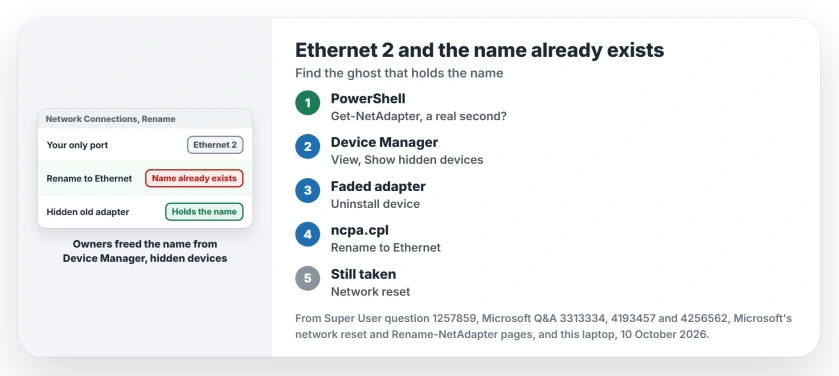
Status: the Super User and Q&A owner threads and Microsoft's network reset and Rename-NetAdapter pages checked 10 October 2026. Removing the hidden adapter freed the name for owners.
1. Make sure Ethernet 2 is not a second real adapter
Open PowerShell and type Get-NetAdapter. Read the description next to each name, which tells you the hardware behind it.
Ours: this laptop lists Ethernet for its built-in Realtek PCIe port and Ethernet 2 for a Realtek USB adapter. Both are real. Here the 2 is correct, and there is nothing to remove.
A dock, a USB adapter or a second network card all count as real, and each one earns its own number. Does your list show only one wired adapter? Then a ghost holds the name.
2. Remove the hidden adapter in Device Manager
Open Device Manager from the Start menu search, choose View, then Show hidden devices. Expand Network adapters. Look for a faded copy of your adapter.
Right-click the faded one, the copy with no hardware behind it, and choose Uninstall device. Confirm when Windows asks. The Super User answer with 36 votes adds that "it is not necessary to remove the drivers".
One owner could not even open the registry key that the accepted answer asks you to edit. They used "the Device Manager method" instead, and it removed the device.
Another had to remove a second, numbered copy of the Realtek controller and restart.
Leave your active adapter alone. One owner's phantom copies were all tied to a single real card. They did not feel safe removing those.
3. Rename the connection
Press Windows key and R, type ncpa.cpl and press Enter, then right-click Ethernet 2 and choose Rename.
Or use the command from Microsoft's Rename-NetAdapter page, in PowerShell as administrator:
Rename-NetAdapter -Name "Ethernet 2" -NewName "Ethernet"Does the same refusal come back? Then something Device Manager does not show you is still holding the name, and the next step goes wider.
4. Still taken? Try a network reset
A Super User owner got there through Settings. In their words: "It renamed my network connections friendly names from Ethernet 2 to Ethernet". The path in Settings is Network & internet, then Advanced network settings, then Network reset.
Microsoft says the reset takes out the network adapters on your PC, with their settings, and puts them back after a restart. Your VPN app and any Hyper-V virtual switch may need setting up again afterwards, as Microsoft warns.
What network reset wipes lists the rest.
The registry route I would leave for last
The accepted answer on both threads deletes the adapter's entry under NetworkSetup2, Interfaces. It also needs a separate download to get TrustedInstaller rights, because a normal admin cannot change that key.
That is a lot of risk for you to take over a name. Skip it if you can.
Ours: a normal account on this laptop cannot even read that key. PowerShell answers Requested registry access is not allowed.
Owners also reported success with Uwe Sieber's free Device Cleanup tool, which lists devices that are no longer present.
One wrote, "That gem solved the issue for me without messing with regedit and permissions". I would still try Device Manager first.
Does the 2 actually matter?
Usually not. One reader on Q&A called it "a meaningless naming issue that doesn't affect anything".
It matters when your script, a backup job or another program looks for the connection by its name. The Super User asker wanted theirs back for exactly that reason, so a script could find it on several PCs.
Does yours say not connected with the cable plugged in? That is another fault. Ethernet that is not working is the place to start.
The Short Version
- Ethernet 2 means an older adapter still holds the name Ethernet.
- Run Get-NetAdapter; a dock or USB adapter is a real second one.
- Device Manager, View, Show hidden devices, uninstall the faded adapter.
- Rename in ncpa.cpl or with Rename-NetAdapter.
- If the name is still refused, try network reset, then the registry last.
Where to Next
Got your Ethernet name back? Leave a comment on what did it, Device Manager or network reset, and what changed on your PC before the 2 showed up.

Isaac Smith is the founder and editor of PC Glance, a website that covers computers, laptops, and technology. He is a tech enthusiast and a computer geek who loves to share his insights and help his readers make smart choices when buying tech gadgets or laptops. He is always curious and updated about the latest tech trends.