
Dragging an app from the Applications folder to the Trash is the whole uninstall for most Mac apps, App Store apps included. The exceptions: apps with their own uninstaller, apps still running in the background, and apps macOS needs.
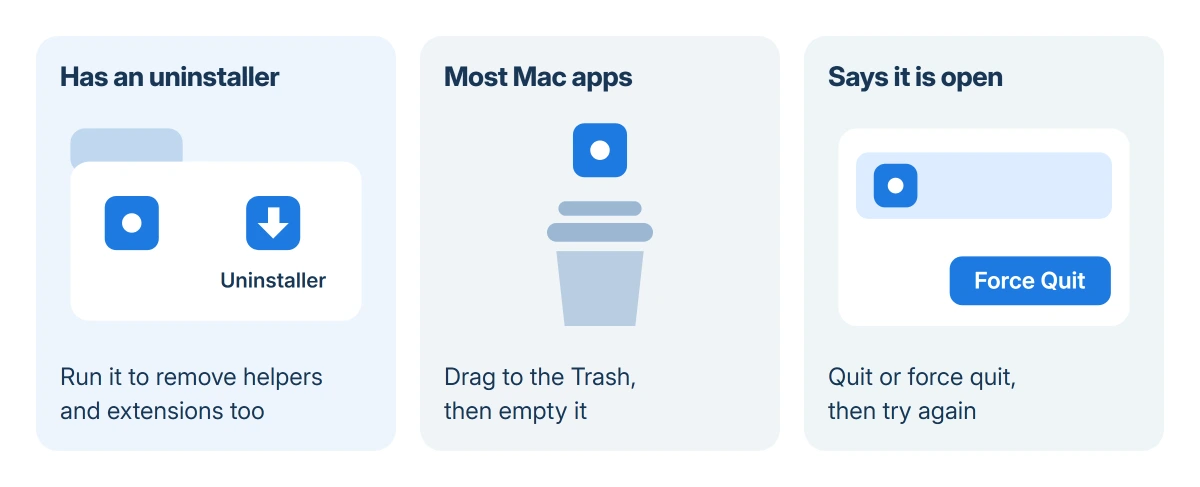
Quit the app, check its folder for an uninstaller, then drag the app out and empty the Trash. Your documents stay where they are, and any subscription keeps billing until you cancel it separately.
Quit the app and find it in Finder
A running app cannot be deleted, so quit it first with Command-Q or Quit from its menu. Apps with a menu bar icon often keep running after their window closes; quit those from the icon's own menu.
Open Finder and click Applications in the sidebar, or choose Go > Applications. A few apps install into the Applications folder inside your home folder instead, which Go > Home opens.
Status: Apple's uninstall, force quit and Login Items pages, as of 18 October 2026, covering macOS 27 and Tahoe 26. We could not try the steps on a Mac here.
Not sure where an app lives? Search for it with Spotlight, then hold Command while you double-click it in the results. Apple says this shows the app in Finder, in whichever folder holds it.
Use the app's own uninstaller when it has one
Open the app's folder in Applications before dragging anything. An item named Uninstall or Uninstaller next to the app is the better route, and Apple documents that in its uninstall instructions.
The reason is everything outside the app itself. An uninstaller can remove the login items, extensions and other data the app stored elsewhere, which the Trash never touches.
Antivirus tools, VPNs, drivers and Adobe's Creative Cloud apps usually ship one.
Some apps hide it inside the app instead: a menu item or a setting called uninstall, remove or reset. Check the app's Help menu and its settings before you fall back on the Trash.
Drag the app to the Trash
Drag the app's icon onto the Trash at the end of the Dock, or select it and choose File > Move to Trash (Command-Delete). Type an administrator name and password if macOS asks; that is usually your own login.
The app is still recoverable at this point. Select it in the Trash and choose File > Put Back if you change your mind. Choosing Finder > Empty Trash removes it for good and frees the space.
App Store apps go the same way. On macOS Sequoia and earlier, Launchpad also deletes them: hold Option until the icons jiggle and click the X.
macOS Tahoe 26 replaced Launchpad with an Apps view, and Apple's current page names only Finder as the route.
When the Mac says the app is open
A message that the item can't be moved to the Trash because it's open means some part of the app is still running, often a helper you cannot see. Press Option-Command-Esc, select the app in the Force Quit window and click Force Quit.
If the app does not appear there, open Activity Monitor from Applications > Utilities and search for its name. Helpers often carry the app's name plus Helper or Agent; select one and click the stop button to quit it.
Apple's fallback is a restart. Restart the Mac, then delete the app before opening anything else; if it still refuses, start up in safe mode, where only macOS's own items load, and try once more.
Turn off login items before deleting
Apps that open at login, or that hold permission to work in the background, start their helpers again at every restart. That is how an app comes back to "in use" straight after a restart.
Open Apple menu > System Settings > General > Login Items & Extensions. Pick the app in the Open at Login list, click the minus button under the list, and switch it off under App Background Activity. Then delete it.
A login item that keeps reappearing is also a reason for a closer look at slow startups, and the Mac login items guide reads that list entry by entry.
Apps you cannot delete
Mail, Music, Books, Notes, Podcasts, Maps, News, Stocks and the other apps installed by macOS cannot be removed in Finder. Apple keeps them because the system relies on them, and anything in the System folder is off limits too.
Hide one you never use by removing it from the Dock: drag its icon out of the Dock until Remove appears. That clears the clutter without touching the app.
Apps that a company or school installs through a device management profile may come back after you delete them. Ask the administrator who set the Mac up.
Clear the leftovers in the Library folder
The Trash removes the app but leaves its settings and caches behind. That is deliberate: reinstall the app and it remembers you. For an app you will never use again, those files can go too.
In Finder, hold Option and open the Go menu, then choose Library. Look for a folder or file carrying the app's or developer's name in these places:
- Application Support, which holds the app's data
- Caches, which holds temporary files
- Preferences, files ending in .plist with the app's name
- Containers and Group Containers, used by App Store and sandboxed apps
Move only items with the app's name to the Trash, and leave anything you do not recognize. I would empty the Trash a day later rather than at once, so that a mistake can still be put back.
Some apps leave files in the top-level Library folder on the startup disk too, mostly launch agents in LaunchAgents and LaunchDaemons. Those need an administrator password, and an uninstaller is the safer way to remove them.
When the Trash will not empty
A deleted app that sits in the Trash and refuses to go usually has a file still in use, so restart and empty it again. A message about a pathname that is too long has its own fix, covered in the Trash pathname guide.
If an app keeps returning after all of this, note where it reappears and what it is called, and contact Apple Support or the app's developer. Software that reinstalls itself without your say should be treated as unwanted software.
The Short Version
Quit the app, run its uninstaller if it has one, otherwise drag it to the Trash, then empty the Trash. Force quit or restart if the Mac says it is open, remove its login items, and clear its folders in Library only by name.
Where to Next
Which app refuses to leave your Mac, and what exactly does the message say? Put both in a comment. The wording tells me whether a helper is still running or macOS is protecting it.

Isaac Smith is the founder and editor of PC Glance, a website that covers computers, laptops, and technology. He is a tech enthusiast and a computer geek who loves to share his insights and help his readers make smart choices when buying tech gadgets or laptops. He is always curious and updated about the latest tech trends.