
To schedule an email, open the Send arrow and choose Schedule send in new Outlook or the web version. Pick the date and time, confirm it and check the scheduled message in Drafts.
Classic Outlook for Windows uses Do not deliver before and keeps the delayed message in Outbox. The account type and Outlook version determine which procedure applies.
Use Schedule send in new Outlook or the web
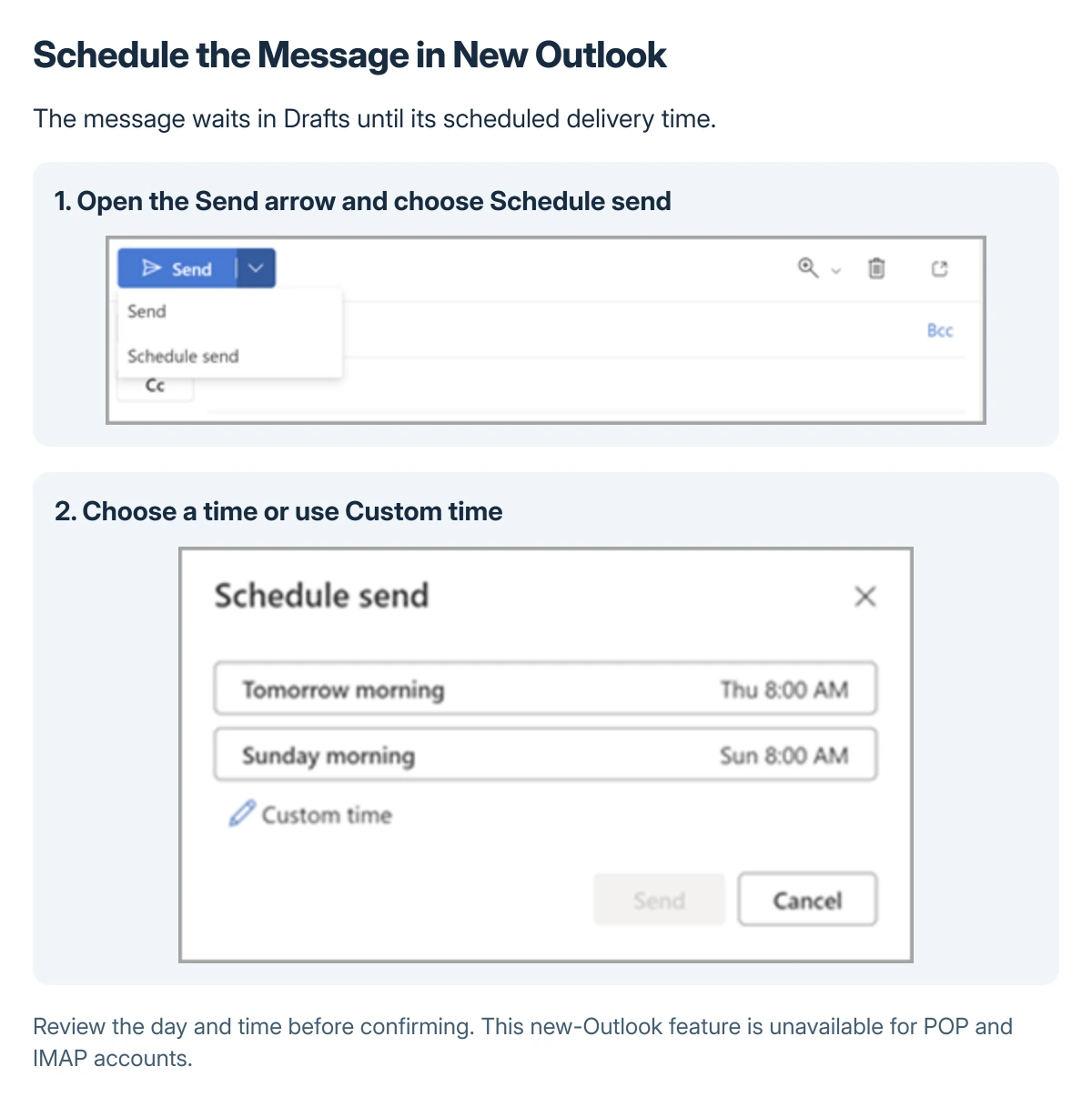
Compose the message and review its recipient, subject and content. Open the drop-down beside Send, choose Schedule send, then choose an offered time or enter a custom one and confirm Send.
Microsoft says the message stays in Drafts until its delivery time in its scheduled-delivery instructions.
Status: New, classic and web Outlook scheduling routes checked 22 October 2026. POP/IMAP limits and Drafts versus Outbox behavior were reviewed; no email was created or sent.
Read the displayed day and time before confirming. A schedule chosen from a suggestion should still match the intended delivery time rather than simply being the first option offered.
Check the account before looking for a missing button
Microsoft documents that this new-Outlook feature is unavailable for IMAP and POP accounts. Adding a mailbox to the app does not automatically give it the same scheduling features as a supported Microsoft mailbox.
If the menu is absent, identify both the app and mailbox type first. Do not rebuild the profile simply to search for a control the account does not support.
For an absence response rather than a message to send later, use the Outlook automatic-reply settings. Scheduling one message does not configure an out-of-office response.
In classic Outlook, set Do not deliver before
While composing, open the Message Options arrow in the ribbon's Tags group. With the simplified ribbon, Microsoft's instructions use Options > More commands.
Under Delivery options, enable Do not deliver before and choose the date and time. Close the options and select Send; the delayed message remains in Outbox.
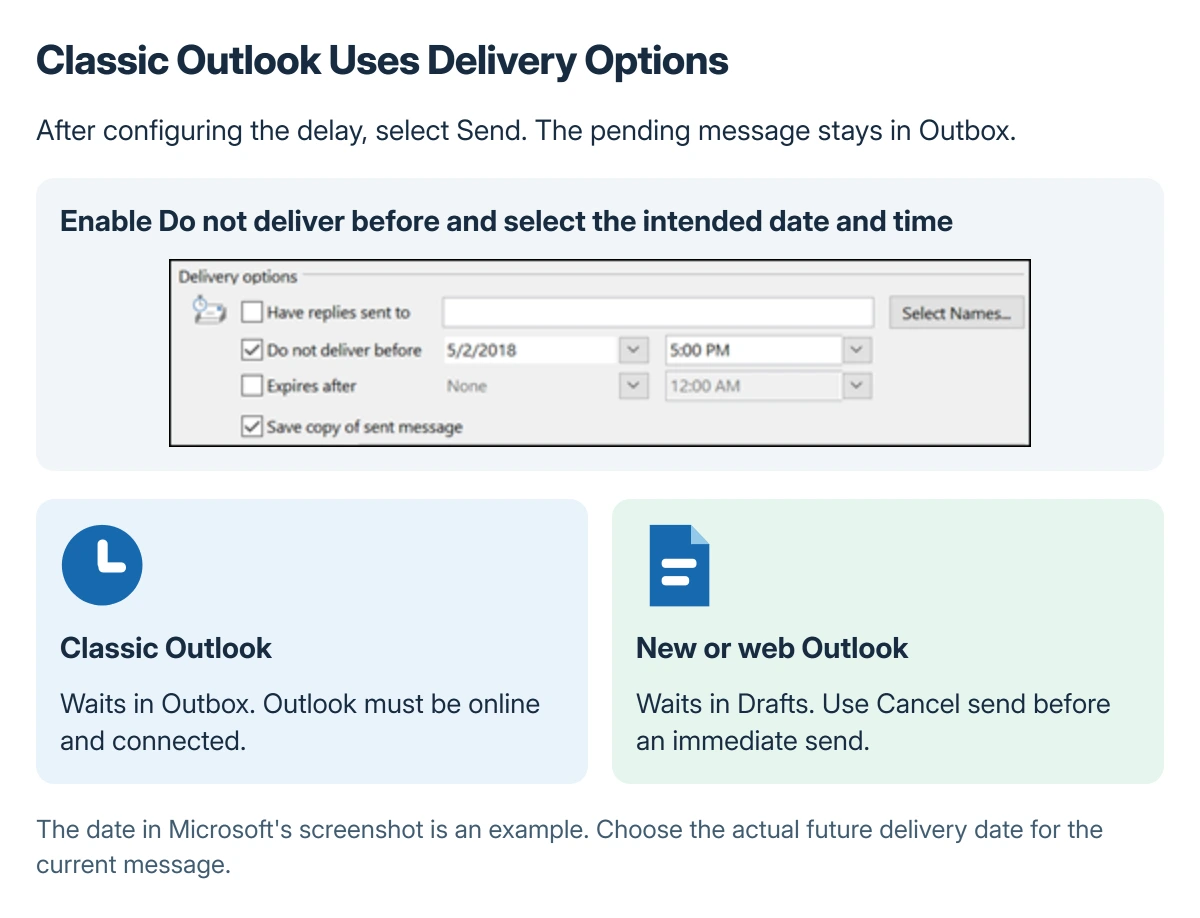
Used with permission from Microsoft.
Microsoft states that Outlook must be online and connected for this classic delivery feature. Do not assume a closed or disconnected desktop will complete the scheduled send on its own.
Send it now when the plan changes
In new or web Outlook, open the scheduled message in Drafts, choose Cancel send, then choose Send to send it immediately.
In classic Outlook, open the delayed message in Outbox, return to Delivery options and clear Do not deliver before. Close that dialog and select Send again.
Check the intended message before canceling its delay. The location differs by version, so looking only in Outbox can miss a correctly scheduled new-Outlook draft.
Keep scheduling separate from recall
Scheduling acts before delivery. The Outlook recall conditions apply after a message has already been sent and do not guarantee that a recipient outside the supported environment can be recalled.
If the selected time passes and the message remains unsent, note its folder, connection state, mailbox type and Outlook version for Microsoft Support or IT. Preserve the message instead of repeatedly creating duplicates.
The Short Version
New and web Outlook use the Send arrow's Schedule send command and hold the message in Drafts. Classic Outlook uses Do not deliver before and holds it in Outbox.
Check account support and the selected time. Classic delivery needs an online, connected Outlook session; immediate-send changes use different folder controls in each version.
Where to Next
Inspect the pending message in the correct folder before leaving the app. Confirm the recipient and schedule so the message does not wait until the wrong day or go to an outdated address.

Isaac Smith is the founder and editor of PC Glance, a website that covers computers, laptops, and technology. He is a tech enthusiast and a computer geek who loves to share his insights and help his readers make smart choices when buying tech gadgets or laptops. He is always curious and updated about the latest tech trends.