
Downloads on an iPhone usually belong in the Files app, rather than on the Home Screen. Open Files > Browse, then check iCloud Drive > Downloads or the destination selected for Safari.
The browser's download list and the saved file serve different purposes. Check the download's progress first if a file has not finished arriving.
Open Downloads from Files
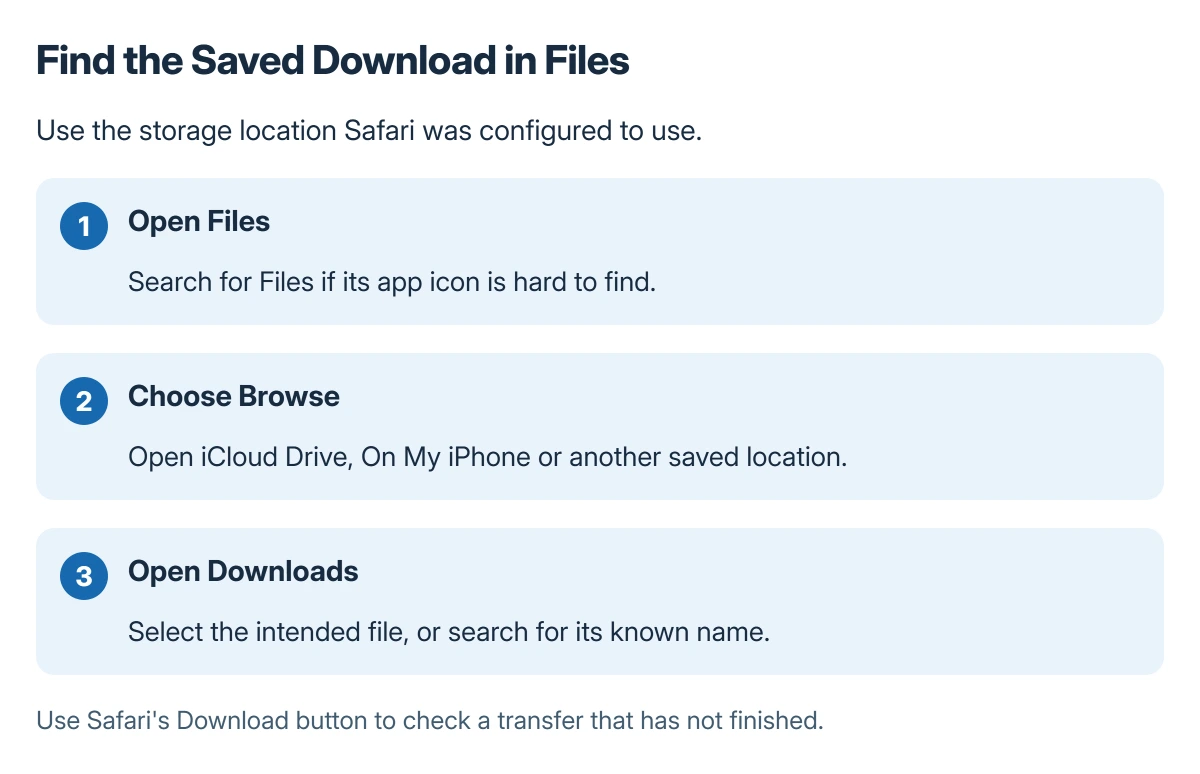
Open Files. If its icon is hard to find, search the iPhone for Files, then open the Apple app. Tap Browse to see the available storage locations.
Apple says to check Downloads inside iCloud Drive in its Files help page. Tap the downloaded file to open it; use Files search when its name is known.
Status: Apple's iPhone Files and Safari download-location instructions checked 22 October 2026. The saved destination can differ; no files were downloaded on a phone.
Browse can also show On My iPhone, connected external storage and supported third-party services. A file saved into one of those locations will not automatically be in iCloud Drive's Downloads folder.
Check Safari's actual save location
Open Settings > Apps > Safari > Downloads. Read the selected destination before changing it, because that tells you which location to inspect in Files.
Apple documents three choices: iCloud Drive, On My iPhone and Other. The first two use a Downloads folder in that location; Other lets the user choose another folder.
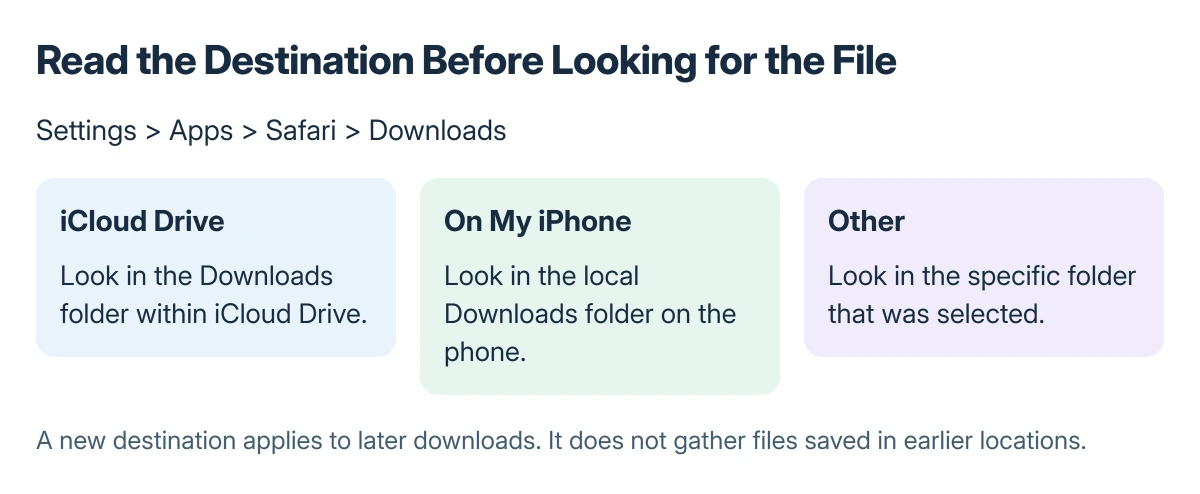
Changing this preference chooses where subsequent Safari downloads are saved. To find an earlier file, check where it was saved at the time rather than assuming the new preference moved it.
If Safari settings seem to have disappeared, the iPhone app-settings location guide explains the Apps section used by current iOS versions.
Check progress and the type of item
Apple states that Safari's Download button can show a downloading file's status and give quick access to downloads. Return to Safari and inspect that list when the expected file is absent.
A stalled transfer needs a working connection and a completed download before Files can open the finished item. Check the intended filename rather than repeatedly saving different copies without inspecting them.
For an image saved to the photo library, look in Photos. Apple's Files page distinguishes that library from an image file deliberately saved into Files.
An image that opens but will not let you select its words has a different problem. The Live Text in Files guide covers the Preview and Quick Look distinction.
If the file exists but no suitable app opens it, check the file type with its sender or the app provider. A storage-location change cannot make an unsupported file format readable.
The Short Version
Check Files > Browse and the Downloads folder in the location selected by Settings > Apps > Safari > Downloads. Use Safari's download list for progress; use Photos for items saved to the photo library.
Where to Next
Once the file is open, confirm it is the intended version before sharing it. Use its actual saved location when moving or organizing it later.

Isaac Smith is the founder and editor of PC Glance, a website that covers computers, laptops, and technology. He is a tech enthusiast and a computer geek who loves to share his insights and help his readers make smart choices when buying tech gadgets or laptops. He is always curious and updated about the latest tech trends.