

Cropping an image on Mac removes the area outside a selection. Open a duplicate in Preview, select the part to keep, and use Crop. Resizing is a different command: it changes dimensions without choosing which part of the picture remains.
Save a duplicate before cropping
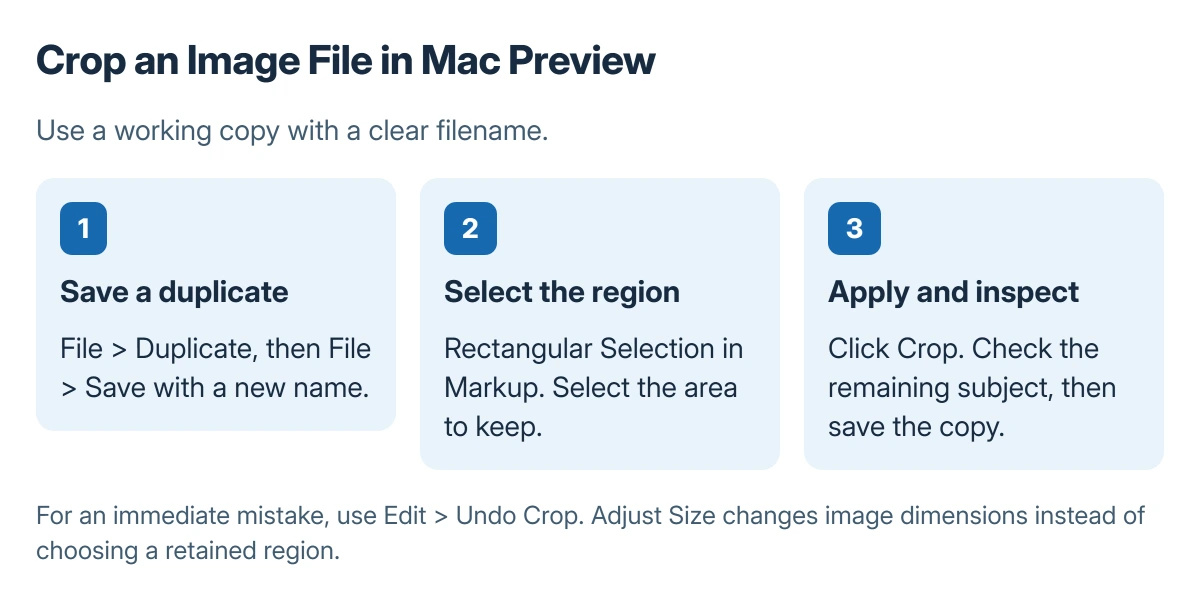
Open the image in Preview, then choose File > Duplicate. Save the copy with File > Save, using a new name and the intended folder. Work on that copy when the uncropped original should remain available.
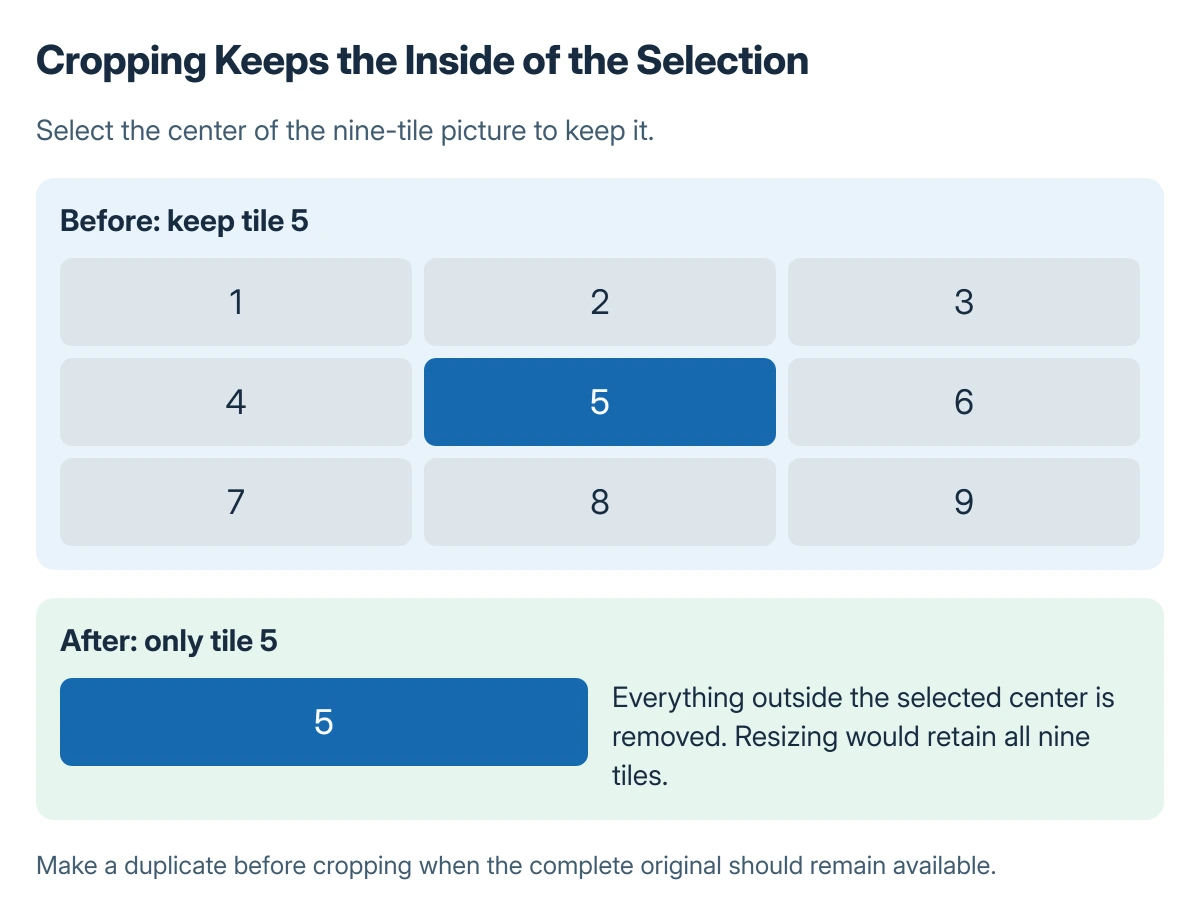
Status: Apple's Preview instructions. Image examples are original schematics, not screenshots. No personal photo was opened or edited here.
Apple documents Duplicate as the way to make a copy of an image in Preview. Keeping a clearly named copy also makes it easier to tell which file should be uploaded or sent afterward.
A picture made with Photo Booth on a Mac can be cropped after it is saved as an image file. These steps concern that file in Preview, rather than the Photo Booth camera controls.
Select the part of the image to keep
- Open the working copy in Preview.
- Click Show Markup Toolbar if the markup tools are hidden.
- Choose Rectangular Selection.
- Drag across the part of the image that should remain.
- Click Crop in the Markup toolbar.
Apple says cropping begins by selecting the portion to keep. Review the selection before applying Crop, particularly when a face, caption or important edge is close to the selection boundary.
The Preview image guide names the toolbar controls. They are small icons, so pause over an icon to check its name when the tool is uncertain. Selecting a region alone has not yet cropped the image.
Inspect the result and undo a wrong selection
Check that the desired subject remains and no important content was removed. Save the copy when the result is correct, then confirm its filename and location before sharing it.
Apple states that Edit > Undo Crop reverses an immediate crop. For an earlier state later on, use File > Revert To > Browse All Versions and inspect available versions.
Availability of a suitable prior version should not replace keeping the original.
If the goal is a smaller whole picture, use Preview's Tools > Adjust Size instead. Cropping changes the composition; resizing changes the dimensions of the retained picture.
Keep file editing separate from Photos albums
The Photos organization guide covers albums and the photo library. Cropping a separate image in Preview does not by itself import that copy into Photos or organize a library album.
If the controls do not match, confirm an image is open in Preview. PDF cropping has different document behavior, so use the image procedure for an image file rather than assuming it removes PDF page content in the same way.
The Short Version
Duplicate the image, select the part to keep, and click Crop in Preview. Check the result before saving. Use Undo Crop immediately for a mistake, or Adjust Size when the whole picture needs resizing.

Isaac Smith is the founder and editor of PC Glance, a website that covers computers, laptops, and technology. He is a tech enthusiast and a computer geek who loves to share his insights and help his readers make smart choices when buying tech gadgets or laptops. He is always curious and updated about the latest tech trends.