
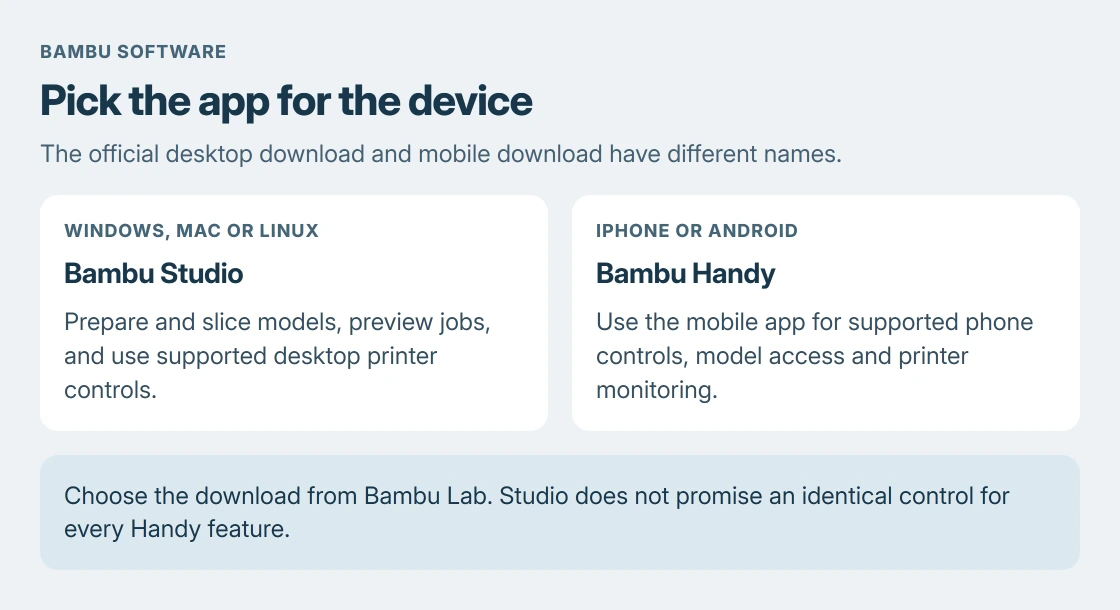
Searching for Bambu Handy for PC brings up two app names. Handy is the mobile app; Bambu Studio handles desktop slicing and printer work. Get Studio from Bambu Lab for preparing models or monitoring a printer on a computer.
Choose Studio for the computer and Handy for the phone
Bambu Lab's Studio download page provides Windows and Mac downloads and directs Linux users to GitHub. Its separate Handy page provides the mobile app.
Studio's slicing and remote-control features are documented by the vendor. Use it to prepare a model and send work to a compatible printer. Check Handy-specific features separately; the apps have different interfaces.
Status: Bambu Lab's Studio, Handy and official repository pages checked 24 October 2026. No app was installed, account accessed, printer connected or print started.
For a computer download, use the Studio page's links. A site offering an unrelated installer under a Handy for Windows label is not the official download route described here.
Download the desktop version that matches the system
Open the official Studio page and select Bambu Studio (Win) or Bambu Studio (Mac) for the computer. Choose the regular release unless there is a specific reason to use the separately labeled beta.
At this check, the page lists Windows 10, 64-bit or later and macOS 10.15 or later. Compare the requirements on the current download with the actual computer. A stated minimum does not extend an operating system's security support.
Linux packages and release notes are linked through Bambu Lab's official GitHub repository. Use the package and platform notes for that release rather than downloading a random Windows installer on Linux.
Microsoft says to install downloaded programs from trusted publishers in its online installation instructions. Check the source before running the downloaded Studio installer.
The Windows app-download explanation separates a browser installer from Microsoft Store installation. Those are different ways of obtaining software, rather than different names for the same app.
Open a model before trying to send it to a printer
Bambu's Studio quick-start guide explains the setup choices. Match the Printer, Filament and Process presets to the actual printer, nozzle, material and job.
Choose New Project, then drag the model file into Studio. Check its dimensions, orientation and settings. Select Slice and inspect the Preview before sending or exporting the job.
For a project brought over on a flash drive, copy the file to the computer and open that copy in Studio. Keep the source file while checking the result.
Check the networking option before expecting remote control
Bambu Lab's repository documentation describes its networking plugin as optional. It adds networking functions. The documented fallback without it is exporting sliced work for printing through an SD card.
With the plugin enabled, sign in to the account used to bind the printer in Handy. Open Device and check the printer's status. For a local connection, follow the model's LAN-mode instructions instead.
If the needed function is a phone notification or another Handy-specific feature, compare the mobile instructions directly. Installing Studio does not reproduce Handy's interface or transfer every mobile setting.
When the computer blocks installation
Microsoft documents Settings > Apps > Advanced app settings > Choose where to get apps for Windows 11 app recommendations. A Store-only choice can explain why a publisher's desktop installer is rejected.
On a work or school computer, ask the administrator for the approved installation method. Do not disable security controls to make an unfamiliar download run. Record the full message and check it against the official release's requirements.
For a failure specific to Studio, provide Bambu Lab support with the operating system, Studio version and exact error. For a printer connection problem, include the printer model and connection mode, with account details kept private.
The Short Version
Get Studio for desktop work and Handy for the phone. Match the operating system and printer profile, inspect the sliced preview, and follow the documented networking or SD-card route for that printer.

Isaac Smith is the founder and editor of PC Glance, a website that covers computers, laptops, and technology. He is a tech enthusiast and a computer geek who loves to share his insights and help his readers make smart choices when buying tech gadgets or laptops. He is always curious and updated about the latest tech trends.