
Cloning a hard drive to a supported Samsung SSD can transfer Windows and files. Samsung Magician's Data Migration copies the selected source to the target SSD. Check both drives carefully: existing target data is erased.
Check that Data Migration supports both drives
Use the Windows version of Samsung Magician from Samsung's tools page. Samsung says Data Migration is integrated into Magician, so a separate download from a software mirror is unnecessary.
The source must contain Windows, and the current manual requires Windows 10 or later. The destination must be a supported Samsung SSD. This workflow does not clone a data-only disk or migrate Windows to an arbitrary SSD brand.
Status: Samsung Magician 9.0's migration requirements and Samsung's published sequence checked on 24 October 2026. No disk was cloned, decrypted, initialized or erased.
Samsung states that OEM storage supplied through a computer manufacturer is excluded from Data Migration support. Check the exact SSD model against the guide's supported list, even when its label says Samsung.
The new SSD also needs to fit the computer physically and electrically. The laptop storage-upgrade guide covers that compatibility check. Migration software cannot make a SATA drive fit an NVMe-only slot.
Back up and deal with encryption before starting
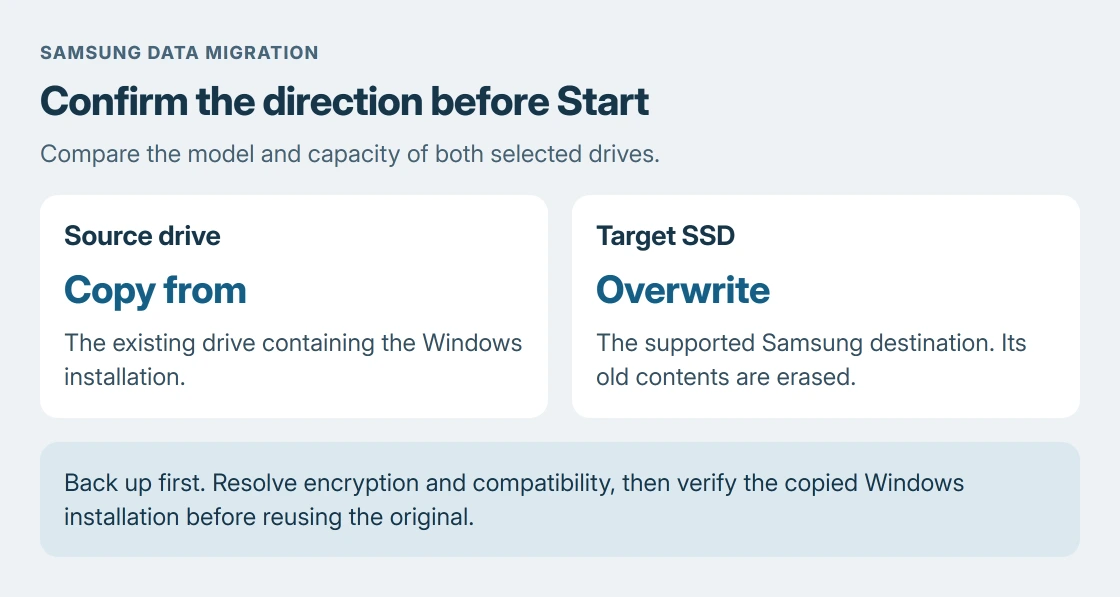
Back up important source files separately, and copy anything needed from the destination elsewhere. Samsung's tools page warns that cloning deletes the target's contents. Selecting the wrong target can destroy unrelated data.
If BitLocker or device encryption protects the source, obtain the recovery key before changing the storage setup. Microsoft documents where to find the BitLocker recovery key.
Samsung's manual says Data Migration cannot clone encrypted drives. A saved recovery key does not remove that restriction. Ask the administrator to handle encryption preparation on a work PC.
On a PC with BitLocker controls, search Start for Manage BitLocker. Choose Turn off BitLocker for the source volume and confirm. Microsoft's decryption procedure says the drive's status updates after completion.
Wait for full decryption before migration. Suspend protection leaves the disk encrypted, so it does not meet Samsung's requirement. If the available controls differ, ask Microsoft or the device maker for the matching decryption route.
Close running applications and keep the computer powered throughout the copy. Samsung recommends closing programs before migration and warns against disconnecting the SSD or terminating Magician during the operation.
Select the source, target and volumes in that order
Connect the supported destination SSD using a connection compatible with that drive. Open Magician and choose Data Migration. Samsung's SSD upgrade instructions describe this sequence:
- Select the device holding the current Windows installation as the source.
- Select the new Samsung SSD as the target.
- Choose the source volume or volumes to include in the copy.
- Review the selection and capacity, then choose Start when ready to overwrite the target.
Compare each displayed model and capacity with the intended drive. Do not identify a disk by position in the list alone. If the destination cannot hold the selected contents, resolve the selection or capacity before proceeding.
Follow Magician's completion prompts. Do not unplug an enclosure because its progress estimate appears unchanged. Samsung documents adapter and enclosure limits; check connection compatibility if detection fails before migration begins.
Verify the replacement before reusing the old disk
After migration, shut down and follow the computer maker's instructions to install or select the new SSD as the Windows boot drive. A USB connection accepted for copying does not establish that Windows can boot through it.
Start from the intended replacement and check that Windows, required applications and important files open. Keep the old disk intact until the replacement and the separate backup have been checked.
If encryption was turned off for copying, enable the appropriate Windows disk encryption again on the verified replacement. Save its recovery key separately from the SSD before returning the computer to normal use.
Samsung documents that migration omits page and hibernation files, which Windows manages. It also excludes most makers' OEM recovery partitions. The result need not retain the original factory-recovery setup.
If Windows marks one of two cloned disks Offline, the duplicate disk-identifier explanation covers that specific state. Confirm which disk should remain bootable before changing identifiers.
A failing source or unsupported target needs another route
Samsung warns that bad sectors on the source can leave the clone unusable. Repeating migration cannot repair the original disk. Preserve available files and contact a recovery specialist if they are irreplaceable.
For an absent or rejected target, check the supported model, adapter and encryption state with Samsung Support. For a clone that completes but cannot start Windows, give the computer maker the source and target models and the boot error.
The Short Version
Use Data Migration with a supported Windows source and Samsung target. Back up, resolve encryption and verify the selected drives before starting. The target is overwritten. Keep the original until the replacement boots and its files work.

Isaac Smith is the founder and editor of PC Glance, a website that covers computers, laptops, and technology. He is a tech enthusiast and a computer geek who loves to share his insights and help his readers make smart choices when buying tech gadgets or laptops. He is always curious and updated about the latest tech trends.