

X-Mouse Button Control can turn a working side button into Copy, Paste or another Windows action. Start with a profile for one application, leave the primary clicks alone, and apply one change before testing it in that application.
Check that Windows can see the button first
Get XMBC from its official Highrez download page. The developer describes it as a free Windows utility. It works with the installed mouse driver rather than replacing that driver.
Its standard five-button support is documented by the vendor, alongside wheel controls.
Extra proprietary buttons on a gaming mouse can require the maker's software. A large button count printed on the box does not establish XMBC support.
Status: Highrez's download page and XMBC user guide checked 24 October 2026. No mouse utility was installed, button remapped or application profile changed on this laptop.
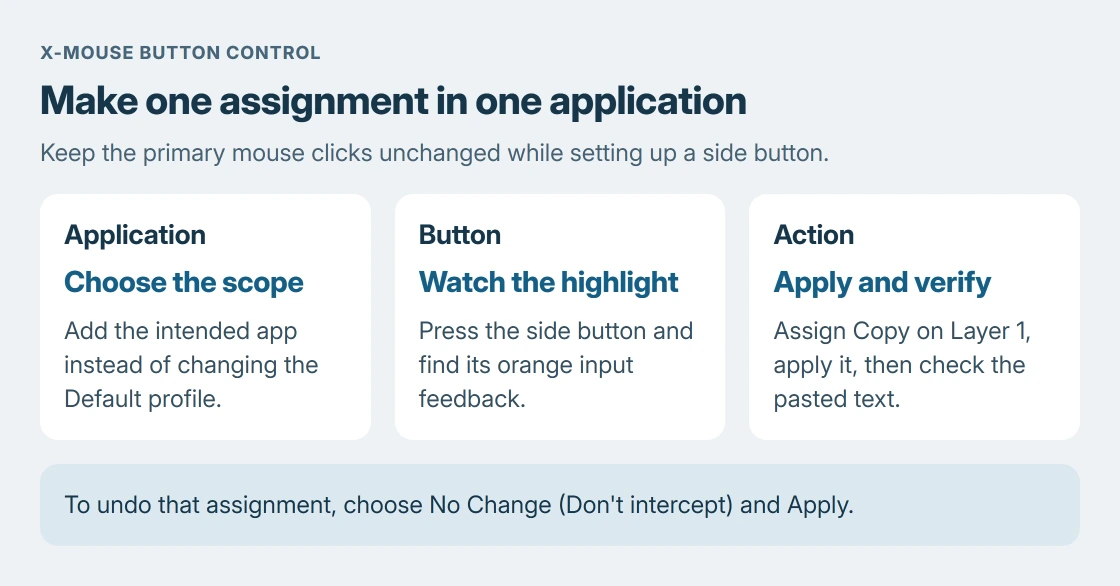
Open XMBC from its tray icon or Start. Press the intended side button. An orange highlight identifies the control receiving its Windows message.
No highlight means XMBC is not receiving a compatible message from that button, as the user guide explains.
If the pointer itself does not work, finish the wireless mouse connection first. Remapping requires a working input; it does not pair a receiver or repair a disconnected mouse.
Add a profile for the application that needs the shortcut
Open the target application, then choose Add under Application / Window Profiles in XMBC. Select that running app, name the profile, and confirm.
Use a harmless text editor for the first mapping. The recommendation is ours: an application profile confines the experiment, while editing Default changes behavior in windows without a matching profile.
Select the new profile and Layer 1 before editing the button.
Assign Copy and verify what the button does
Identify Mouse Button 4 or Mouse Button 5 by pressing it and watching the highlight, rather than assuming its position.
Choose Copy (Ctrl+C) in that button's action list and select Apply. Return to the target app and select disposable text. Point within that app and press the assigned button.
Press Ctrl + V in another empty text area to check what reached the clipboard. The copied selection should appear. That verifies the assigned action instead of relying on the changed dropdown alone.
The guide lists Paste (Ctrl+V) as another action. Assign it only when that is the intended job; an accidental paste can insert clipboard contents into whichever text field is active.
For only a left/right primary-button swap, Microsoft documents that setting in its Windows mouse controls. A separate remapping utility is unnecessary for that built-in option.
Undo the assignment or check the active profile
No Change (Don't intercept), then Apply, restores the original action. Clearing the profile's checkbox disables that profile.
For an unexpected result, check the selected profile and layer. Default applies where another profile does not match.
The mouse-driver guide separates configuration utilities from actual device drivers. A working button with an unwanted action needs an assignment check before another driver search.
For an unsupported side button, consult the mouse maker about its Windows button mode. For a profile that still fails despite orange input feedback, use the Highrez support links with the application, XMBC version and selected action.
The Short Version
Check the side button's orange highlight, add the intended application's profile, and assign one action on Layer 1. Apply it and test the actual result. No Change restores the original button behavior.

Isaac Smith is the founder and editor of PC Glance, a website that covers computers, laptops, and technology. He is a tech enthusiast and a computer geek who loves to share his insights and help his readers make smart choices when buying tech gadgets or laptops. He is always curious and updated about the latest tech trends.