
To drop a pin on iPhone, open Apple Maps and touch and hold the intended spot on the map. When its marker appears, use Move to adjust the position, then Pin to keep it for later.
A dropped pin is useful for an entrance, meeting point or other location without a searchable name. Check the position before sharing it; the point selected can be somewhere other than the iPhone's current location.
Place the pin at the spot that matters
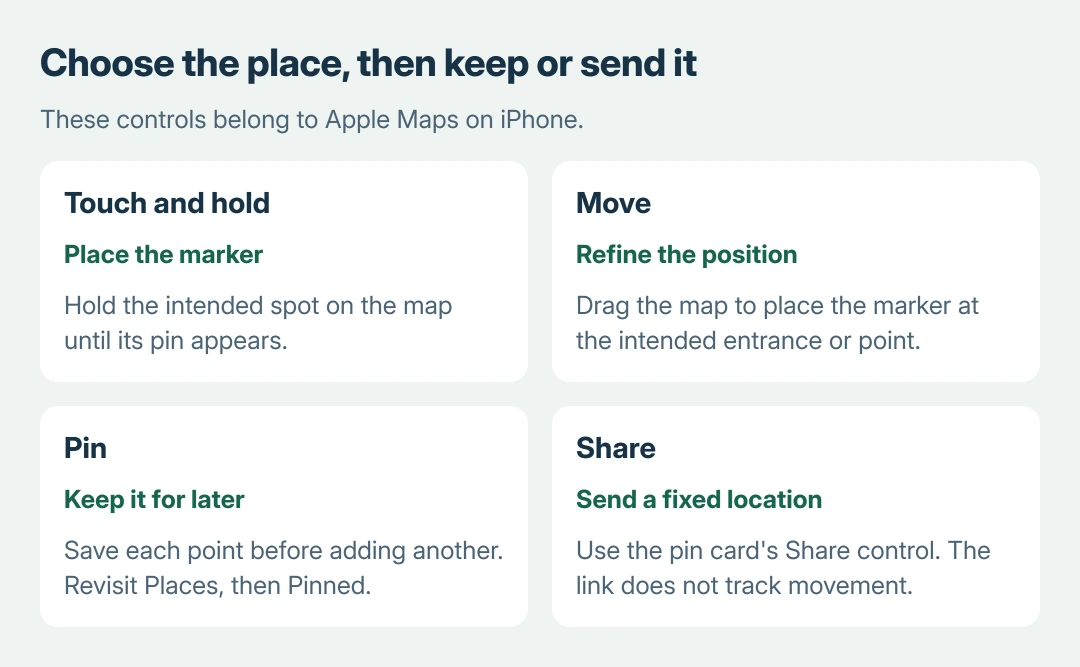
Open Maps and zoom in on the intended area. Touch and hold the location until the pin marker appears. If it misses the intended entrance or roadside position, tap Move and drag the map to refine the spot.
Apple documents the gesture and Move control in its Maps pin instructions. A quick tap on the map is not the same gesture as holding it to place a new marker.
Status: Maps pin, Places and location-sharing guidance checked October 27, 2026. Instructions refer to Apple Maps on current iPhone software. No map location was created or shared.
Our recommendation is to mark the accessible entrance when arranging a meeting, rather than the center of a large property. Check nearby road names and confirm with the recipient when several entrances look alike.
For the current position instead, touch and hold the Maps Home Screen icon, then choose Mark My Location. This is a separate shortcut Apple provides; it does not require finding that position manually on the map.
Keep more than one location in Places
Tap Pin to save the selected point. Apple states that only one dropped pin appears at a time unless it is saved to Places. Save each point before marking the next one.
Open Places > Pinned to revisit saved pins. Tap the pin's information button to change its Label, using a name that distinguishes the location from other saved points.
For an existing business or other named place, Apple's Places guide also provides More > Add to Places on its place card. Saving a named place can be simpler than dropping a new marker on it.
Remove a saved pin through Places > Pinned, swipe left on its entry, then tap Delete. The pin's information control also offers Unpin. Removing the saved entry does not change the physical location or the business listing.
Send the pin as a location link
On the selected pin's card, tap Share and choose Messages, Mail or another available destination. For an existing saved pin, open Places > Pinned, swipe left on the entry and tap Share.
Apple's place-sharing instructions describe sending a place through the card's Share button. Check the selected point before sending the link to the recipient.
A pin identifies a fixed place. Apple says one-time location sharing does not follow the sender's movement in its location-sharing explanation. Ongoing Live Location is a separate choice.
Use that ongoing sharing feature when the other person needs movement updates. Sending several new pins is a different arrangement and requires choosing and sending each point again.
Open directions or copy coordinates
Tap a saved pin, then its directions button to plan a route there. Inspect the route and travel mode before starting. If the route runs but stays silent, use the Maps spoken-direction checks.
For coordinates, open Places > Pinned, select the pin and swipe up to Coordinates. Touch and hold the latitude and longitude, then tap Copy. Confirm the selected pin's label before pasting them elsewhere.
Saving a pin does not download its surrounding streets. Before a trip without reliable internet, use the offline Maps download guide for that separate task.
If Maps repeatedly fails to save or reopen a pin, report the iOS version and exact failing action to Apple Support. A wrong business position should instead be reported through the place card's map-issue controls.
The Short Version
Hold the map to place the marker, adjust it with Move and tap Pin to save it. Revisit saved locations in Places > Pinned. Share sends a fixed location; directions, coordinates and offline map downloads serve separate purposes.

Isaac Smith is the founder and editor of PC Glance, a website that covers computers, laptops, and technology. He is a tech enthusiast and a computer geek who loves to share his insights and help his readers make smart choices when buying tech gadgets or laptops. He is always curious and updated about the latest tech trends.