

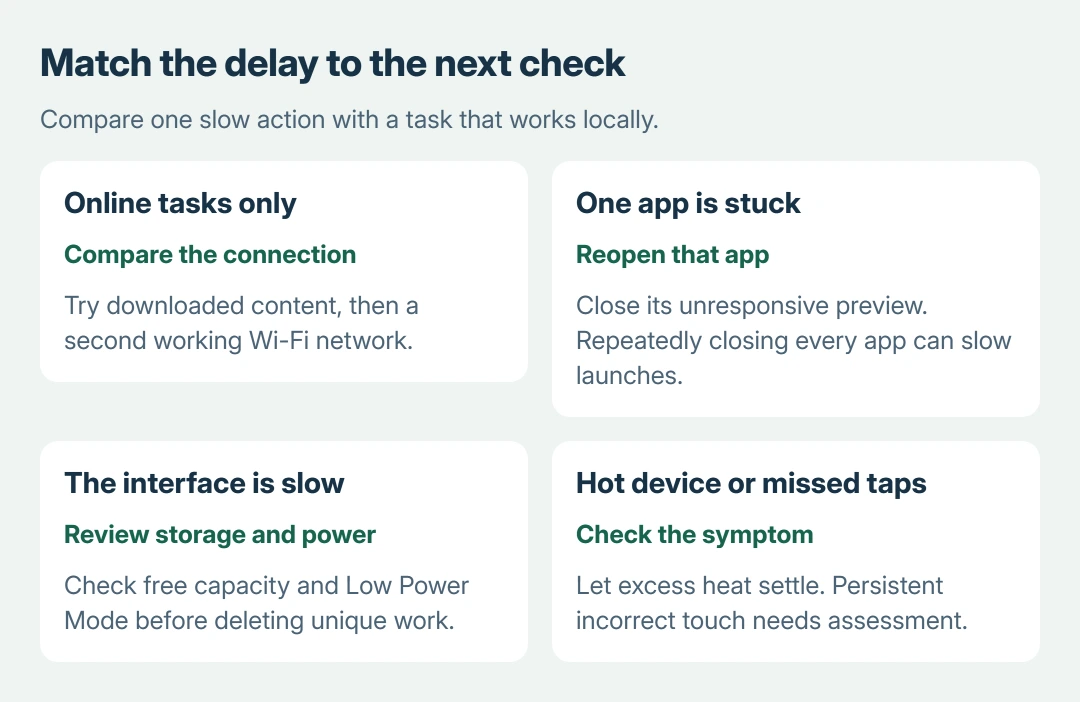
An iPad that is slow only while loading online content may be waiting on its network rather than its processor. Compare a downloaded item or a responsive Settings screen with the affected website first.
If the whole interface feels sluggish, check free storage, Low Power Mode and temperature. Close a stuck app when needed, but repeatedly clearing every app from the switcher can make reopening them slower.
Decide whether the delay needs the internet
Open Settings and move between its pages, then try content already downloaded to the iPad. Compare that response with a webpage or streaming app. This comparison is ours; it helps decide which behavior to address.
Apple says network congestion can make apps feel slow in its iPhone and iPad performance guidance. A strong signal alone does not guarantee a fast connection.
Status: Apple's iPad performance, storage, temperature and battery guidance reviewed October 27, 2026. Battery Health availability varies by model. No iPad performance was measured.
If downloaded content responds normally but online tasks stall, compare another working Wi-Fi connection. If the iPad performs normally there, address the original network rather than deleting apps from the tablet.
For Safari alone, the iPad browsing-data guide explains that cleanup when appropriate. Clearing browser data is not a general repair for slow games, delayed Settings pages or unreliable touch.
Close the app that has stopped responding
When just one app freezes, bring up its preview: without Home, slide a finger up from the screen's lower edge and stop halfway. On other models, double-click Home. Swipe the affected preview upward and reopen the app.
Apple documents closing an unresponsive app in the same performance checklist. It also warns that unnecessary force-closing can slow subsequent launches because the app must load its data again.
Check the same action after reopening. If that app alone remains slow, update it through the App Store and report the repeatable action to its developer. Avoid deleting an app until its local documents are safely preserved.
Check available space without deleting unique work
Open Settings > General > iPad Storage and inspect the used capacity and app list. 1 GB free is Apple's minimum recommendation for avoiding storage-related slowdowns. It does not promise a particular speed at that threshold.
Review the recommendations and remove expendable downloads through the app that owns them. Apple's device-storage guidance explains the app details; confirm what will be removed before accepting a cleanup.
Offloading preserves an app's documents and data, so it may leave the largest part of its storage in place. The linked cleanup article covers those choices in detail. Recheck available capacity and the original slow action afterward.
Compare normal power mode and a comfortable temperature
Open Settings > Battery and check Low Power Mode. Its yellow battery indicator is a useful signal. Turn it off temporarily when testing performance; its purpose is to trade some activity and speed for longer battery life.
If the iPad is hot after gaming, charging or direct sun, stop the demanding task and move it away from the heat. Apple states in its temperature guidance that protection can reduce frame rates and processing speed.
A temperature warning calls for turning the iPad off and allowing it to cool in a cooler environment. Do not keep running a demanding app to check whether the warning will disappear. Compare performance after normal conditions return.
Separate battery aging from missed touches
Apple's iPad battery explanation says aging can affect launch times, frame rates and processing. That possibility needs an assessment; a slow app cannot diagnose battery wear.
On supported models, check Settings > Battery > Battery Health. An absent menu on an older model is expected; the iPad Battery Health model guide explains that limitation.
Missed or incorrect taps can also make the tablet seem slow. Restart for that symptom. If touch still fails, or delays persist across apps despite the checks, contact Apple Support.
Supply the model, iPadOS version and the actions that remain slow.
The Short Version
Compare online tasks with downloaded content, close only the app that is stuck, and check storage. Test without Low Power Mode or excess heat. Persistent interface delays, battery concerns or missed touches need Apple's assessment.

Isaac Smith is the founder and editor of PC Glance, a website that covers computers, laptops, and technology. He is a tech enthusiast and a computer geek who loves to share his insights and help his readers make smart choices when buying tech gadgets or laptops. He is always curious and updated about the latest tech trends.