
Leaving Private Browsing on an iPhone means opening a regular Safari tab. In Safari's More menu, choose New Tab. For an existing page, open the tab overview and switch from Private to a regular Tab Group.
Leaving the mode keeps its private pages available for later. Close those pages separately if they should no longer be open.
Open a regular tab from Safari
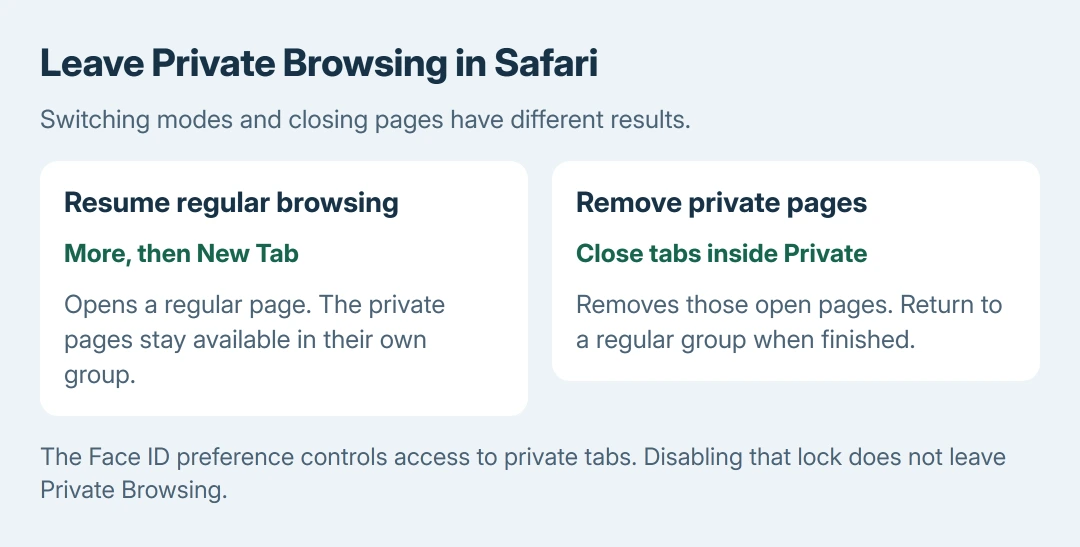
Open Safari, tap More (the three dots), then choose New Tab. This command is documented by Apple in the Private Browsing instructions. Choose New Tab rather than New Private Tab.
Apple says the address bar changes from the private mode's dark appearance to white or gray. The selected Tab Group provides another way to check which browsing mode is active.
Status: Apple's Safari instructions and iOS 26 and 27 user guides checked October 28, 2026. Leaving Private Browsing and closing its tabs are separate actions.
The Require Face ID to Unlock Private Browsing switch is a lock preference. Turning that switch off removes the authentication requirement; it does not switch the current page into regular browsing.
Return to an existing regular Tab Group
For iOS 27, tap Safari's Tabs button to display the tab overview. Swipe left along the Tab Group bar at the bottom until the regular group appears, then open the wanted tab.
On iOS 26 with Compact layout, tap More > All Tabs first. Then swipe left along the bottom group bar to leave Private. With the Bottom or Top layout, the Tabs button opens the overview directly.
Apple states in the iOS 26 Safari guide that private websites stay open after switching away. With private-tab locking enabled, they lock when the mode is left.
On iOS 17 or earlier, tap Tabs, swipe to the regular group labeled with its tab count, and select a tab. Match the controls to the installed version rather than searching Settings for a master browsing switch.
For regular tabs that appear missing after the switch, check the Safari Tab Group and profile choices. Each group holds a different set of pages.
Close private pages when they should not remain open
Return to Private in the tab overview and authenticate if prompted. Use the close control on each private tab that should be removed. Then return to the regular group or open a regular New Tab.
Closing Safari or locking the phone leaves those private tabs available. Apple's private-tab locking guidance explains that authentication protects open pages when Safari is no longer active.
A private visit will not appear retrospectively in the Safari history list after leaving the mode. Open a wanted address in a regular tab for future browsing; the earlier private visit stays absent from History.
Get help when the tab controls do not match
Check Settings > General > About for the iOS version. Note Safari's layout and whether Private, a numbered tab group or another named group is selected. Those details explain which navigation route applies.
If regular New Tab still returns to Private, report that behavior to Apple Support with the version and selected layout. Our recommendation is to describe the exact command used before changing unrelated privacy settings.
The Short Version
Choose Safari's More > New Tab, or switch from Private to a regular group in the tab overview. Private tabs remain open until closed. The Face ID preference controls their lock, rather than the browsing mode.

Isaac Smith is the founder and editor of PC Glance, a website that covers computers, laptops, and technology. He is a tech enthusiast and a computer geek who loves to share his insights and help his readers make smart choices when buying tech gadgets or laptops. He is always curious and updated about the latest tech trends.