
MacBook Pro screen flickering needs a check matched to the affected display. Identify the built-in screen or attached monitor first. Apple's documented external Adaptive Sync fix is to turn off variable refresh rate.
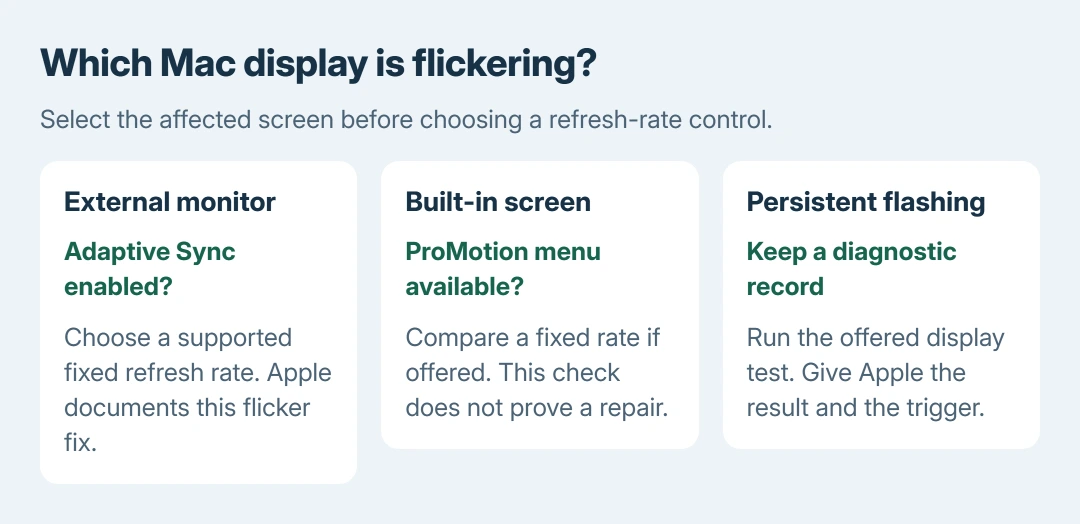
For the built-in panel, compare its display settings and startup behavior before assuming the same fix applies. Persistent flashing can require hardware service.
Identify the screen and the trigger
Note whether the flicker affects the laptop panel, an external monitor or both. Record whether it starts after waking, during one app, or immediately at startup. Save open work before disconnecting a display used for that work.
A brief white flash tied to an error sound follows the Mac visual-alert checks. Flicker confined to the narrow strip over the keys follows the Touch Bar checks.
Status: Apple's refresh-rate, Adaptive Sync, safe-mode and Diagnostics instructions checked October 28, 2026. No Mac was tested. The documented Adaptive Sync fix concerns external screens.
Those distinctions prevent changing the laptop panel's setting while watching a different monitor. In Apple menu > System Settings > Displays, select the affected screen before making a change.
Turn off Adaptive Sync on a flickering external monitor
Apple says an external display can flicker or stutter with Adaptive Sync in its Adaptive Sync instructions. Its advice is to disable variable refresh and check compatibility with the display maker.
In Ventura 13 and later, open Displays, select that external monitor, and open Refresh Rate. Replace Variable or Adaptive with a fixed rate the monitor supports, such as 60 Hertz when offered.
On Monterey 12, start in System Preferences > Displays > Display Settings, then select the monitor in the sidebar. Choose the fixed rate there.
Repeat the task that caused flashing. If it stops, keep the fixed setting while asking the manufacturer about Adaptive Sync compatibility. If it continues, the documented variable-refresh workaround has not resolved this case.
Check the built-in panel's available refresh rates
Apple documents different rate choices for supported models in its MacBook Pro refresh-rate guide. The built-in displays on 14-inch and 16-inch Apple-silicon MacBook Pros can offer ProMotion.
Select the built-in screen in Displays. If it offers ProMotion and a fixed 60 Hertz option, note the original choice and compare 60 Hertz during the same activity. Restore the original if the comparison changes nothing.
That built-in-panel comparison is ours. Apple's Adaptive Sync flicker warning addresses external displays; it is not a published cure for every ProMotion panel. A model without that menu cannot follow this test.
Apple's Displays reference also warns that unsuitable refresh rates can cause flicker or a black picture. Use offered, supported choices rather than forcing a custom rate.
Compare safe mode without declaring the hardware healthy
If normal startup reaches a usable desktop, update macOS and the affected apps. Then compare Apple's safe mode. It limits some startup software and changes graphics behavior.
For Apple silicon, shut down. Keep Power pressed until the startup options load, then select the startup disk. Click Continue in Safe Mode with Shift held.
For Intel, restart with Shift held until the login window. Test the same app or wake condition, then use a normal restart to exit that mode.
Flicker that returns only in normal use makes startup software a useful next check. It does not prove the panel or cable is healthy. Report the difference to Apple rather than replacing hardware based on this comparison alone.
Run the display diagnostic and arrange service
Apple states that Tahoe 26 and later can offer a specific built-in display test in Apple Diagnostics. Shut down, keep power connected, and disconnect unnecessary accessories first.
On Apple silicon, hold Power to reach startup options, release it, then hold Command + D. On Intel, start with D held; Apple's alternative is Option + D if needed.
Follow the prompts and retain any reference code. A test without a code cannot rule out an intermittent flash. Back up accessible files and contact Apple or an authorized provider if the built-in display continues flickering.
Include the model, macOS version, affected screen and trigger. Mention startup behavior, the fixed-rate comparison and any diagnostic result.
A video of the flicker can help demonstrate an intermittent fault.
The Short Version
Identify which display flickers. Disable Adaptive Sync for the external-display case Apple documents. Treat a built-in refresh comparison and safe mode as checks, then use Diagnostics and service when flashing persists.

Isaac Smith is the founder and editor of PC Glance, a website that covers computers, laptops, and technology. He is a tech enthusiast and a computer geek who loves to share his insights and help his readers make smart choices when buying tech gadgets or laptops. He is always curious and updated about the latest tech trends.