
Google Play Games not opening on Windows 11 can involve the app, its installing user, or unfinished virtualization setup. Exit through its notification-area icon and reopen it. Closing the main window may leave it running.
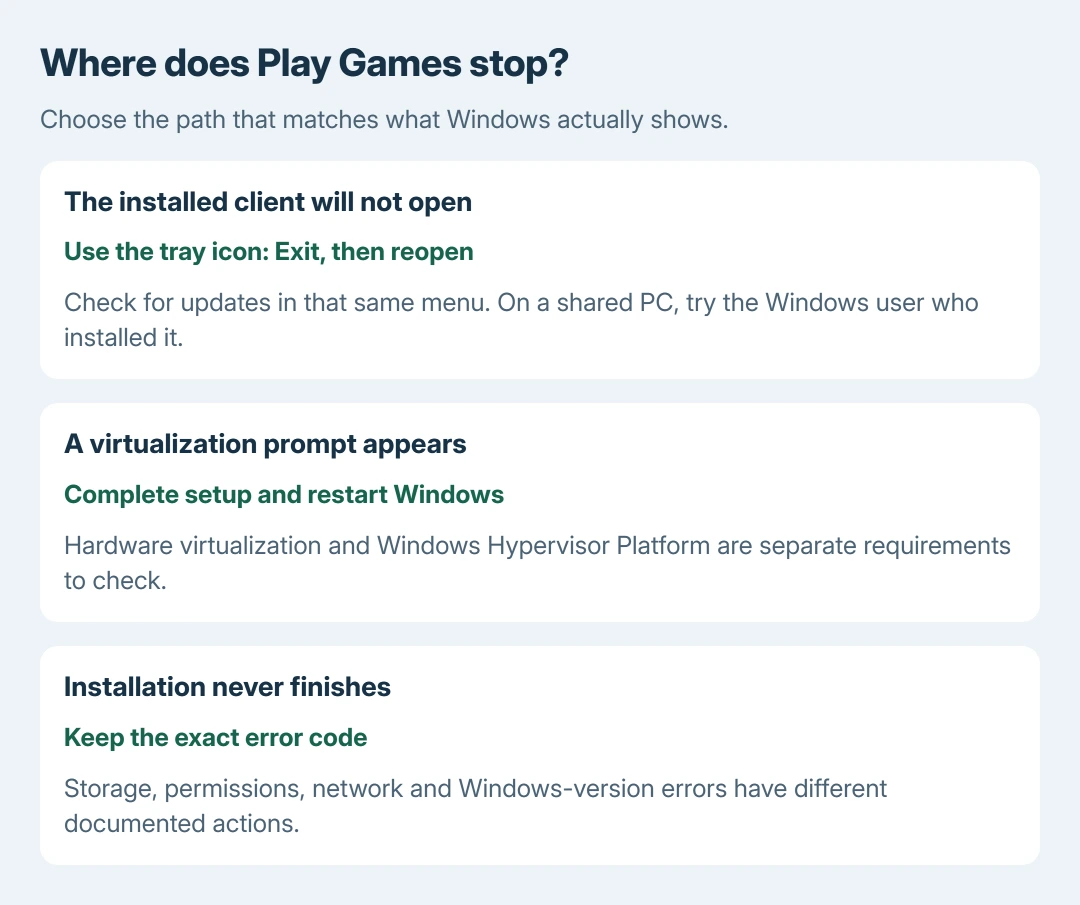
If installation never finished, keep the exact error code. Google assigns different remedies to storage, administrator-permission, network and Windows-version errors.
Exit the running app, then check for its update
Look for Google Play Games on PC in the taskbar notification area. Open the hidden-icons menu if necessary. Right-click its icon, select Exit, then launch the app again from Start.
Google's post-installation troubleshooting documents this restart. If the icon is available, its menu also offers Check for updates. Complete any update prompts before another launch attempt.
Status: Google Play Games on PC requirements, setup, restart and error-code instructions checked October 28, 2026. No app was installed, launched or removed for this article.
If the app opens but one game will not start, record that game's name. A working catalog with one failed title is different from a client that never opens. Google also identifies graphics drivers as a reason some games are unavailable.
Use the Windows driver-source checks for the affected graphics hardware. A driver update cannot add an unsupported graphics capability to the PC.
Try the Windows account that installed Play Games
Google says only the first Windows user who installed Google Play Games on PC can open it and play games in its setup instructions.
On a shared computer, sign in to that Windows account and try launching there. Changing an in-app Google Account leaves the Windows user session unchanged.
Google also requires a personal Google Account and a supported Play country or region. Take account and availability restrictions to Google Play support before attempting Windows repairs.
Finish the virtualization change and restart Windows
Hardware virtualization and Windows Hypervisor Platform are separate parts of setup. Google's PC requirements require hardware virtualization to be enabled.
During installation, Play Games may ask to enable Windows Hypervisor Platform. Accept that prompt on a PC you administer, save work, and restart Windows to apply it. An already enabled platform does not produce the prompt.
For CPU virtualization, consult the model's BIOS or UEFI manual. Google notes that many catalog games require it. Enabling a setting is different from flashing a new BIOS.
The BIOS update decision guide explains that separate operation. Do not install firmware merely because an instruction says to enable virtualization.
Google warns that enabling Windows Hypervisor Platform can affect other emulators. Check their compatibility before changing a shared development or gaming computer. Ask IT to handle a managed device's firmware and Windows features.
Match an unfinished installation to its code
Google's installation-error table distinguishes these examples:
| Error code | Next action |
|---|---|
| NU80070070 | Make enough storage available; Google requires at least 10 GB on C: for installation. |
| NU80070005 or NU80070542 | Use an authorized Windows administrator account. |
| NU80040804 | Download a fresh installer from Google's Play Games website. |
| NU80072F8F | Retry; if it persists, compare a different network. |
| NU80010108 | Move to a later Windows version, as Google's entry specifies. |
Windows 11 alone does not establish eligibility. Google states that its minimum includes an SSD, 8 GB RAM, four physical CPU cores and Intel UHD Graphics 630 or comparable graphics. Check the requirement the installer names.
Reinstall a broken client update, then report a repeatable failure
Google documents reinstalling when the client cannot update. Open Settings > Apps > Installed apps, locate Google Play Games, and use Uninstall. Download the installer again from google.play/games, then complete setup.
Check that important game progress is linked to the intended account before removal. Reinstallation is not a promise to preserve progress that a game stored only locally.
The stopping rule is ours: if the failure persists, stop repeating the installer. Contact Google Play support with the error, Windows version, installation account and virtualization prompt. Say whether only one game fails.
The Short Version
Exit through the notification-area menu, update, and try the installing Windows account. Complete a required virtualization restart. Follow the installer error, then use Google's reinstall or support route for continued failure.

Isaac Smith is the founder and editor of PC Glance, a website that covers computers, laptops, and technology. He is a tech enthusiast and a computer geek who loves to share his insights and help his readers make smart choices when buying tech gadgets or laptops. He is always curious and updated about the latest tech trends.