
All-Fi Wi-Fi extender issues need the model number and front light pattern checked first. Alternating red and green points to placement on the listed AT&T models; solid red can mean failed pairing or an inactive Extended Wi-Fi service.
Read the label before following reset advice. The AirTies 4971, 4981 Booster and 4991 do not assign every light pattern or button action the same meaning.
Identify the extender before changing its setup
Find the model on the unit's label and record whether its front light is solid, slowly pulsing or rapidly pulsing. Also note the gateway or All-Fi Hub model. A port's Ethernet light is separate from the front service light.
The model-specific responses are documented by the vendor. Use its matching model table instead of treating every red light as a reason to factory reset.
Status: AT&T's model-specific light sheets and setup requirements checked October 29, 2026. Internet Air Booster and Fiber extender instructions are distinguished. No network equipment was reset.
Check whether another device can browse near the main hub. If internet access fails there too, report the main service problem to AT&T before repeatedly pairing an extender.
Microsoft says to compare another device on the same Wi-Fi. The added near-hub comparison is ours: check whether coverage or the wider service has failed.
Alternating red and green: move it toward the hub
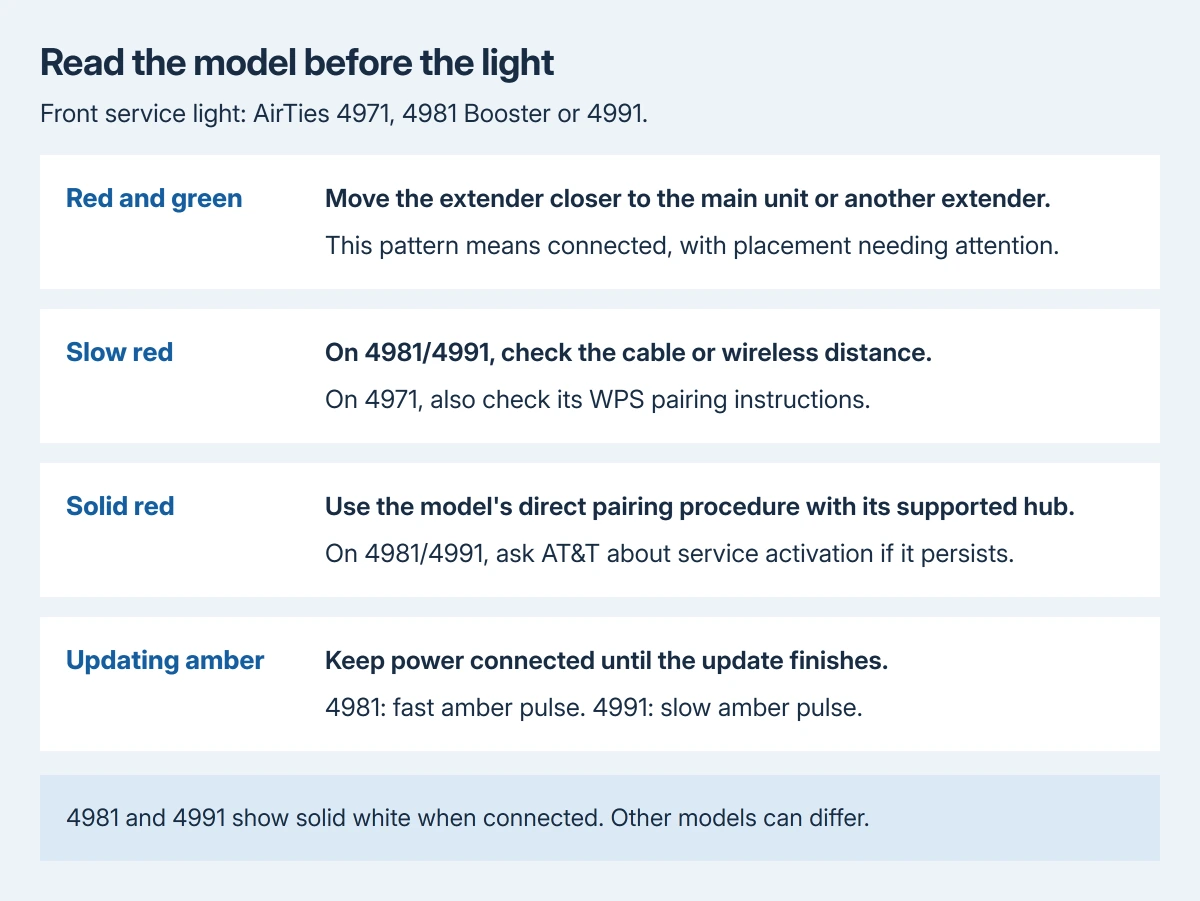
AT&T assigns this pattern to an extender that is connected but too far from its hub, gateway or another extender. Move it closer, then allow it to reconnect before testing the weak room again.
An extender placed inside the dead spot may have too little incoming signal to relay. The placement and speed guide explains why an extra Wi-Fi name alone does not establish useful coverage.
For the 4981 and 4991, the published connected indication is solid white. Check the appropriate sheet for another model rather than requiring an older unit to show that same color.
Slowly pulsing red: check the actual connection
For a 4981 Booster or 4991 extender, AT&T directs attention to a loose, disconnected or damaged Ethernet cable, or excessive distance from the hub. Reseat a wired connection or move a wireless unit closer.
The 4971 slow red blink also covers a lost connection or unsuccessful WPS attempt. Its guidance permits trying WPS again. Follow that model's pairing procedure instead of using a universal button-hold duration.
Retest the same device and task after the light changes. If the laptop joins Wi-Fi but websites still fail, distinguish the local wireless link from internet service before resetting the laptop's network settings.
Solid red: pair directly and check the service
For the 4981 or 4991, the official light sheets describe failed pairing, a possible third-party-router connection, or inactive Extended Wi-Fi service. They direct resetting the unit and pairing it directly to the hub by Ethernet.
For the 4971, AT&T's solid-red guidance first removes other Ethernet connections and connects the extender by Ethernet only to its paired gateway. Do not assume that plugging into any router establishes compatibility.
Review the setup requirements for the exact model. AT&T lists the 4991 with BGW620; its 4971 and 4971EM lists differ. Match the full model suffix as well as the number.
In Smart Home Manager, open Network, scroll to Wi-Fi equipment, and use the add-extender card or + control. Follow the guided process for the equipment and service on that account.
Ask AT&T for the reset sequence if the model's guide is unavailable. A factory reset clears pairing, so it should follow a matching procedure rather than a guessed hold time.
If solid red remains after the prescribed direct pairing, ask AT&T to check Extended Wi-Fi service activation, the compatible hub and replacement eligibility. Supply both model numbers and the light pattern.
Amber while updating: leave the power connected
The 4981 sheet identifies a fast amber pulse as an update; the 4991 sheet identifies a slow amber pulse. AT&T instructs leaving the unit powered until its light returns to solid white.
Updating amber and alternating red/green identify different states. If it never finishes, record how long it has remained unchanged and contact AT&T instead of repeatedly unplugging it.
For a 4991 with a dark front service light but a green power-jack light, its light sheet specifies replacement. Report that combination to AT&T rather than buying a new hub based on the dark front alone.
The Short Version
Read the unit's label, then interpret its light. Red/green calls for closer placement; slow red needs a connection check; solid red needs the matching pairing route.
Leave amber updates powered. AT&T can check service activation and hardware indications.

Isaac Smith is the founder and editor of PC Glance, a website that covers computers, laptops, and technology. He is a tech enthusiast and a computer geek who loves to share his insights and help his readers make smart choices when buying tech gadgets or laptops. He is always curious and updated about the latest tech trends.