
An HDMI connection puts a laptop's picture on a TV without wireless pairing. Connect the laptop's video output to an HDMI input on the TV, select that input with the remote, then set the laptop to mirror or extend its desktop.
A laptop without HDMI needs a compatible display adapter. Check the model's video-output specification before buying one, because the shape of a USB-C socket alone does not establish its display support.
Match the cable to the laptop's video output
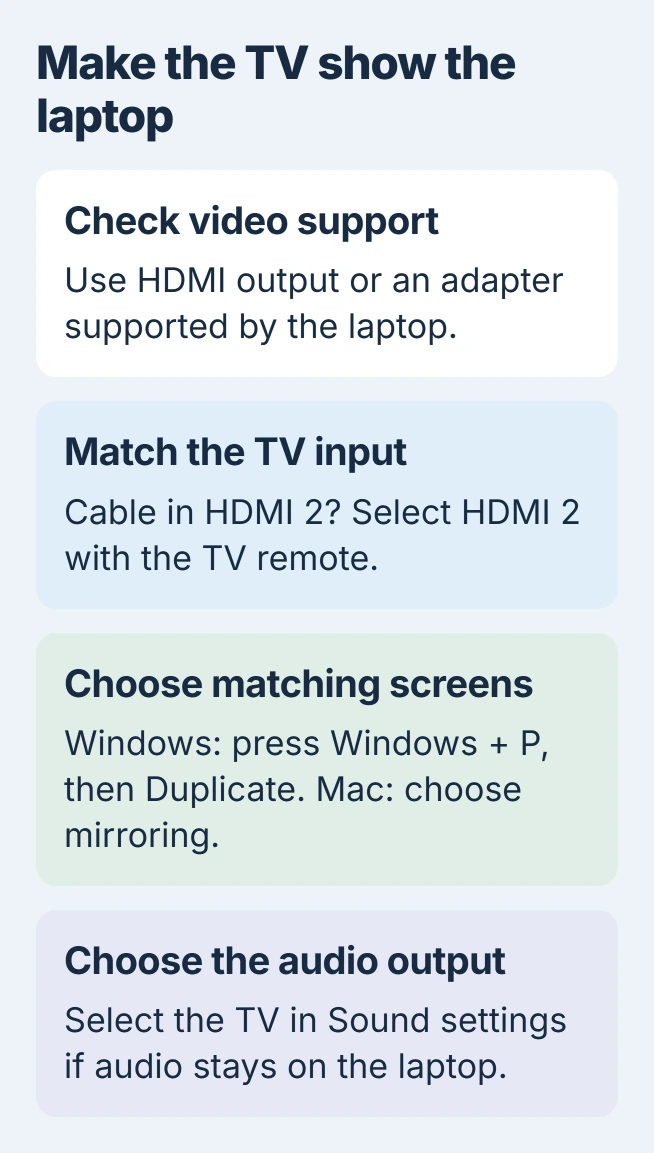
Use an HDMI cable directly when the laptop has that output. Otherwise, check the manufacturer's specification for a supported adapter, such as USB-C to HDMI. The adapter must support video from that particular port.
Apple documents its Mac HDMI connection options, including direct HDMI, USB-C or Thunderbolt adapters, and Mini DisplayPort adapters for older models. Match the connection to the Mac's actual ports.
Status: Wired TV setup reviewed November 2, 2026 for Windows 11 and current macOS. Output support depends on the laptop and adapter. No display was connected for a test.
Start with the laptop open and awake. Connect the cable or adapter firmly at both ends without forcing a connector. Leave wireless casting for the separate Windows wireless-display setup if a cable is unsuitable.
Select the TV socket that holds the cable
Read the HDMI label beside the connected TV socket. On the remote, press Input or Source, then choose the entry with that same number. A cable in HDMI 2 needs that input selected, even when HDMI 1 is also available.
The button name varies by TV. Use its manual if the source menu is hidden in the Home screen. Selecting a streaming app or TV channel will not display the laptop's HDMI signal.
An empty desktop background can mean the TV is already working as an extended screen. Choose mirroring next if the intention is to show exactly what appears on the laptop.
Windows: choose Duplicate or Extend
Press Windows + P. Choose Duplicate for matching screens, Extend for additional desktop space, or Second screen only to use the TV while the laptop's own display goes dark.
Microsoft says these modes control what appears on connected displays in its multiple-monitor instructions.
For a missing TV, open Settings > System > Display, expand Multiple displays, then select Detect. Check the TV input again if Windows still shows only the laptop panel.
If detection keeps failing, use the Windows second-screen checks. For a detected TV with the wrong resolution, select that display in Settings before changing its picture settings.
Mac: choose the TV's sharing mode
Current macOS can offer a connection prompt for sharing a window, mirroring or extending the screen. Choose mirroring to show the entire laptop desktop. Close private material before displaying it to others.
To change the choice later, open Apple menu > System Settings > Displays. Select the TV, open Use as, then choose the required mode. Apple says the mirror and extend controls require a connected display.
Moving a harmless window onto an extended desktop is a useful check before starting a presentation. A separate desktop is expected in that mode; it does not mean the connection failed.
Send sound to the TV and check a simple video
On Windows, open Settings > System > Sound and select the TV under Output. On Mac, open System Settings > Sound > Output and choose the TV. Check the TV's volume and mute setting as well.
Apple states that TV audio has its own output selection in its Mac TV instructions. A visible desktop alone does not establish that sound has switched devices.
If the desktop works but one streaming app refuses playback, contact that service with its error message. For a TV that remains undetected, give the laptop or adapter manufacturer both model numbers and the cable arrangement.
The Short Version
Match the laptop's video output to the TV's HDMI input, select the correct input number, then choose Duplicate on Windows or mirroring on Mac. Select the TV separately for audio when sound stays on the laptop.

Isaac Smith is the founder and editor of PC Glance, a website that covers computers, laptops, and technology. He is a tech enthusiast and a computer geek who loves to share his insights and help his readers make smart choices when buying tech gadgets or laptops. He is always curious and updated about the latest tech trends.