
KMODE_EXCEPTION_NOT_HANDLED in Windows 11 can come from a driver, system service or hardware fault. Start with any named driver and the change just before the crashes. The code alone does not identify a defective component.
The code is also written as 0x1E or 0x0000001E. Record it and any accompanying .sys filename before trying repairs, particularly if the PC restarts too quickly to read the message.
Follow the named driver and recent change
Microsoft documents this error as an unhandled kernel-mode exception in its 0x1E reference. Its troubleshooting advice starts with a driver named in the crash and recently added drivers or services.
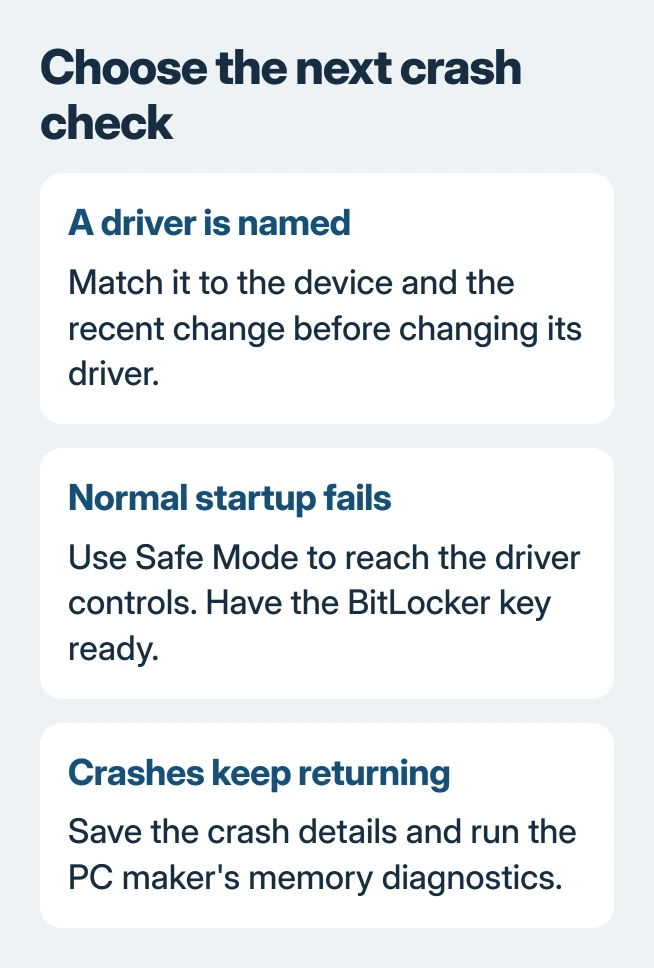
If the crashes began after connecting a new external device, shut down and disconnect that accessory for the next startup. Do not disconnect internal storage or remove an unfamiliar system driver just because its name appears in a report.
Status: Microsoft's 0x1E troubleshooting, driver rollback and Safe Mode guidance reviewed November 2, 2026. One older owner outcome is identified separately; no crash was reproduced.
For a crash that started after a specific driver update, open Device Manager from Start's right-click menu. Expand that device's category, open its Properties, then choose Driver > Roll Back Driver if available.
Administrator permission is required. Microsoft says rollback can resolve trouble introduced by a recent update in its Device Manager instructions.
Restart if requested, then retry the task that ended in a crash. If rollback is unavailable, get the supported driver from the device manufacturer. Check the package's model and Windows compatibility before installation.
When Windows offers a driver but its purpose is unclear, the driver update selection guide explains the choices. Updating every device at once makes it harder to connect the result to one change.
Use Safe Mode when normal startup keeps failing
For an encrypted PC, locate its BitLocker recovery key before entering recovery. From a usable desktop, open Settings > System > Recovery > Advanced startup > Restart now. Save open work before the restart.
In the recovery menu, select Troubleshoot > Advanced options > Startup Settings, then Restart. Press 4 or F4 for Enable Safe Mode once the numbered choices appear.
Microsoft's Startup Settings page explains that Safe Mode loads a limited set of drivers and services. If normal startup crashes but this mode stays usable, concentrate on software loaded during normal startup.
Use that access to address the identified recent driver, then restart normally. A successful Safe Mode startup does not identify a particular driver by itself or prove that every component is healthy.
If Windows cannot reach either the sign-in screen or recovery, contact the PC maker for its recovery-entry method. Repeated forced shutdowns and guessed firmware changes are not a substitute for that model's procedure.
Check the update history without assuming every crash is the same
Install the cumulative update offered in Settings > Windows Update when the PC can remain running. For a crash that began with KB5089573, consult the documented virtualization update repair, which also covered this stop code.
That specific regression already has a Microsoft fix. A later crash on an updated PC still needs its own diagnosis; the same code can describe an unrelated driver or hardware failure.
Run the manufacturer's memory and hardware checks
Microsoft states that its 0x1E troubleshooting includes the PC maker's diagnostics, particularly the memory test. Use the diagnostic instructions for the exact model and retain any failure code for support.
An owner on Windows 10 saw this stop alongside other crash codes. Driver updates failed to help; replacing faulty RAM later resolved the crashes. Their result demonstrates a hardware cause without diagnosing a Windows 11 PC.
A failed memory test gives the manufacturer something specific to assess. A passing test does not make repeated crashes harmless, and a stop-code name alone is not enough reason to buy replacement RAM.
Give support the crash evidence if it returns
Keep the model, Windows build, named module and crash trigger together. Check errors around that time in Event Viewer > Windows Logs > System; Microsoft recommends this log for extra driver or device information.
If Windows saved crash files in C:\Windows\Minidump, keep the relevant files for Microsoft, the PC maker or workplace IT. Use their private upload process when requested because a dump can contain system information.
Ask for dump analysis before changing firmware or processor settings. For a new machine crashing repeatedly, use its seller or manufacturer support while the return or warranty options are available.
The Short Version
Check the named driver and recent change, use Safe Mode for a startup failure, and apply supported updates. Recurring or varied stop codes justify manufacturer diagnostics and crash-dump analysis rather than a guessed replacement part.

Isaac Smith is the founder and editor of PC Glance, a website that covers computers, laptops, and technology. He is a tech enthusiast and a computer geek who loves to share his insights and help his readers make smart choices when buying tech gadgets or laptops. He is always curious and updated about the latest tech trends.