
Prism Launcher can stay stuck logging in to Microsoft even after the browser accepts your sign-in. Update Prism, let its account check finish, then try a different network if it remains on Working or reports a connection timeout.
The browser and launcher complete different parts of the process. Even after Microsoft accepts your sign-in, Prism still has to contact the gaming services and finish adding the account before Minecraft can start.
1. Finish the browser sign-in and check Prism's account
Open Prism's Settings and Accounts page, or choose Manage Accounts from the account menu. Select Add Microsoft and use the sign-in link or code it gives you.
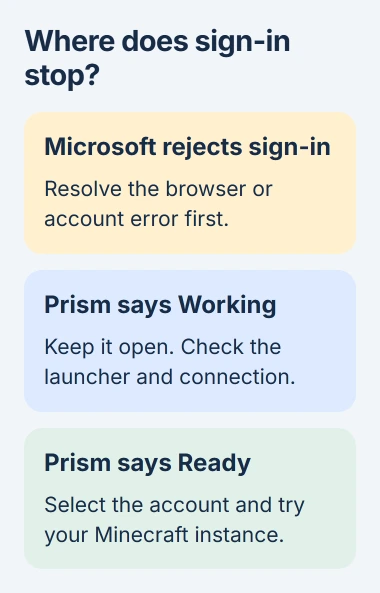
Choose the Microsoft account used to buy Minecraft or subscribe. If the browser has selected another account, switch before accepting the request. The wrong account won't give Prism the game access it needs.
Status: reviewed November 3, 2026. Current Prism releases improve Microsoft sign-in. Its issue tracker also records connection failures after the browser accepts a login.
After the browser confirms your sign-in, return to Prism and leave it open. Its developer asks you to wait until the account status changes from Working. Ready means you can use the account.
If the account reaches Ready, select it as the default account and try the instance again. An instance is Prism's separate Minecraft installation, usually with its own game version and mods.
Copy the full error shown in Prism. A rejected password, a timeout contacting a service, and an account without game access need different fixes, even if each stops you at sign-in.
2. Install the current stable Prism release
Close Prism and download the latest stable version for your operating system from its official page. This is the regular public release.
If you installed Prism through a package manager, the tool that installs and updates your apps, update it there. Reopen Prism and try signing in again.
Prism 10 improved Microsoft sign-in. Its release notes explain that the login link can carry the one-time code, and expired accounts can prompt for another sign-in.
The 10.0.5 release also includes clearer sign-in status messages and automatic retries for HTTP 429 responses. That code means the service is receiving too many requests, so rapidly starting more attempts isn't helpful.
These changes can help even if your older copy of Prism still opens normally. An update won't fix an interruption to Microsoft's services.
Keep your existing instances and worlds in place during the update. A failed account check doesn't require deleting the launcher data folder or recreating every modpack.
Advice to use a development build predates these fixes in the regular release. Choose the current stable package instead of an old nightly test build linked in a past discussion.
3. Use a fresh browser session for an account mix-up
If the Microsoft page keeps selecting the wrong account, open a private browser window and use the current sign-in link there. Microsoft documents New InPrivate window in Edge's three-dot menu.
Microsoft says InPrivate browsing doesn't retain cookies and other browsing data after that private session ends. Close any existing private windows first if they hold another sign-in.
This lets you choose the right account without signing out of your regular browser tabs. Finish any verification Microsoft asks for, then return to Prism and check the result.
If a human-verification page keeps restarting, try the Microsoft press-and-hold checks. Keep Prism open while you finish the sign-in you started.
If Microsoft rejects the account before it ever returns to Prism, use the Microsoft account recovery route. Changing Minecraft's Java version won't recover an account password.
4. Compare another network before changing game files
Disconnect an optional personal VPN and retry once. If the error remains, connect the computer to a phone hotspot or another trusted network, then repeat Add Microsoft from Prism.
An owner in Prism's Microsoft login issue added their account through a hotspot after home Wi-Fi failed, a user-reported workaround for this sign-in problem.
That owner later said home Wi-Fi worked after enabling IPv6, a newer system for internet addresses. Reports differ on VPNs and networks, so compare connections first; changing IPv6 isn't a fix for every connection problem.
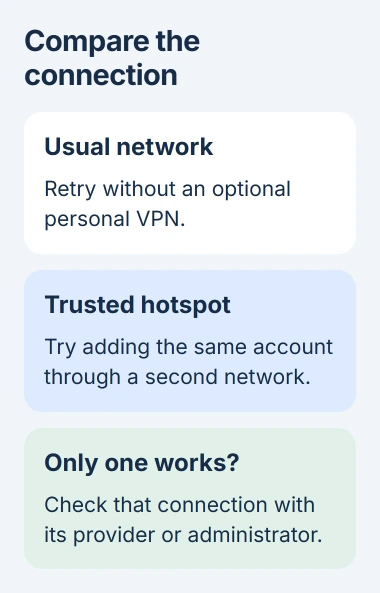
If the account works on the hotspot, check your home router's filtering, custom DNS service, or personal VPN settings. DNS is the service that looks up server addresses; filtering there can block a needed destination.
On a school or workplace network, send the error to its administrator. Keep managed protections in place and ask whether the Microsoft and Xbox sign-in services Prism needs are being blocked.
If both networks fail in the same way, stop changing the router. Check service availability and keep the exact error for support.
5. Check service status and refresh a saved account
Open Xbox service status and check for account or sign-in problems. Prism's issue tracker directs users there because the launcher depends on Microsoft's gaming services.
If a relevant outage is listed, wait until service returns before signing in again. A clear status page can still miss a connection problem in your area, so give support the results from both networks.
If your account is already listed, select it on the Accounts page and choose Refresh. This asks Prism to renew its saved sign-in details, so you don't have to add another entry straight away.
Sign in again if Prism asks. If it then reports a game ownership or Xbox-profile error, ask the account support team about that message instead of repeating the timeout fixes.
6. Send a launcher log when it still stalls
If only Prism still fails, tell its support team your launcher version, operating system, exact status, and what happened on the second network. Include whether Microsoft's browser sign-in finished.
Prism saves launcher logs, records of what the app did, in the logs folder inside its data folder. The issue tracker says the file ending in 0 is newest. Send that launcher log rather than only a Minecraft crash report.
On a standard Windows installation, look inside %APPDATA%\PrismLauncher. A portable copy keeps its data in the PrismLauncher folder. On other operating systems, use Prism's support instructions to find the folder.
Read the log before sharing it and use the upload method support requests. The error and when it happens help them separate a Prism sign-in failure from a Minecraft crash after sign-in.
The Short Version
Complete Microsoft's sign-in, then check for Ready in Prism. Update the launcher, compare a second network, and check service status. If it stays stuck, send Prism support the launcher log and exact error.

Isaac Smith is the founder and editor of PC Glance, a website that covers computers, laptops, and technology. He is a tech enthusiast and a computer geek who loves to share his insights and help his readers make smart choices when buying tech gadgets or laptops. He is always curious and updated about the latest tech trends.