

Missing GPU settings in an MSI laptop's BIOS often means the switch is in MSI Center, or your model doesn't offer it. Check MSI Center's Features page first, before changing BIOS settings.
Choosing which graphics chip runs one game is different from changing the graphics mode for your whole laptop. The setting you need depends on what you're trying to do.
1. Look for GPU Switch in MSI Center
Open MSI Center, select Features, then General Settings. On supported models, find GPU Switch. Its menu can offer modes such as MSHybrid Graphics Mode and Discrete Graphics Mode.
MSI also lists Features > User Scenario as a place to change graphics mode. Look there if you can't find the switch in General Settings. The choices depend on your laptop model.
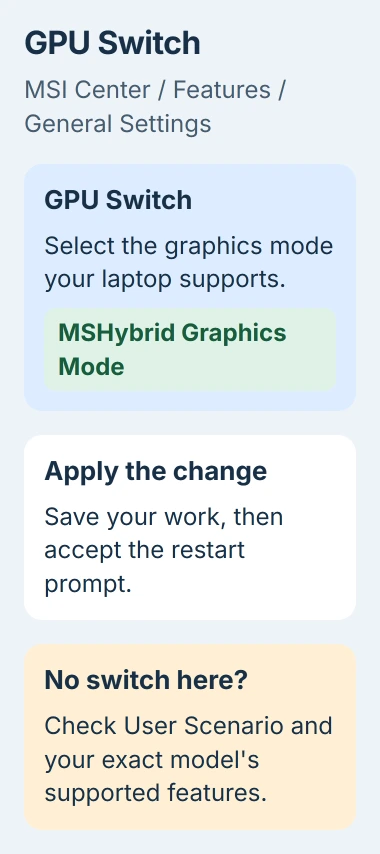
Status: MSI and Microsoft instructions checked November 3, 2026. Graphics modes vary by laptop. MSI Center can hold the switch even when BIOS has no matching setting.
These two locations are documented by the vendor. After selecting a different mode, accept the restart prompt to apply it. Save anything open before doing so.
Once Windows starts again, open MSI Center and check the selected mode. If it matches your choice, the change worked and you can stop looking for that switch in the BIOS.
If neither MSI Center page offers a GPU switch, check your exact model next. A video showing another MSI laptop isn't enough to tell you which controls yours should have.
2. Check whether the exact model supports switching
Find the full model name on the laptop's label or purchase record, including the letters and numbers after the series name. Look up that model on MSI's support site and open its manual and utility downloads.
A MUX switch changes which graphics hardware connects to the screen. Your laptop can have integrated graphics built into its processor and a separate NVIDIA or AMD chip without having this switch.
MSI's graphics detection guidance says models without the graphics-mode feature in MSI Center don't support that switching option. Its switching guide also makes model support a requirement.
Use the MSI Center version and utilities listed for your model. If your older laptop came with a different MSI app, follow its instructions. A menu shown on a newer laptop may not be available on yours.
The advice to check your model first is ours. I'd confirm it supports switching before hunting through BIOS menus; hidden-menu shortcuts won't tell you whether your laptop has the feature.
If your model is listed as supporting the switch but the correct utility still lacks it, send MSI the model and utility version. Don't flash another model's BIOS to make its settings appear.
3. Match the mode to the graphics chip you're missing
On models with Integrated Graphics Mode, selecting it turns off the separate graphics chip to save power. That can make the NVIDIA chip disappear from the device list or stop its driver installer from detecting it.
MSHybrid Graphics Mode lets your laptop use integrated graphics and its separate chip as needed. Discrete Graphics Mode uses the separate chip; MSI says integrated graphics won't appear in Device Manager in that mode.
These differences are covered in MSI's graphics architecture and driver guide. Its advice is to select MSHybrid before installing the NVIDIA driver when Integrated Graphics Mode has hidden that device.
Right-click Start, open Device Manager, and expand Display adapters. Compare the devices shown with your MSI Center mode. If you've selected Discrete mode, it's normal for integrated graphics to be missing.
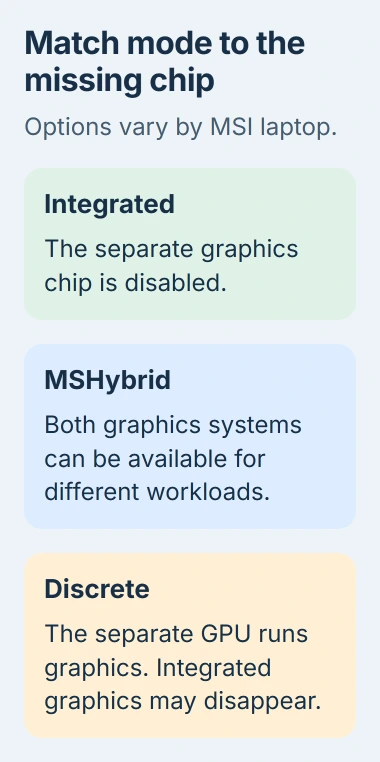
If you need both graphics devices available, select MSHybrid where supported, restart, then check Device Manager again. If both chips appear after the restart, the selected mode was hiding the missing one.
If an expected adapter still isn't listed, or it has a warning symbol, move to the driver check. Changing modes repeatedly won't repair a driver that Windows can't load.
4. Use Windows graphics preferences for one game
If a game uses the wrong chip, try its Windows graphics preference. You can choose an available GPU for that game without a BIOS graphics menu or a change to the whole laptop's mode.
In Windows 11, open Settings, then System > Display > Graphics. Select the app or game and open Options to view its graphics preference.
Choose High performance and check the GPU name shown with that choice. Save if a Save button appears, then close and reopen the game so it starts with the new preference.
Microsoft says this selection applies when the PC has multiple graphics processors in its Windows graphics settings instructions.
This preference can't turn on a chip disabled by Integrated Graphics Mode. If the GPU you want isn't listed, go back to the mode and Device Manager checks. Choosing the same preference again won't make it appear.
If your game now runs on the chip you wanted, keep that setting. You don't need a MUX switch to choose an available GPU for a game.
5. Repair a missing driver, then ask MSI about firmware
If Device Manager shows a graphics warning or a chip is still missing in MSHybrid mode, get the graphics drivers from your exact laptop's MSI support page. Check the drivers for both integrated graphics and the separate chip.
For systems with multiple graphics chips, MSI says to install the Intel or AMD integrated graphics driver first, restart, then install the NVIDIA driver. Follow your model's instructions if it has a different setup.
The Windows driver-update guide explains the difference between Windows Update and a manufacturer's package. A graphics driver is the software Windows uses to communicate with the chip.
After installing the drivers and restarting, check Display adapters again. Getting the chip working won't necessarily make a switch appear in MSI Center. A driver can't add a MUX switch that wasn't built into your laptop.
If the screen is frozen or black while the computer keeps running, use the display-driver recovery shortcut for that immediate symptom. It doesn't create missing graphics settings.
If the switch is supported but still missing, give MSI your exact model, BIOS and MSI Center versions, selected mode and Device Manager result. Let support choose any firmware or controller-reset steps for that model.
The Short Version
Check MSI Center's General Settings and User Scenario pages first. Confirm model support, then compare the selected mode with Device Manager. Use Windows graphics preferences for one game; repair drivers when an expected adapter is missing.

Isaac Smith is the founder and editor of PC Glance, a website that covers computers, laptops, and technology. He is a tech enthusiast and a computer geek who loves to share his insights and help his readers make smart choices when buying tech gadgets or laptops. He is always curious and updated about the latest tech trends.