
Chrome can stop requesting a Windows PIN when it fills website passwords: turn off Use Windows Hello when filling passwords in Google Password Manager. A prompt for viewing saved passwords or using a passkey has a different purpose.
The Windows Security box is checking that it's you. Removing antivirus protection won't stop it. Check Chrome's setting before you consider deleting your PC's PIN.
1. Identify what brings up the PIN box
Cancel the prompt once and look at the action you were taking. Were you filling a website's password field, opening a saved password's details, or using a passkey to log in?
A passkey lets you sign into a site using your device's PIN, fingerprint or face recognition. You don't enter the site's password, so this works differently from filling a saved password.
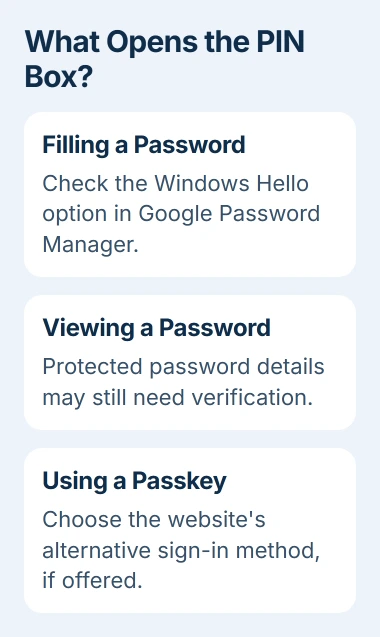
If the box says Chrome wants to fill a password, go to the next step. If it opens when you view a saved password's details or choose a passkey, follow the section for that action later in this guide.
Otherwise, it's easy to change the filling setting, open the password list to test it, and think the change failed. Viewing a saved password can still ask you to verify it's you.
2. Turn off Windows Hello for password filling
Open Chrome's three-dot menu, choose Passwords and autofill, then Google Password Manager. Select Settings in the password manager. You can also enter chrome://password-manager/settings in the address bar.
Find Use Windows Hello when filling passwords and turn it off. If Chrome asks you to verify it's you before making the change, choose an available sign-in method you already use on this PC.
Google explains this control in its password-management instructions. It uses Windows to check that it's you when Chrome fills a saved password. Turning it off removes that optional check.
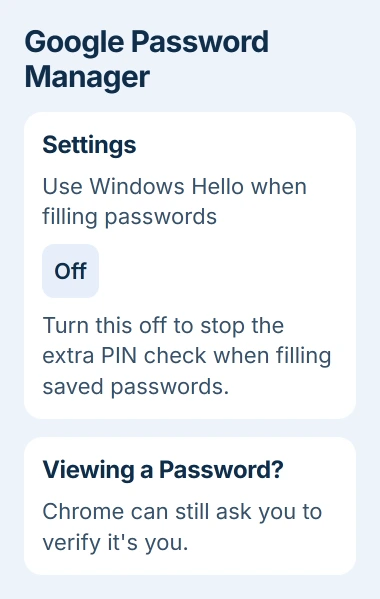
Return to a site's sign-in page and select its saved username and password to test filling the form. Clicking the eye button in the password manager reveals a password, so it tests something different.
With this check off, someone using your unlocked PC can more easily use your saved logins. If you share a PC, separate Windows accounts are the better way to give each person their own browser access.
I'd try this Chrome setting before changing how you sign into the computer. It stops the repeated prompt when filling forms and lets you keep unlocking Windows the way you normally do.
3. Understand why viewing passwords can still ask
When you open, copy, edit or export a saved password, Chrome may still ask you to verify it's you. Turning off the autofill check leaves these other checks in place.
Chrome's password-protection explanation covers these checks when you use or manage saved sign-in details. If filling a form no longer asks for verification, the setting change worked.
If the Windows box offers More choices or another sign-in option, choose a method you recognize. Some PCs accept a password here. PCs managed by an organization or set up without a password may not offer that choice.
Read the request before typing anything. The Windows Hello PIN is for signing into this PC. It isn't the website's password or necessarily your Google account password.
If the list itself is empty, follow the missing Chrome passwords checks before deleting a profile. A prompt and an empty password list need different repairs.
If the box rejects every valid sign-in method, note its exact wording and whether you're filling or viewing a password. Those details help Chrome support understand which check is failing.
4. Choose a password when the site is requesting a passkey
Cancel the passkey request and look for the website's alternative sign-in choice. Google uses Try another way to return to other available methods. Other sites can label their password option differently.
For a Google account, you can prefer password sign-in. Open your Google Account, select Security & sign-in, and turn off Skip password when possible under How you sign in to Google.
This changes how Google starts sign-in. You'll still need to complete any two-step verification your account requires, and Google may offer a passkey for that second step.
For other websites, check the site's own account and sign-in settings. Chrome's saved-password setting can't make a site accept a password if your account uses a different sign-in method.
Keep a working passkey until you've checked that another sign-in method works. Changing which method the site offers first is a smaller step than deleting a way into your account that you may need later.
5. Check which PIN the dialog actually wants
Google Password Manager can use its own PIN to protect encrypted passkeys, which are stored in a scrambled form. Windows Hello has a separate PIN. Either prompt can appear while you use Chrome, but they belong to different systems.
Read the box's heading and explanation. If it asks for a Google Password Manager PIN, repeatedly trying your Windows PIN won't answer that request. The Chrome passkey guide explains the different places passkeys can be stored.
If you've forgotten the Windows PIN, open Settings > Accounts > Sign-in options > PIN (Windows Hello). Use I forgot my PIN and follow the steps to verify your account.
Use the Windows PIN recovery steps if you need to regain access to your own PC. Switching off Chrome's optional check when it fills passwords doesn't require resetting your PIN.
If you also want to change how you sign into Windows and can't use its Remove button, follow the grayed-out PIN removal guide for that Windows setting.
6. Handle a missing or locked browser setting
Check Google Password Manager > Settings in the Chrome profile that shows the prompt. The password-filling control is there, rather than on Chrome's general Privacy and security page.
If the setting is missing, check what opened the prompt. That toggle may not control a passkey request or a check when viewing passwords. A missing toggle isn't a reason to remove your Windows account.
If work or school supplied the PC, look for Managed by your organization in Chrome's menu. The management explanation covers the browser features your administrator can control.
If a setting you need is locked, send IT the box's exact text and explain what you clicked to open it. On your own PC, give Chrome support those details and the browser version from Help > About Google Chrome.
A password-filling prompt, a Google Password Manager PIN and a Windows Hello passkey request can look similar. Explaining what you were doing helps support tell them apart, since changing one may leave the others in place.
The Short Version
Disable Chrome's Windows Hello check for password filling. Use a site's password choice if its passkey prompt is the problem. Viewing stored passwords can still need an identity check.
Checked November 4, 2026.

Isaac Smith is the founder and editor of PC Glance, a website that covers computers, laptops, and technology. He is a tech enthusiast and a computer geek who loves to share his insights and help his readers make smart choices when buying tech gadgets or laptops. He is always curious and updated about the latest tech trends.