
Holding the mouse wheel down should let you drag the view around an image in GIMP. If pressing the wheel doesn't work, hold Space while moving the pointer. Then check the canvas preferences and your mouse software's button assignment.
Moving the view is called panning. It changes which part of the image you see, while the Move tool moves a layer or selection. Check whether you're moving the view or the image content.
1. Drag with the wheel held down
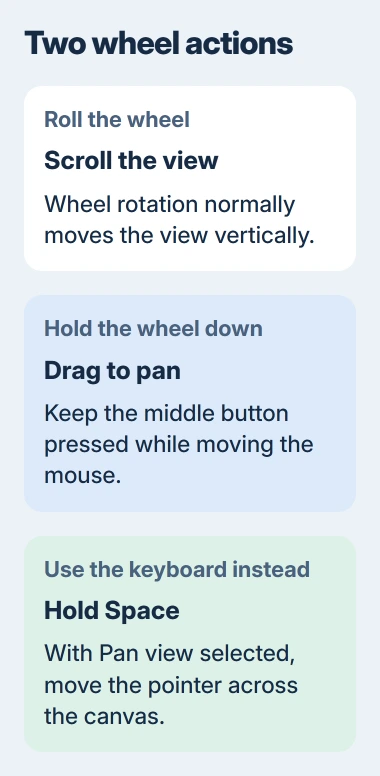
Open an image and zoom in enough that part of it extends outside the visible window. Put the pointer over the image, press the wheel straight down and keep it pressed while dragging the mouse sideways.
Rolling the wheel is a separate action. It normally moves the view vertically, while Shift with the wheel moves it horizontally. A mouse can scroll successfully even when its wheel-click button isn't working.
GIMP's image-window instructions explain these controls. Release Shift and Ctrl before trying a plain middle-button drag; holding those keys can change what the button does on the canvas.
Check whether the whole view moves together. If the picture moves relative to the canvas edge, you're moving image content instead. Undo that edit before continuing so this check doesn't change your picture.
If the wheel click does nothing, try Space next. That gives you another way to move around the image while you check the mouse settings.
2. Use Space to pan without the middle button
With the pointer over the canvas, hold Space and move the mouse. The view should follow the pointer. Release Space when finished panning to return to your editing tool.
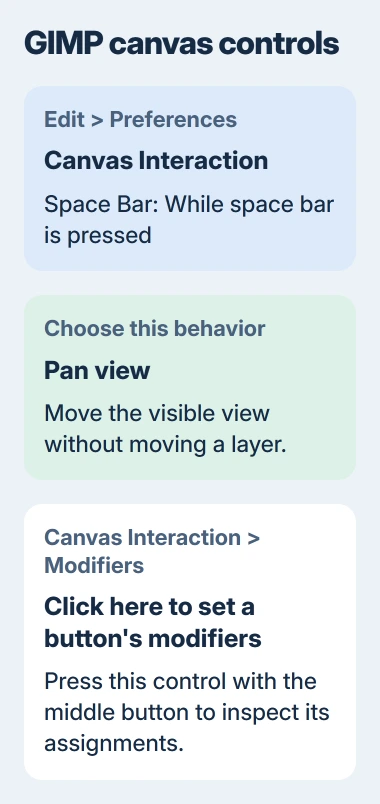
If Space changes a layer's position instead, open Edit > Preferences > Canvas Interaction. Under Space Bar, set While space bar is pressed to Pan view.
The Canvas Interaction settings also offer Toggle to Move Tool and No action. Either setting changes what happens when you try to pan with Space.
Save the preference, return to the image and try the same movement again. If Space now pans the view, you can keep moving around the image while checking why the middle button isn't working.
I'd use Space for now before changing every mouse setting. It's built into the editor, so you don't need to assign a shortcut that also affects your other apps.
3. Check the middle-button modifiers in GIMP 3
In GIMP 3, open Edit > Preferences > Canvas Interaction > Modifiers. This page lets you choose what each mouse button does on the canvas, including when you hold Shift or Ctrl with it.
Click Click here to set a button's modifiers using the middle button itself. The dialog should show the commands assigned to that button. Using the left button here won't select the middle-button settings.
Check what the middle button does when no keys are held. If it isn't set to pan, select its command to see the choices. Keep a plain drag separate from the button-and-key combinations you use to zoom or rotate the view.
The Modifiers reference explains Reset Saved Modifiers Settings to Default Values. It resets button combinations for all your input devices. Note any custom pen or mouse combinations before using it.
After resetting, try the button without holding any keys. If the dialog still doesn't recognize it, check your mouse software next. Repeating the reset won't help if that software is sending a different command when you press the wheel.
An older GIMP installation may not have this Modifiers page. Use the Space preference and the other navigation controls available in that version; don't delete its settings folder to imitate a newer menu.
4. Restore a real middle click in the mouse utility
Open the software you use to configure your mouse. Check the assignment for pressing the wheel, which is different from wheel rotation or wheel tilt. Look for a normal Middle click or Middle button assignment.
If your mouse software has a profile for GIMP, check that as well as its general settings. A wheel button assigned to a keyboard shortcut, app switcher or other action isn't sending the click GIMP expects.
Change only the wheel-button assignment, apply it and return to the same image. If middle-button panning now works, leave the other mouse controls alone. You'll know that changing this button's assignment helped.
If the whole mouse has connection trouble, the Windows mouse hardware checks cover reconnecting it, trying another USB port and testing it on another PC.
If rolling the wheel jumps or reverses direction in other apps too, use the scroll-wheel checks. That's a different problem from GIMP receiving the wrong command when you press the wheel.
If your mouse also loses its pointer or connection, the Logitech mouse connection checks cover power and channel selection. Use only the controls available on your model.
5. Navigate through the image preview instead
Choose Windows > Dockable Dialogs > Navigation. The Navigation dialog shows a miniature of the image and the portion currently visible when the image is larger than the viewing area.
Click a different part of the preview or drag its viewing rectangle to move around the image. You can use this even if the middle button is broken or Space isn't set to pan.
The Navigation dialog also has zoom controls. Zoom in to check panning on a large image; it's harder to judge movement when the whole image fits in the window.
Another route is the small navigation control in the image window's bottom-right corner when scrollbars are shown. Keep it pressed to open the preview and move toward the part of the image you want to see.
If Space and Navigation work but middle-click panning fails only in GIMP with two different mice, give its support community your GIMP version, operating system and modifier assignments. Say whether a mouse profile for GIMP is active.
When the same middle button fails on another computer with its normal assignment, ask the mouse maker about the switch or warranty. Reinstalling the image editor won't repair a failed physical button.
The Short Version
Hold the wheel down while dragging, or use Space with Pan view selected. In GIMP 3, check the middle-button modifier assignments. Compare the mouse utility's button mapping, and use Navigation while arranging a software or hardware repair.
Checked November 4, 2026.

Isaac Smith is the founder and editor of PC Glance, a website that covers computers, laptops, and technology. He is a tech enthusiast and a computer geek who loves to share his insights and help his readers make smart choices when buying tech gadgets or laptops. He is always curious and updated about the latest tech trends.