
The Google keeps stopping message means the Google search app has crashed. Force stop Google, reopen it and install any offered update before clearing saved data. If Google opens but won't show results, check that separately.
Check the app name on the error first. Google, Google Play services and Google Play Store are separate apps. Work on the one named in the message so you don't reset another service by mistake.
1. Stop Google and check where the crash happens
Touch and hold the Google app icon, then tap App info. Choose Force stop and confirm. Open the app again from its icon, rather than starting with a Home screen search widget.
On a Pixel, the full route is Settings > Apps > See all apps > Google. Other phones may show Apps or Application manager in a different layout. Look for Google and open its app information page.
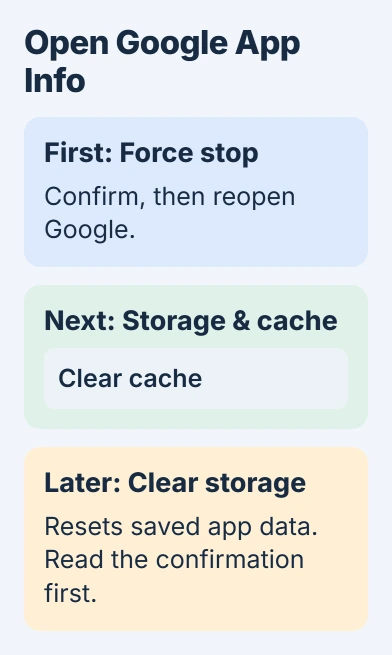
Google recommends force stopping in its search-app repair steps. If it now opens, repeat the search that previously crashed it. Check whether the results remain on screen.
If the app works but the widget still fails, note that for support. For a connection error without a crash, try loading a familiar webpage in your browser. If that fails too, check the connection before resetting apps again.
If your phone can't reach the internet in other apps either, try the Android Wi-Fi connection checks. Continue with the app fixes if the connection works but Google still closes.
2. Install the Google update, then restart the phone
Open Google Play Store, tap your profile picture and choose Manage apps & devices. Open the available updates and update Google if it's listed. Wait for installation to finish before testing it.
If Google isn't in the update list, search for it in the Play Store. Check whether its page offers Update or Open. Open means the store isn't offering you another version right now.
Restart the phone normally afterward. On Pixel 6 and newer, including Fold, hold Power + Volume up for a few seconds. Tap Restart in the power menu. Use your model's normal restart controls on other phones.
Check for Android updates too. Current Pixels use Settings > System > Software update; other phones can put Software update directly in Settings. Let any offered update install and restart before trying Google again.
Open Google from its icon, enter a search and open a result. Note which step makes it close. Support needs to know whether it crashes at launch or after you tap a particular result.
3. Remove Google's temporary cache
Return to App info > Storage & cache on a Pixel, or the Google app's Storage page on another phone. Tap Clear cache, then reopen Google and repeat the failed action.
Cache holds temporary app files. Clearing it lets Google rebuild them without resetting its saved data. The app can take longer to open the first time while it recreates those files.
The Pixel app troubleshooting page explains the cache and storage controls. Check the labels before tapping; the option that resets saved data can sit on the same screen.
If clearing cache gets search working, use the app normally and watch for the crash to return. If it keeps coming back, note the app version and what makes it close instead of repeatedly clearing cache.
I'd stop changing settings once search works again. Then, if the crash returns after a later update, you'll know which change had helped.
4. Reset Google search data if the crash survives
Try this after the simpler checks. Clearing Google app data removes its local files and settings, so save anything you need from that app and be ready to set its preferences again.
Open Google's app information and its storage screen. Some versions show Manage space, followed by Clear Google search data. Others offer Clear storage or Clear data, with a confirmation describing what will be removed.
Read the confirmation and check that it names Google. Google Play services stores information used by other parts of your phone, so leave that app alone during this reset.
Reopen the search app after the reset, work through any setup choices and try the same search. If it works, set your preferences again and leave the other apps as they are.
The Android cache and storage explanation covers those two controls in more detail. For this error, you're clearing the search app's own data, rather than resetting every Google service.
5. On a Pixel, compare the built-in app without its updates
If Google came installed on your Pixel and can't be removed normally, look for Uninstall updates on its app information page. You can try this repair when that command is available.
Touch and hold the Google icon, open App info, tap the More menu and choose Uninstall updates. Read the confirmation. This removes the app's updates and erases its saved app data.
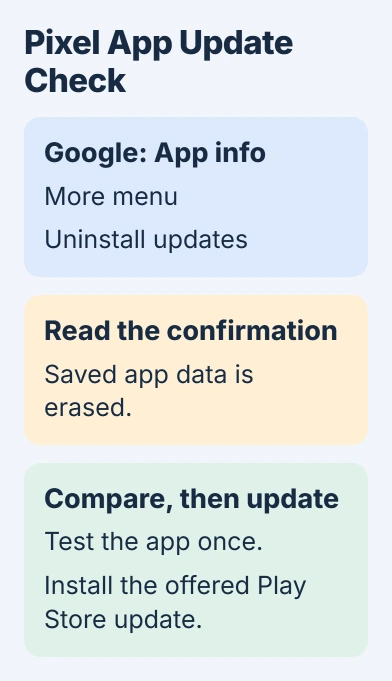
Test the app once with its updates removed, then return to Google Play and install the offered Google update. The Pixel procedure uses this test followed by an update, so finish both steps rather than leaving the old app installed.
If only the updated version crashes, note both version numbers and what happened with each. That helps support compare them on your phone without assuming the same update crashes on every model.
Other phones can offer different commands. If Uninstall updates is missing, contact support for the next step. Leave unrelated services enabled and skip old APKs, the app installation files offered on download sites.
6. Report the remaining failure without wiping the phone
If Google alone still closes, send its support team your phone model, Android version, Google app version and exact error. Say whether it fails from the app icon, widget or a result, and which steps changed what happened.
If the app stays open long enough, open its profile menu and use Help & feedback > Send feedback. The feedback instructions explain how to attach useful details. Review any screenshot before sending it.
If several unrelated apps close or the whole phone restarts, contact the phone maker and describe those problems too. Clearing search data won't fix every cause of a phone crashing.
The Short Version
Confirm the message names Google, then force stop, update and restart. Clear cache before search data. On a Pixel, try Uninstall updates if offered, then reinstall the current update. Tell support which step still fails.
Checked November 5, 2026.

Isaac Smith is the founder and editor of PC Glance, a website that covers computers, laptops, and technology. He is a tech enthusiast and a computer geek who loves to share his insights and help his readers make smart choices when buying tech gadgets or laptops. He is always curious and updated about the latest tech trends.