
One page can be landscape in Word while the surrounding pages stay portrait. In desktop Word for Windows, select that page's content, open Layout > Page Setup, choose Landscape and set Apply to to Selected text.
The selection matters: changing orientation for the whole document turns every page sideways. For a blank landscape page, or content that needs a clear start and end, put it in its own section and change that section instead.
Select the content that needs the wider page
Save a separate working copy before changing an important report's layout. Then select the text or table that should use the wider page, leaving the surrounding portrait material outside the selection.
For a wide table, include the whole table rather than only a few cells. Check the highlighted area before opening page settings. Any content you leave unselected can keep its old layout.
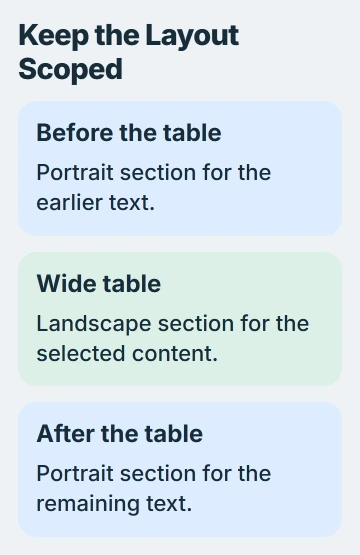
Microsoft explains this method in its orientation instructions. Word applies the layout to your selected content, rather than locking it to a page number.
Keep that in mind when you edit the report later. Added paragraphs, a larger font or a taller table can change where pages end. After changing orientation, check how many pages your selected content takes up.
If you only want to turn a picture, select and rotate the picture instead. Page orientation changes the page layout and its usable width; it isn't a rotation control for a single object.
Apply landscape to the selection in Windows Word
Keep your content selected and open Layout. In the Page Setup group, click the small button in the corner to open the full dialog. This lets you choose which part of the document to change.
On the Margins tab, choose Landscape under Orientation. Find Apply to, select Selected text, then confirm with OK. Inspect the page that contains the selected material and its neighbors.
Your selected content should now sit on the wider page, with portrait pages before and after it. If every page changes, use Undo, select the content again and check the Apply to choice before confirming.
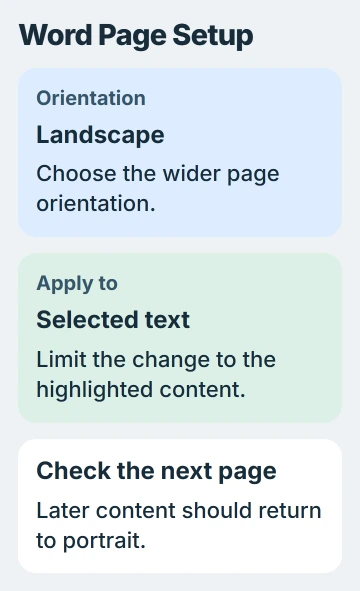
Don't select Whole document for this task. This point forward changes orientation from your cursor onward. It won't return the pages after your table to portrait by itself.
Open File > Print to check where pages start and end in the preview. The orientation change already applies to your document; you don't need to print a copy to make it take effect.
If the table still runs beyond a margin, check its width after the page is landscape. Turning the page provides more horizontal room, but doesn't automatically make every possible table fit.
On a Mac, use Format and Document
Highlight the content you want to change in the Mac document. Open Format > Document, then choose Page Setup. Set the orientation to Landscape and confirm the change.
Back in the document settings, set Apply to to Selected text, then select OK. Some current dialogs show orientation and Apply to together. Either way, apply the change to your selected content.
The Mac printing and page-layout reference covers the selected-text and section choices. When pages mix portrait and landscape, check which content will change before confirming.
If the whole Mac document changes, undo once and select just the content you want to change again. Choosing Landscape on its own doesn't tell Word where to return to portrait.
Use File > Print to review the result, including the page just before the landscape material and the one just after it. Return to the document without printing if the preview is all you needed.
Give a blank or precisely bounded page its own section
Place the cursor where the landscape section should begin and choose Layout > Breaks > Next Page under section breaks. Create another Next Page section break after the content that should be landscape.
Use the Word section-insertion procedure to identify that command. A normal page break starts another page but doesn't provide the separate layout settings this task needs.
Click inside the middle section and apply Landscape to This section in the page settings. Check that the section after it is Portrait too. For a blank page, keep its empty paragraph inside the middle section.
The section-layout reference shows why the landscape section needs a break at both ends. Without the ending break, later content can stay landscape.
Use Home > Show/Hide to see the break labels while checking them. For an unexpected empty page, use the Word blank-page checks instead of removing every visible break.
An Odd Page or Even Page section break can leave space so the next section starts on the required page side. The section-break types explain how those differ from Next Page.
Review headers, page numbers and the saved layout
Check the landscape page's header, footer and page number after the layout change. A separate section can share header or footer content with its neighbor through Link to Previous.
If only that section needs different header text, turn off the link for that header before editing it. The header and footer setup guide covers their separate link settings.
Leave those links alone when the same text should continue. Unlinking isn't required just to change orientation. I'd check the final preview before changing any numbering that already continues correctly.
Word for the web can't add section breaks through its current controls. Use desktop Word to create this mixed layout, save the file and then return to the browser copy if needed.
If Word still changes the wrong pages, keep a copy with its section marks visible for Microsoft Support. Include whether you're using Word on Windows or a Mac, the selected content and the Apply to choice you used.
The Short Version
For a finished passage, use Landscape with Selected text chosen under Apply to. Give a blank page a separate section instead. Check the neighboring portrait pages and header layout in preview.
Checked November 5, 2026.

Isaac Smith is the founder and editor of PC Glance, a website that covers computers, laptops, and technology. He is a tech enthusiast and a computer geek who loves to share his insights and help his readers make smart choices when buying tech gadgets or laptops. He is always curious and updated about the latest tech trends.