
A new ASUS laptop battery doesn't need repeated full discharges to exercise it. Modern lithium-ion batteries have no memory effect.
Use the correct adapter to charge your replacement battery, check that it powers the laptop, then use it normally instead of draining it to zero.
Start with the replacement's charging instructions
Check the instructions supplied with the replacement and the laptop's model-specific manual. The battery must be compatible with the exact laptop, and the supplier may give you steps to follow after installation.
Connect the correct ASUS adapter, then check the battery percentage on the Windows taskbar to see whether it rises. An active charge limit can stop it before 100 percent.
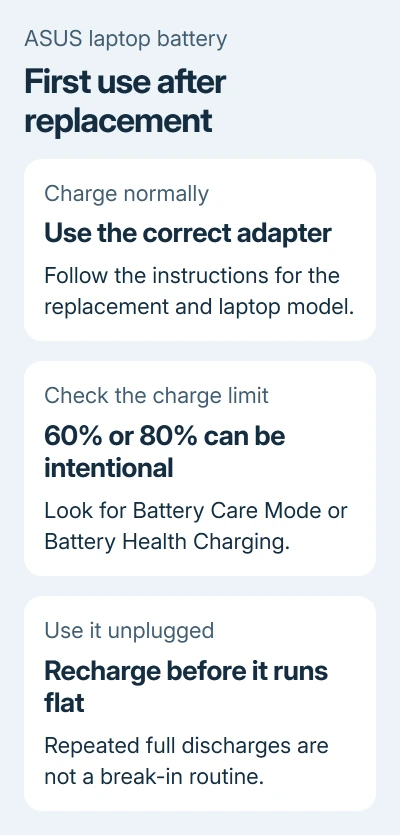
The ASUS battery information identifies these as lithium-ion batteries without memory effect. You don't need to drain it completely before its next charge.
There isn't one charging duration that fits every replacement, model and starting charge level. Follow the replacement supplier's charging instructions; a new laptop's setup time may not apply to a battery swap.
For a complete new computer rather than a replacement pack, the ASUS first-start procedure covers its initial charging and startup preparation separately.
Check a charge limit before chasing 100 percent
A battery that stops at 60% or 80% can be following its charging settings. Open MyASUS and look for Battery Care Mode. On some models, Battery Health Charging is a separate app instead.
The older charging choices include Full capacity mode for a full charge, Balance mode (80 percent) or Maximum lifespan mode (60 percent). Your model and software determine which controls appear.
Use the option suited to your normal day. A lower limit fits a laptop that spends much of its time plugged in; a full charge gives more battery runtime when you're taking it away from power.
The charging troubleshooting page also explains that a battery around 94% to 97% can stop charging while the adapter is connected. A reading short of 100 percent isn't, by itself, a reason to start a discharge cycle.
If the percentage stops at the configured limit, the setting explains the behavior. If it stays very low and never rises, run the MyASUS battery check in the last section.
Use the battery normally without draining it flat
Once it has charged, save your work and unplug the adapter during ordinary use. Watch that the laptop keeps running and that Windows shows it using battery power. Reconnect the charger before the charge gets very low.
This checks that the replacement powers your laptop. Repeated full discharges won't fix a faulty or incompatible battery.
Microsoft's battery-care advice recommends avoiding frequent deep discharges and using a moderate charge range, roughly 20% to 80%, when practical.
You don't have to unplug at an exact percentage. For a day away from a charger, choose the full-charge option supported by your laptop and charge before leaving.
I'd do this unplugged check before relying on the replacement for travel. If the laptop shuts down immediately, tell the installer or supplier.
Avoid heat during charging
Keep the vents clear during charging and use. Choose a firm surface for the laptop. Heat accelerates battery wear, so don't cover the laptop while it charges.
Stop using a battery that swells or shows physical damage. Have the replacement supplier or an authorized service provider assess it instead of continuing a charging or calibration routine.
Run the supported battery check if behavior is wrong
On models that support it, open MyASUS > System Diagnosis. Under Diagnostic Tool, select Battery problems. Connect the adapter, choose Checkup, then open Results when it finishes.
Follow any repair suggestion shown there. Some laptops don't provide System Diagnosis in MyASUS. If the page is absent, give the installer or ASUS the laptop model and the replacement's details instead.
For a replacement that shuts off unexpectedly or won't charge, report the percentage, whether AC power works and any diagnostic error. Ask the installer to check compatibility and the battery connection before attempting more charge cycles.
If the battery charges but doesn't last long, the Windows battery report separates full-charge capacity from the current percentage. Keep the report for the supplier if the replacement's runtime remains poor.
The Short Version
Charge the replacement, check any charge limit and confirm unplugged operation. Avoid deliberate full discharges. A new pack that fails to charge or power the laptop needs diagnosis and a supplier check.
Checked November 7, 2026.

Isaac Smith is the founder and editor of PC Glance, a website that covers computers, laptops, and technology. He is a tech enthusiast and a computer geek who loves to share his insights and help his readers make smart choices when buying tech gadgets or laptops. He is always curious and updated about the latest tech trends.