
A soft cloth and careful dust removal clean an ordinary dirty laptop keyboard without taking the keys off. Power the laptop off, disconnect its charger, and follow its maker's cleaning instructions.
A drink spill needs a different response from fingerprints or dry crumbs, so don't treat a wet keyboard as routine cleaning.
Prepare the laptop and a clean work area
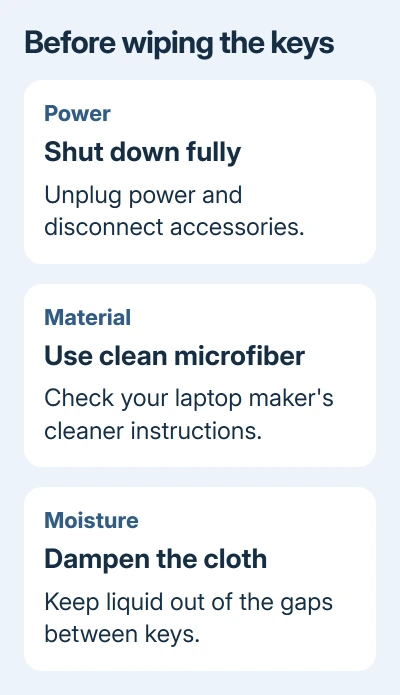
Save your work and shut the computer down fully. Sleep leaves it powered, and wiping keys can wake it. Disconnect the charger, external devices and other cables before starting.
Choose a firm work surface that supports the whole laptop. Gather a clean microfiber cloth and the cleaning product its maker permits. A second dry cloth is useful for checking that no damp patches remain.
If the laptop has a user-removable battery, follow its manual's removal instructions. If the battery is sealed inside, leave the laptop closed for a routine wipe.
I'd check the exact model's care instructions before using a cleaner already sitting on the desk. A household cleaner may be wrong for your keyboard's finish, printed letters or surrounding plastics.
If a drink has just gone into the keys, stop here and use the keyboard spill steps. Wiping the key tops won't remove liquid that's already inside the laptop.
Remove dry dust before wiping the surface
Use the dry microfiber cloth to lift loose dust from the key tops and palm rest. Work gently around the keys so dirt isn't simply pushed from one part of the keyboard into another.
For Dell computers, the maintenance instructions recommend canned compressed air for dust. Follow the can's instructions and the laptop's cleaning guidance when directing air between keys.
Pass the air carefully between keys instead of trying to force a stuck crumb through the keyboard. If you need to remove a keycap to reach something, check the repair instructions for your exact model before going further.
Keep a household vacuum or powered blower away from a Dell keyboard; the maker warns that these can create static. Canned air and a vacuum aren't interchangeable just because both move dust.
Once the loose dirt is removed, inspect the surface in good light. Fingerprints and oily marks call for a suitable wipe. If just one key still catches, check its movement after cleaning and drying. The final section covers that check.
Use the cleaner your laptop maker permits
For Dell equipment, the current cleaning guidance permits a microfiber cloth moistened with a mixture of 70% isopropyl alcohol and 30% water. The cloth should be damp, with excess moisture removed.
Gently wipe the key surfaces and surrounding areas. Apply liquid to the cloth rather than spraying the laptop, and keep it from dripping into the gaps around the keys.
Dell says its equipment cleaning instructions apply to its branded PCs and keyboards. Use that advice for Dell products; another maker may recommend a different cleaner.
For another Windows laptop brand, such as Lenovo or ASUS, look up its own support instructions before using the Dell mixture.
Use gentle wiping rather than pressure to remove surface marks. A stain that remains isn't a reason to soak the keys or keep adding cleaner. Ask the maker what to try if its approved method doesn't remove the mark.
Treat a MacBook as an Apple product
For a Mac notebook, use a soft, lint-free cloth following Apple's product cleaning guidance. The notebook should already be shut down and disconnected from its power adapter.
That guidance permits a 70% isopropyl alcohol wipe, a 75% ethyl alcohol wipe, or listed disinfecting wipes on hard, nonporous surfaces such as the keyboard. Keep moisture out of openings.
Use the wipe on the surface, keeping alcohol out of the gaps between keys. It also doesn't make the display and keyboard the same cleaning job; follow the screen's instructions separately.
For dry debris beneath a key on Apple's listed MacBook models, follow the Mac keyboard compressed-air procedure. That guide covers the model scope, positions and straw distance.
A MacBook Air and an external Magic Keyboard aren't named in that same notebook air procedure. Check the care instructions that apply to yours; don't assume every Apple keyboard should be held and sprayed in the same way.
Let it dry before reconnecting power
Leave the cleaned laptop disconnected while its surfaces air-dry. Check the key tops, spaces around them and palm rest rather than judging only the largest visible area.
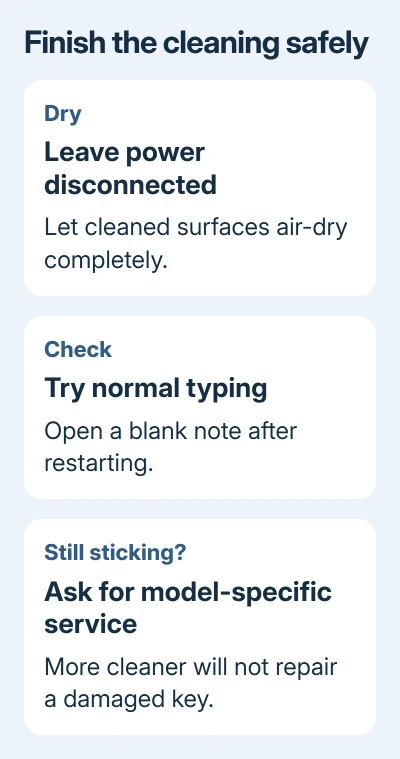
Let surfaces dry fully before reconnecting power, following the laptop maker's care instructions. Check that it's dry rather than relying on a set number of minutes.
When everything is dry, reconnect power and start the laptop. Open a blank note or document and type a short line that uses the keys you cleaned. Normal typing should register once per press without physical resistance.
Notice whether the sticking or missed letters have stopped. Surface cleaning can remove grime, but it can't repair a broken clip, damaged switch or liquid-corroded component.
Get help for a key that still sticks or misses letters
If the keyboard is clean but one key still feels different, stop applying more liquid. Tell the manufacturer which key is affected and whether the problem is physical resistance, missing letters or repeated characters.
After the supported Mac air procedure, ask an Apple Store or authorized repair provider to check any key that still has a problem. For a Windows laptop, ask its maker about keyboard diagnosis and repair for your model.
Keep the model number and any spill history ready. A technician needs to know about liquid exposure even when the keyboard now looks clean, because there may be damage inside as well as on the key surface.
The Short Version
Shut down and unplug the laptop, remove loose dirt gently, and use its maker's approved cloth or cleaner. Keep liquid out of key gaps, let everything air-dry, then check typing. Persistent sticking needs model-specific service.
Checked November 8, 2026.

Isaac Smith is the founder and editor of PC Glance, a website that covers computers, laptops, and technology. He is a tech enthusiast and a computer geek who loves to share his insights and help his readers make smart choices when buying tech gadgets or laptops. He is always curious and updated about the latest tech trends.