
Hold a conversation or message in your Android messaging app, then choose its trash or Delete control. Read the confirmation: current Google Messages can move whole conversations to Trash instead of erasing them immediately.
Samsung Messages has its own controls and Trash setting, even on phones that also have Google Messages installed. Choose the instructions for the app you're using, rather than following a Samsung menu just because the phone is a Galaxy.
Identify the messaging app and what you want removed
Open the app containing the unwanted text. If you're unsure which app it is, touch and hold its launcher icon, open App info, and read its name. Both messaging apps can be installed on a Galaxy phone.
Decide whether to remove one message bubble or the entire conversation. Deleting a chat can remove its messages and attachments together. Check the name or phone number before selecting several chats at once.
Save anything you still need first, such as an address, appointment detail, or picture. Open an attachment and use its save control where available. Cleanup is easier when useful information already has another home.
Google says archived conversations remain readable in its conversation management instructions. Archive hides a chat from the main list while keeping it available to read; that is often enough when the goal is a quieter inbox.
For comparison with another family phone, the iPhone text-deletion guide uses different menus. Android Messages doesn't have to match the iPhone's Recently Deleted layout.
Remove a whole conversation in Google Messages
Return to the main conversation list in Google Messages. Touch and hold the conversation you want to remove. Tap additional conversations only if you want them removed at the same time.
Tap the Trash control at the top. If the confirmation says Move to trash, select it to remove the chosen conversations from the inbox. Read the selected count and names before confirming a large selection.
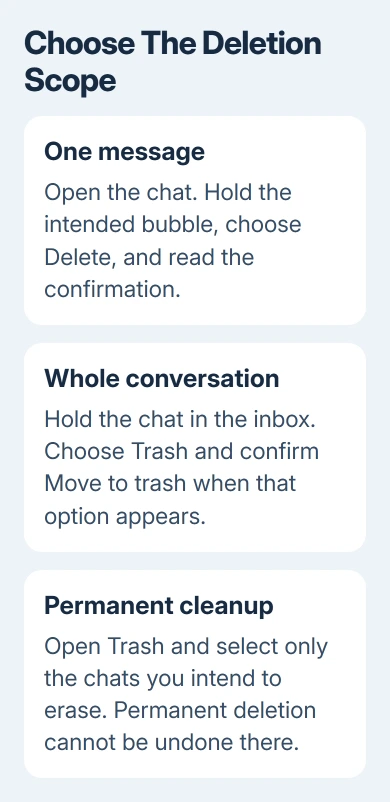
When this Trash feature is present, the conversation stays there for up to 30 days before permanent deletion. The current Trash instructions describe that newer behavior.
Some installations still show a direct Delete confirmation. Follow the wording on your phone: if it warns that deletion is permanent, don't assume a recovery folder will protect that action.
The older general help page still describes permanent deletion, while the newer Trash page describes a recoverable period. That's why the actual confirmation matters more than an instruction to tap Delete without reading it.
Afterward, return to the inbox and check that the intended chat is gone. A new message from that sender can create a new inbox conversation; that doesn't necessarily mean all the trashed messages returned.
Delete one message while keeping the conversation
Open the conversation, then hold the specific bubble you want removed. Choose Delete or its trash control. Confirm the action shown by your version of the app, checking that you selected the intended bubble.
This removes the unwanted message while keeping the rest of your conversation. For multiple bubbles, use additional selection only if your app offers it; deleting a whole conversation uses different controls.
Don't assume the conversation Trash rules cover every individual-message action. Read that action's warning, especially when it says the deletion is permanent. Keep a needed attachment before removing its message.
An inbox cleanup also isn't the same as recalling something the recipient received. Recalling an eligible sent RCS message uses a separate command. Deleting your own message history doesn't mean the recipient's copy is erased.
For a standard SMS text already delivered, plan on the recipient still having it. If the purpose is correcting an address or a mistaken instruction, send a clear correction instead of relying on local deletion.
Finish permanent deletion in Google Messages Trash
Open Google Messages, tap your profile picture or More, then choose Trash. The conversations there show how many days remain before automatic deletion. Check that folder before concluding a removed chat is already gone permanently.
To erase a particular conversation now, hold it in Trash, tap Trash at the top, then tap Delete. Select more conversations first if you want to erase that group together.
To erase everything in the folder, open Trash without selecting an individual conversation, tap its Trash control, and choose Delete. This deletes all conversations in that folder, so check what's there first.
Permanent deletion from Trash can't be undone through that folder. I'd delete one selected chat first if you're unfamiliar with the screen, rather than starting with the command for everything.
If you selected the wrong chat and haven't permanently removed it, stop the cleanup. The Android message-recovery guide covers returning a recoverable conversation without treating a full-phone reset as the first step.
Use Samsung Messages' separate deletion controls
In Samsung Messages, open the desired conversation and hold the message you want to remove. Choose Delete, then Move to Trash when prompted. The saved message remains in that app's Trash for 30 days when Trash is enabled.
For conversation-list cleanup, hold the desired entry, select the conversations you want, then tap Delete or Delete all, according to the selection shown. Confirm Move to Trash only after reviewing that selection.
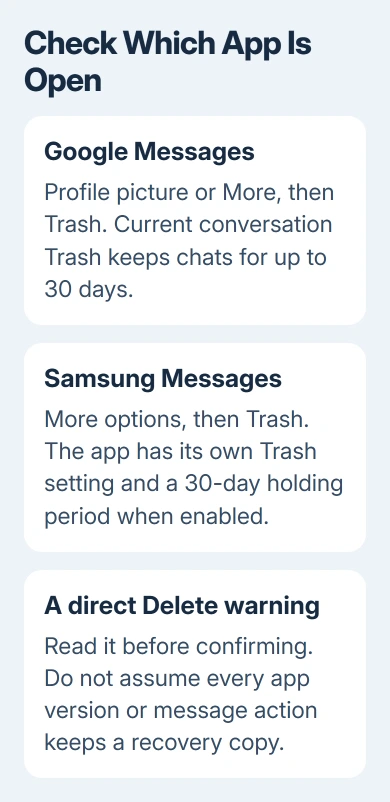
The Samsung Messages instructions also provide a Trash switch under More options > Settings > Trash. If that switch is off, deletion goes directly through without the same temporary holding period.
Leave Trash enabled if you want time to correct accidental deletions. With Trash off, you lose that chance to undo future deletions. Read the phone's confirmation before changing it.
An entry marked Draft means unsent text is still in the input box. Open that conversation and clear the unsent text if your aim is to remove the draft label, rather than deleting the entire conversation history.
Check archive and swipe settings if a chat only disappeared
If you swiped a chat away, the gesture may have archived it. In Google Messages, open your profile or More menu and check Archived. If it's there, the chat was hidden rather than deleted.
Current Google Messages can also assign a swipe to Trash. Open profile picture or More > Messages settings > Swipe actions. Choose Customize beside the relevant direction and read which action is selected.
Choose the action you want the swipe to take. Archive suits keeping old conversations out of the inbox; Trash suits removing them with the temporary recovery period available in that version.
If deletion fails, install the messaging app's available update from its store, then restart the phone. Note whether one thread or all conversations are affected. Report that through Help & feedback or Samsung Members support.
The Short Version
To delete texts, select either a bubble or a conversation in the app you're using. Read whether it moves to Trash or is deleted permanently. Empty Trash only for chats you're ready to lose; archive suits simple inbox tidying.
Checked November 9, 2026.

Isaac Smith is the founder and editor of PC Glance, a website that covers computers, laptops, and technology. He is a tech enthusiast and a computer geek who loves to share his insights and help his readers make smart choices when buying tech gadgets or laptops. He is always curious and updated about the latest tech trends.