
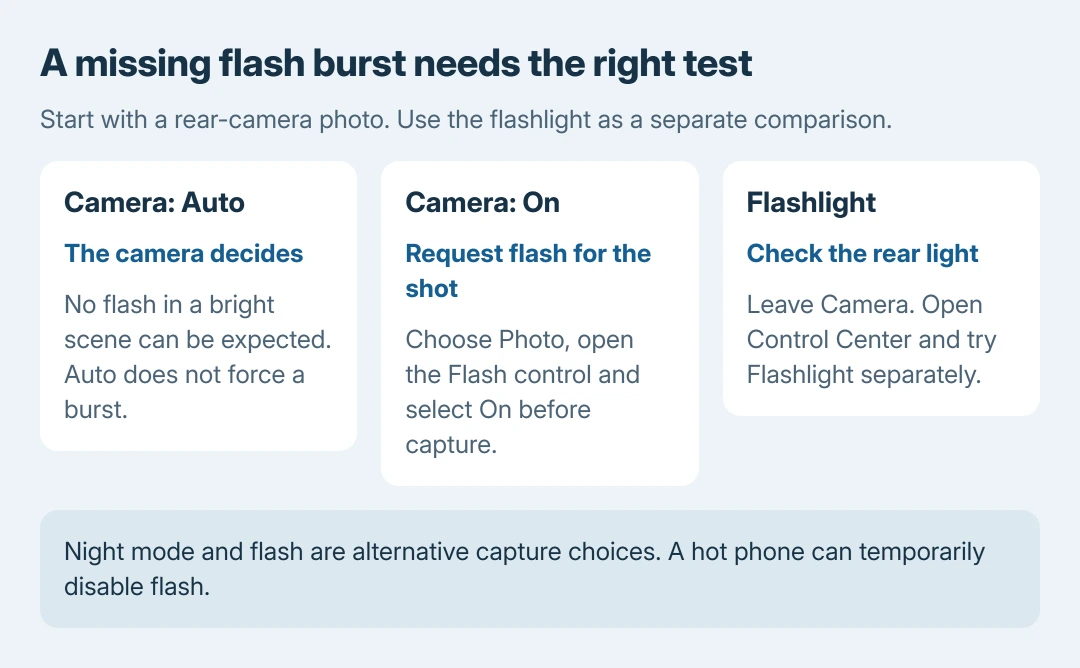
An iPhone flash that works for some photos but not others may be set to Auto. Open Camera, select Photo, and choose Flash On for a deliberate test. Auto lets the camera decide whether extra light is needed.
If the rear light never illuminates, compare it with the flashlight in Control Center. Heat, a blocking accessory and a camera problem need different next steps, so establish which function is failing before resetting anything.
Choose On rather than Auto for the camera test
Open Apple's Camera app and select Photo, using the rear camera. Open its camera controls, choose Flash, then select On. Take a photo and check whether the rear flash fires during capture.
Apple says intermittent flash can be explained by Flash Auto in its camera and flash troubleshooting page. A flash that stays off in a bright scene under Auto is not, by itself, a failed light.
Status: Apple's camera, Night mode and temperature pages checked October 27, 2026. Camera controls vary with iOS. No iPhone flash was physically tested.
In the current layout, tap the camera-controls button or swipe up from the mode names to reveal the tools. Older layouts use an upward arrow. Follow Flash > On rather than relying on the appearance of a single lightning symbol.
Apple documents Auto, On and Off in its camera-tools guide. After choosing On, close the controls and take the picture; merely opening the menu is not a test.
If this happens only inside another app, compare the same subject in Apple's Camera app. Working there sends the next check toward the other app's controls and updates. It does not establish a phone-wide hardware fault.
Account for Night mode before judging the result
On an iPhone that supports Night mode, low light can activate the yellow Night mode indicator. Apple states that the flash and Live Photos are inactive while Night mode is being used.
Manually enabling flash turns Night mode off. Apple's Night mode instructions explain this tradeoff: the phone does not combine the two capture methods for the same shot.
Choose the result needed. Night mode uses a longer capture without flash; Flash On supplies light for the photo. A yellow Night mode indicator with no burst of flash can be expected behavior, rather than evidence of a broken LED.
Compare Camera with the Control Center flashlight
Leave Camera and open Control Center. On iPhone X and later, swipe down from the upper-right corner. On iPhone 8 and earlier, swipe up from the lower edge. Tap Flashlight and observe the rear light.
If it lights here but not during the Photo test, the light can operate, and the camera mode, app or software remains relevant. If neither test produces light, continue with the accessory and temperature checks.
The comparison is ours as a way to describe the failure accurately. A working flashlight does not certify every camera component, and an unresponsive flashlight does not identify the failed part by itself.
An absent shortcut is another problem. The missing Lock Screen camera and flashlight controls guide restores the buttons. Restoring a button will not fix an LED that remains dark.
Remove a blocking case and let a hot phone cool
Take off a case, lens attachment or film that covers the rear light or camera. Apple's troubleshooting page also calls out accessories that place a magnet near the camera. Retest without the accessory before buying parts.
If the phone is hot, stop the demanding activity and move it away from direct sunlight. Apple documents temporary camera-flash shutdown in its temperature guidance.
For a temperature-warning screen, turn the phone off and let it cool in a cooler environment, as Apple directs. There is no published universal waiting time in that guidance; use normal operation returning as the next check.
If flash works again after cooling, report recurring shutdowns during ordinary use to Apple. A temperature-related recovery does not explain why the phone repeatedly overheats.
Restart, update and arrange service if it stays dark
Restart the iPhone normally, then repeat the relevant camera or flashlight test. Check Settings > General > Software Update for the supported iOS update offered to this device.
Apple includes restart, software update and service in its camera troubleshooting. An iOS update cannot be relied on to fix a damaged light. A factory erase is not one of Apple's initial flash checks.
For a preview that is also black or frozen, the camera startup troubleshooting addresses that wider symptom. Avoid treating the preview and a missing flash burst as interchangeable faults.
If neither function works after the checks, contact Apple Support for service. Give the model, iOS version and both test results, and mention recent impact, liquid exposure or repair. Back up the phone before handing it over.
The Short Version
Test a rear-camera photo with Flash On, then compare the Control Center flashlight. Night mode and heat can keep flash inactive. Remove obstructing accessories, restart and update; persistent failure needs Apple's assessment.

Isaac Smith is the founder and editor of PC Glance, a website that covers computers, laptops, and technology. He is a tech enthusiast and a computer geek who loves to share his insights and help his readers make smart choices when buying tech gadgets or laptops. He is always curious and updated about the latest tech trends.