
Your iPhone has gone hot in your hand and you want to know whether to worry. Let me tell you which of the two kinds you have, because they need opposite responses.
Two completely different things make an iPhone run hot after the iOS 26 update, and each one needs the opposite response from the other.
The second kind is the stubborn one, where the phone is still hot days later, even sitting idle in your pocket.
That one is almost always a setting or a single misbehaving app, and the fix that cooled people's phones instantly was not "be patient." It was turning one switch off.
First: Warm, or Actually Overheating?
Quick but important. There is a difference between a warm phone and a true overheating fault.
- Warm is normal. A bit of heat while charging, gaming, using the camera, or in the day or two after an update is just the phone working. It is not a defect.
- Actually overheating shows a clear warning: a red thermometer screen that says the iPhone needs to cool down before you can use it, locking everything but emergency calls. If you are not seeing that screen, your phone is warm, not failing.
If you are only feeling warmth without that red warning, breathe out. Now let us bring the temperature down.
If You Just Updated, Wait and Charge (24 to 72 Hours)
If your update was only a day or two ago, this is the most effective fix, and the one people skip.
After installing iOS 26, your phone re-indexes Photos, rebuilds search, downloads new on-device assets, and finishes updating apps.
All of that pegs the processor and makes real heat, and it is completely temporary.
Here's what to do:
- Leave the phone plugged in overnight on Wi-Fi so the indexing and any iCloud photo upload can finish. If the upload sits stuck on syncing paused, that needs its own fix.
- Give it 24 to 72 hours of normal use before you judge it.
- Do not start resetting things in this window. You would just restart the clock.
Important: Be honest about the calendar though. "Just wait" does not work forever.
If it is still hot after three full days of normal use, this is no longer indexing, and you should stop waiting and move to the next steps.
On a brand-new iPhone, setup itself runs warm. The iPhone 18 Pro Max page explains what Apple calls normal in those first days.
As one frustrated user put it, "it's been over a week for me and nothing has changed." If that is you, the cause is below, not the calendar.
Turn Off Background App Refresh (the Instant-Relief Fix)
This is the one. If your phone is hot while just sitting there days after the update, the usual cause is every app trying to refresh in the background at once, a kind of digital traffic jam.
Turning the master switch off is the fix people described as immediate.
Here's what to do:
- Open Settings, then General, then Background App Refresh.
- Tap Background App Refresh at the top and set it to Off (or Wi-Fi only).
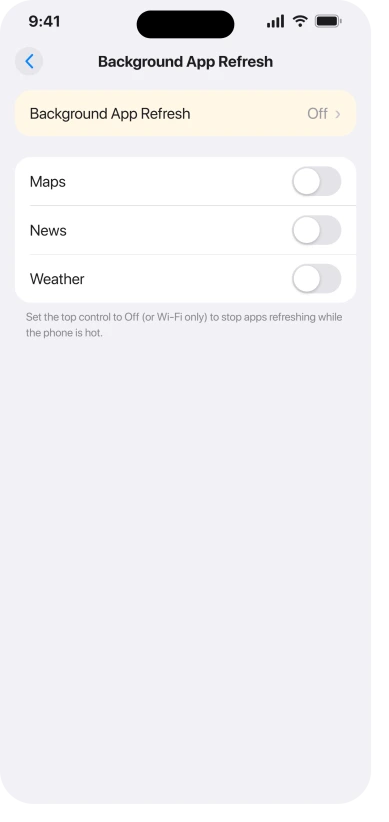
One user summed up the result perfectly: "The relief was instant. My phone cooled down again." You can turn it back on later for the few apps you genuinely want refreshing, such as a parcel tracker or a banking app, but leave the rest off.
One exception before you switch the master off: if you depend on an app to alert you while you are not looking at the phone, a continuous glucose monitor being the clearest case, its maker may require this left on.
Our guide to Background App Refresh on iOS 26 has who that covers and why.
Force Restart (Not a Normal Restart)
A force restart clears stuck background processes that a normal restart leaves running.
This detail matters: people who just did a normal power-off reported the heat "came right back." The full force restart is the one that holds.
Here's what to do:
- Quickly press and release Volume Up.
- Quickly press and release Volume Down.
- Press and hold the Side button until the Apple logo appears. That takes about 15 seconds, so do not let go early, and ignore the power-off slider if it shows up.
This does not erase anything, and Apple's own force restart instructions use this exact button order.
It is just a deeper, cleaner reboot than the usual one.
Find and Fix the One Bad App
Often the heat traces to a single app that has not been updated for iOS 26 yet.
Instagram, TikTok, YouTube, and WhatsApp come up again and again (WhatsApp alone shipped about five updates in the first week after release).
One person summed it up: "I only use it for Instagram, TikTok, YouTube, or WhatsApp in a very normal way," and the heat followed one of them.
Here's how to track down the culprit:
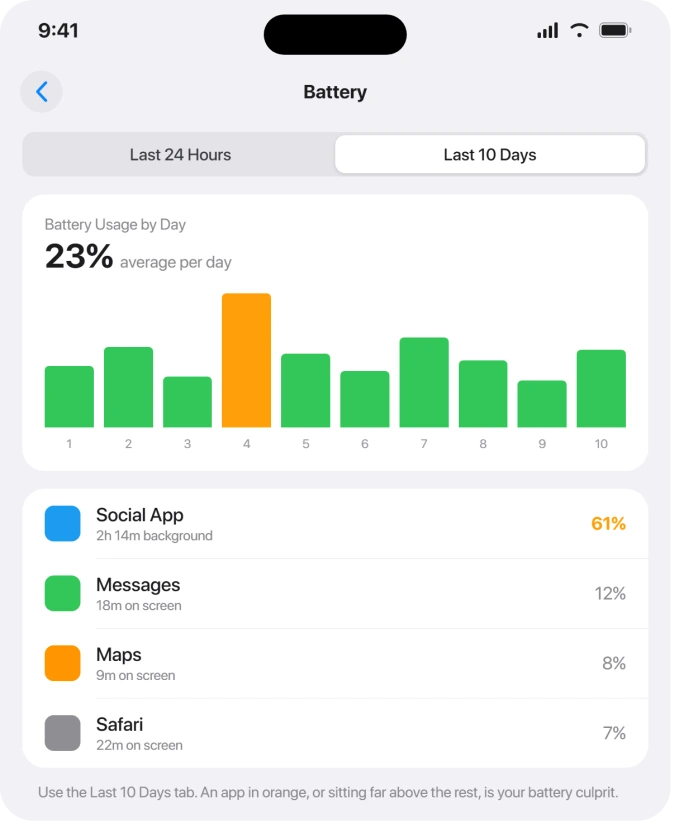
- Open Settings, then Battery.
- Look at the per-app list. An app shown in orange, or sitting far above everything else, is your suspect.
- Delete that app and reinstall it fresh, or update it. Then watch the temperature for a day.
Since unoptimized apps are such a common cause, it is worth getting everything current in one pass rather than chasing them one at a time.
The developers are racing to fix their iOS 26 builds, so a round of updates often solves the heat on its own.
- Open the App Store, tap your profile picture, scroll down, and tap Update All.
- Do it on Wi-Fi and on charge, then restart.
Hot Only While Charging? Turn Off Optimized Battery Charging
This is a sleeper fix almost no guide mentions. If your iPhone is hot specifically while plugged in, the culprit may be Optimized Battery Charging fighting with the update.
Here's what to do:
- Open Settings, then Battery, then Charging (or Battery Health & Charging).
- Turn off Optimized Battery Charging.
One user with a phone that was "burning hot" on the charger flipped this off and said that "within minutes you couldn't feel any warmth." If the heat only happens while charging, try this before anything heavier.
Calm Down the Liquid Glass Effects
iOS 26's new Liquid Glass look leans on the graphics chip more than the old design, which adds heat and lag, especially on older iPhones. Easing it off helps.
Here's what to do:
- Open Settings, Accessibility, Motion, and turn on Reduce Motion.
- Then open Settings, Accessibility, Display & Text Size, and turn on Reduce Transparency.
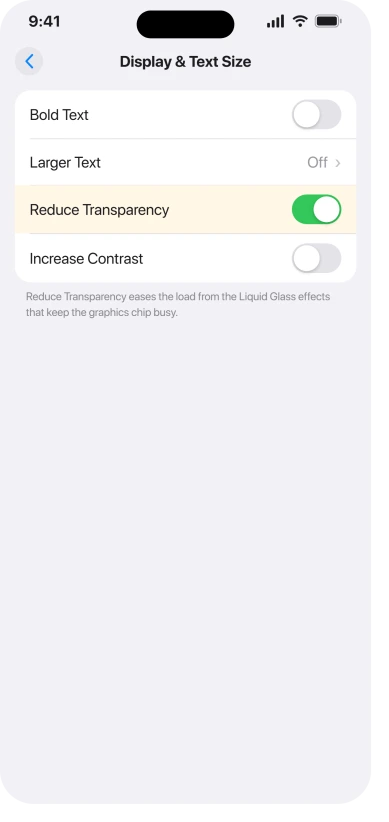
These two together quiet the heaviest of the new animations and translucency, and you keep all your actual features.
The same switches also fix iOS 26 notifications that are too faint to read.
Use Low Power Mode as a Stopgap (Not a Cure)
Low Power Mode helps you get through a day, but I want to be straight with you: it masks the heat and battery drain, it does not fix the cause.
People reported still losing big chunks of battery with it on.
So lean on it when you are stuck, but do not stop here.
Here's what to do:
- Open Settings, Battery, then Power Mode, and turn on Low Power Mode.
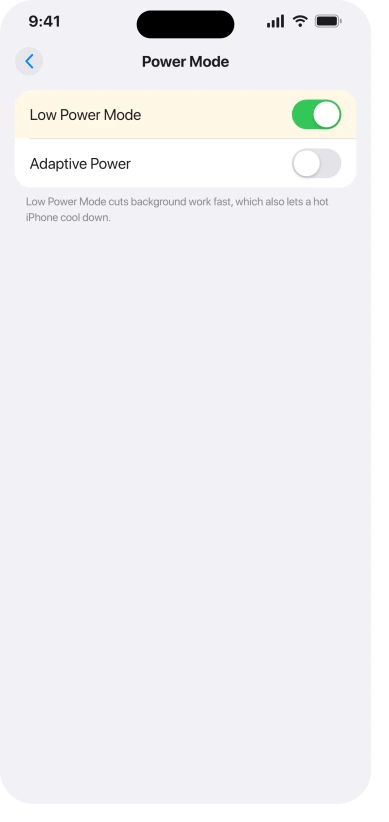
It pauses background refresh, mail fetch, and some effects, which buys you time while you work the real fixes above.
Reset All Settings (Your Data Stays)
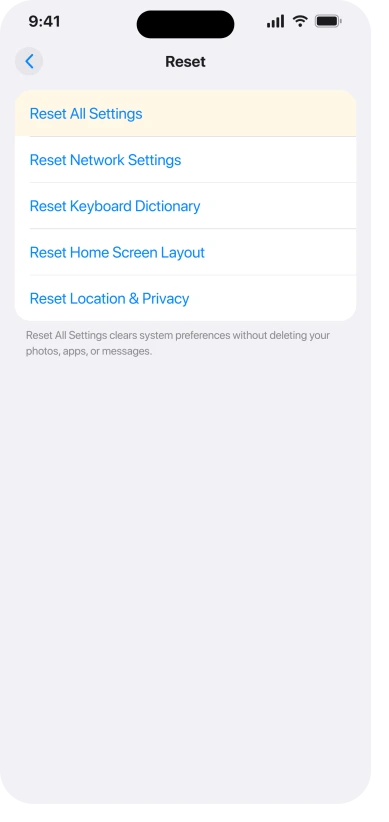
If it is still hot after 72 hours and a force restart, a settings reset can clear a corrupted preference carried over from the old iOS. This does NOT delete your photos, apps, or messages.
It only resets things like Wi-Fi passwords, wallpaper, and layout.
Here's what to do:
- Open Settings, General, then Transfer or Reset iPhone.
- Tap Reset, then Reset All Settings, and enter your passcode.
Still Running Hot? Here Is What Is Left
If you have genuinely worked the list and it is still too hot:
- A word on point updates. Installing the latest iOS 26 release sometimes helps and sometimes makes heat worse. People reported it returning on 26.1, 26.3, and 26.5 specifically. So update, but check whether that exact build helped others before assuming the newest version is safer.
- Erase and set up as new, then restore slowly. As a last resort, back up, erase the phone (Settings, General, Transfer or Reset iPhone, Erase All Content and Settings), and set it up as new rather than restoring immediately. Use it for two or three days to confirm it runs cool, then add your apps back gradually so you can catch the one that brings the heat back. Several people say this was the only thing that fully cleared it.
- Check your battery and call Apple. If your Battery Health is low, a tired battery runs hotter and the update just exposed it. And if you ever see that red thermometer warning regularly, that is worth a Genius Bar visit.
The Short Version
The big takeaway: figure out which overheating you have first. Fresh update and warm? Leave it plugged in and wait 24 to 72 hours, and do nothing else yet. Still hot days later while idle?
Stop waiting and turn off Background App Refresh, because that is the move that cooled phones in seconds.
If that does not do it, force restart with the full button sequence, hunt down the one bad app and update everything, and turn off Optimized Battery Charging if the heat only shows up on the charger.
Reduce Motion and Reduce Transparency tame the Liquid Glass effects, Low Power Mode buys you time without fixing the cause, and a Reset All Settings is there if it is still hot after three days.
Almost nobody needs the scary last steps.
If it restarts as well as running hot: Apple calls Reset All Settings rarely necessary for that symptom, and our guide to an iPhone that keeps restarting covers what people confirmed actually helped.
Where to Next
More iOS 26 help: This fix is part of our iOS 26 problems and fixes guide, a single place that rounds up every common iOS 26 issue.
If something else on your iPhone is acting up after the update, start there.
If your screen goes black at random on iOS 27 instead, the black screen page shows the brightness fix.
If the heat comes with a battery that drains even when the phone is off, a restore from a Mac is what worked for one owner.

Isaac Smith is the founder and editor of PC Glance, a website that covers computers, laptops, and technology. He is a tech enthusiast and a computer geek who loves to share his insights and help his readers make smart choices when buying tech gadgets or laptops. He is always curious and updated about the latest tech trends.