
The worst cursor stutter after the macOS Tahoe update is usually not your mouse, not your trackpad, and not even Spotlight. That is the part people get wrong, and it sends them chasing the wrong fix for hours.
The real culprit is usually your everyday apps.
Out-of-date Electron apps like Slack, Discord, VS Code, and 1Password trip a bug in how Tahoe draws window shadows, and the display engine repaints them in a loop until the whole screen lags.
There is also a second problem, a "ghost cursor" that hovers but will not click, with its own one-line cure. Sort out which one you have below, then fix it.
First: Which Freeze Do You Have?
- General stutter and lag, where the pointer and windows drag behind every click. This is the Electron and display-engine bug. Start with updating your apps below.
- A ghost cursor that moves but whose clicks do nothing, usually after sleep, closing the lid, or switching users, while the keyboard still works. Jump to the WindowServer fix for the instant cure.
Update Your Apps and macOS First
This is the highest-impact fix by a mile, and almost every guide skips it. Updating both your apps and the system closes the shadow bug at its source.
Here's what to do:
- Update every Electron app you use (Slack, Discord, VS Code, Cursor, 1Password, Dropbox, Signal, and similar) to its latest version. The developers shipped fixed builds starting in late 2025.
- Then open System Settings, General, Software Update, and install the latest macOS Tahoe (Apple fixed the incompatibility starting in 26.2).
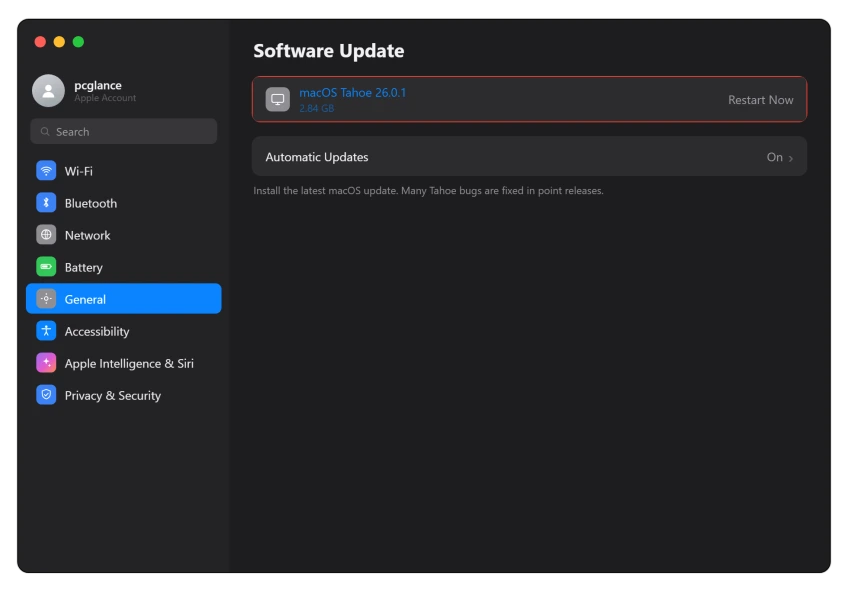
Pro tip: Want proof this is your problem? Quit Slack, Discord, or VS Code one at a time and watch the cursor.
If it suddenly goes smooth the moment one of them closes, you have found your culprit, and updating that app is the lasting fix.
When the Mouse settings page itself has vanished, check what is connected first.
Rebuild the Spotlight Index
The next most common cause is Spotlight getting stuck re-indexing after the update and never finishing, which pins your Mac and lags the cursor.
Rebuilding the index clears it, and people described the result as "night and day." If search itself has also stopped returning results, our Spotlight not working on Tahoe guide covers that separately.
Here's what to do:
- Open System Settings, then Spotlight. Apple's Spotlight settings guide shows where the exclusions list lives.
- A simple reset: add your startup disk to the search exclusions, wait about a minute, then remove it again, and restart. macOS rebuilds a clean index.
- Give it time after rebooting. Indexing runs in the background for a while before things smooth out.
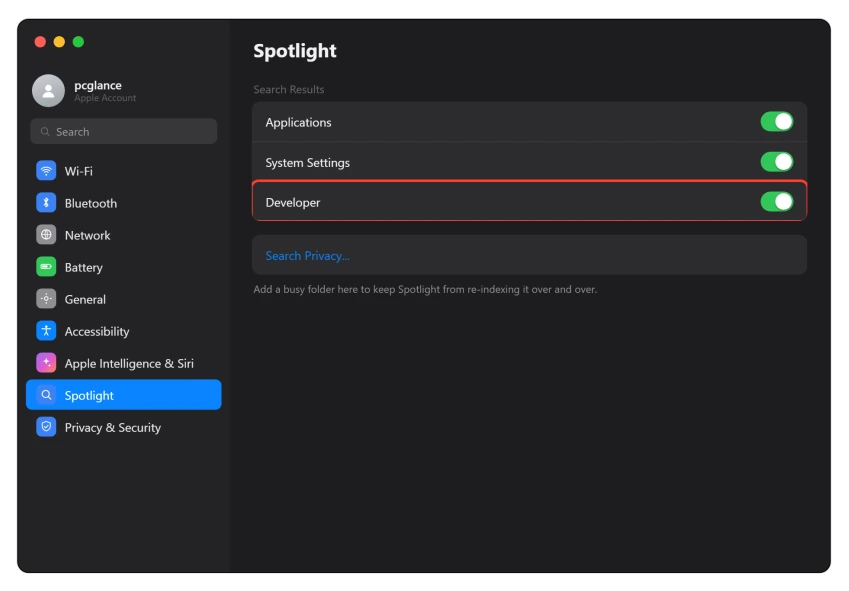
Important: If the lag comes back after a few days, something keeps re-triggering the index, often Time Machine or, for developers, Xcode.
Exclude the backup drive or the developer folders rather than rebuilding the index over and over.
Turn On Reduce Transparency and Reduce Motion
Tahoe's Liquid Glass look, with all its transparency and animation, makes the display engine work much harder, especially on older Macs or with several external displays. Calming it down frees up real headroom.
Here's what to do:
- Open System Settings, Accessibility, then Display.
- Turn on Reduce Transparency and Reduce Motion.
- Then lighten the load: close windows, apps, and browser tabs you are not using, and unplug an extra external monitor to test.
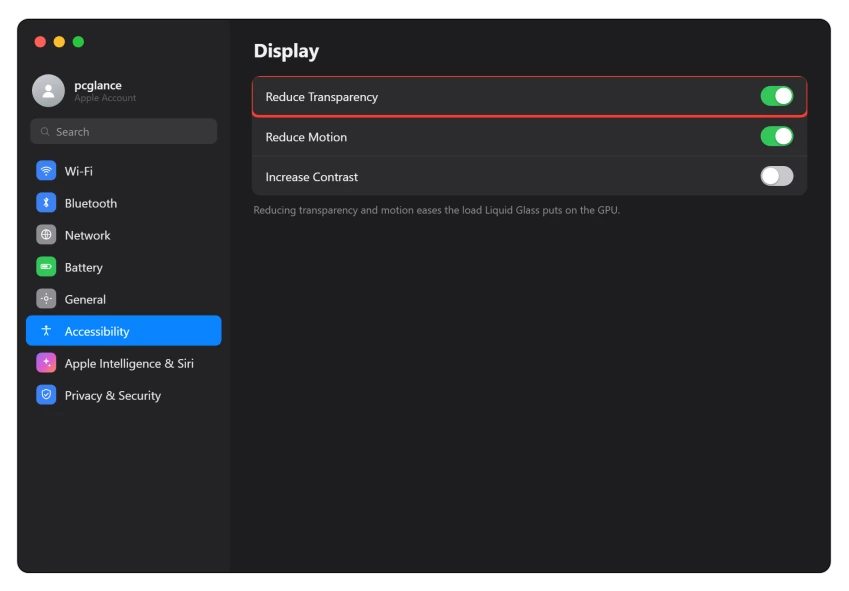
Important: Make sure you are on the latest Tahoe first. Reduce Transparency was reportedly broken in some earlier 26.x builds, so it only reliably helps once you are updated.
Fix the Ghost Cursor Without Rebooting
If your pointer moves but clicks do nothing, usually after waking from sleep or switching users, the cursor service has lost sync with the display engine. You do not need to reboot.
You can restart just the display engine in place.
Here's what to do:
- Press Command + Space, type Activity Monitor, and press Return to open it.
- Use the arrow keys to find and select WindowServer in the list.
- Click the stop button (or press Command + Option + Q) to force quit it. The screen redraws and your clicks come back.
Important: Only do this for the stuck ghost-cursor state, not as a routine speed-up. Force quitting WindowServer redraws the whole screen and you will lose any unsaved work in open apps.
To stop it happening again, fully log out instead of using Fast User Switching, and avoid closing the lid while another account is still logged in.
And if your Mac sometimes refuses to wake at all, that is a separate Tahoe bug.
If hover effects and keyboard shortcuts stop working after a right-click instead, the Mac hover page has the iPhone Mirroring fix that owners confirmed.
If WindowServer itself runs hot on macOS 27 and every app switch drags, the WindowServer page covers the display size behind it for one owner.
Re-Pair Bluetooth and Remove the Culprit App
For a laggy or jumpy wireless pointer specifically, the cause is often a Bluetooth hiccup or one incompatible utility app dragging the cursor down.
Here's what to do:
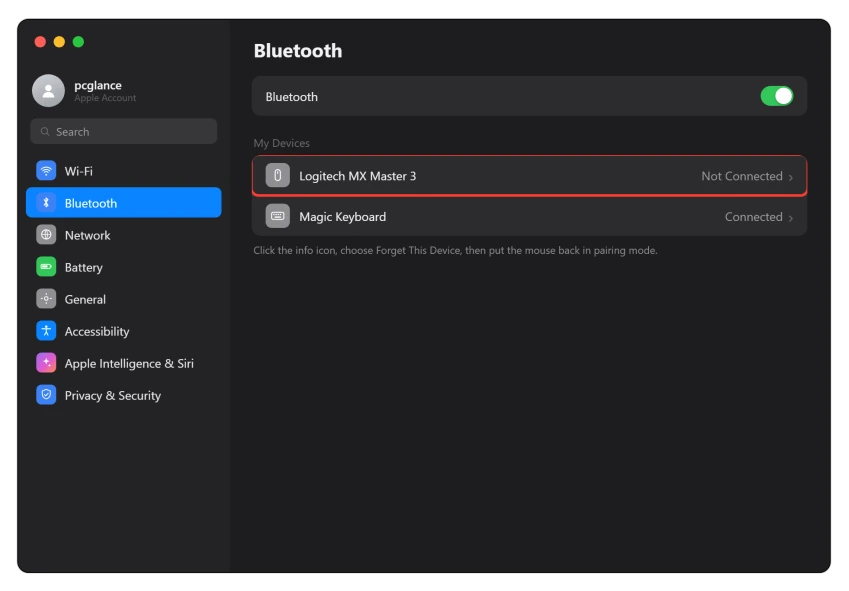
- Toggle Bluetooth and your mouse or keyboard off and back on, or forget and re-pair the device in System Settings, Bluetooth. If it then refuses to reconnect at all, our Tahoe Bluetooth fix picks up from there.
- Update or remove known troublemakers. Bartender (versions 5 and 6) caused cursor glitches and windows blinking every few seconds, and an outdated Logitech Options+ made pointers jump. Update those, or uninstall them to test.
Safe Boot, and Clear Out Cleaners and Antivirus
If it is still stuttering, this isolates a bad startup item and removes a common class of offenders. Apple's Safe Mode guide explains exactly what a Safe Boot loads and skips.
Here's what to do:
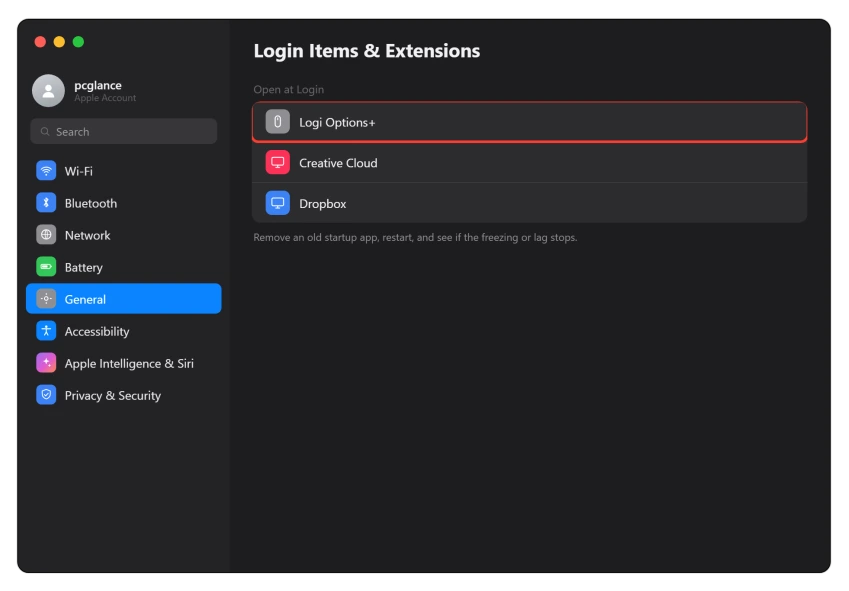
- Do a Safe Boot as a test. On Apple Silicon, hold the power button until "Loading startup options" appears, pick your disk, then hold Shift and choose Continue in Safe Mode. If the cursor is smooth in Safe Mode, a third-party login item is your cause.
- Then thin out startup items in System Settings, General, Login Items & Extensions.
- Remove incompatible antivirus, VPN, and cleaner or optimizer apps (BitDefender and CleanMyMac were both named). On Tahoe these tend to cause more lag than they cure.
Still Stuttering? Here Is What Is Left
If you have genuinely worked through this:
- Test a fresh user account. Open System Settings, Users & Groups, add a new user, and log into it. If the cursor is smooth there, the problem is something in your own account's apps or settings, not macOS itself.
- Do not assume it is hardware. The experts on these threads consistently call this a software and display-engine bug, not a failing mouse or logic board, so do not rush to buy a new mouse.
- Be very careful about downgrading. If you are tempted to roll back to Sequoia, know that you cannot restore from a Time Machine backup made on Tahoe, so plan a separate backup first or you can lose data.
The Short Version
Do not start with your mouse.
The worst Tahoe cursor lag is your apps tripping a system shadow bug, so update your Electron apps (Slack, Discord, VS Code, and so on) and macOS to the latest Tahoe first.
That alone fixes it for most people. If your Mac is pinned and beachballing, rebuild the Spotlight index, then turn on Reduce Transparency and Reduce Motion and close extra windows and displays.
A laggy wireless pointer usually means re-pairing Bluetooth and updating or removing apps like Bartender and old mouse drivers, and a stubborn case calls for a Safe Boot to catch a bad login item plus pulling any cleaner or antivirus app.
The hovering ghost cursor is a different beast with a one-line cure: force quit WindowServer from Activity Monitor. Match the fix to the symptom and your Mac should feel like itself again.
Where to Next
More macOS Tahoe help: This fix is part of our macOS Tahoe problems and fixes guide, a single place that rounds up every common Tahoe issue.
If the whole machine is slow rather than the cursor sticking, the list is different. Apple names five causes and one of them is usually yours.
If something else on your Mac is acting up after the update, start there.
A pointer that will not move at all on macOS 27, while the mouse shows Connected, is something else. The Magic Mouse page covers that one.

Isaac Smith is the founder and editor of PC Glance, a website that covers computers, laptops, and technology. He is a tech enthusiast and a computer geek who loves to share his insights and help his readers make smart choices when buying tech gadgets or laptops. He is always curious and updated about the latest tech trends.