

You open the lid, the power light is on, and the screen stays dead black. I know that is a bad moment, especially on a machine you rely on.
The Mac won't wake from sleep, and since macOS Tahoe it is one of the most reported Mac bugs: 205 complaints on one Apple thread alone, hitting M1 through M4 and Intel alike.
The fixes below are the ones real users confirmed, sorted by which kind of black screen you have.
Get the screen back right now
Tap the power button (Touch ID) once, briefly, like a key press. On several Macs that lights the screen when tapping normal keys does nothing. A few users get the same result from pressing Esc a few times.
If nothing responds within a minute, hold the power button for about 10 seconds until the Mac shuts off, wait a moment, and press it again to start up.
Apple's own guidance for a Mac that will not turn on is this same force restart.
That recovers you today. To stop it happening again, figure out which of the three failures you have.
The three kinds of "won't wake"
Check two things before you touch a fix: the keyboard backlight, and the caps lock key.
- Caps lock light works, screen stays dark. The Mac is awake, the display path failed. Your fixes: the color-bug section and the update section.
- Everything is dead: no keyboard light, no sounds, only a cold boot works. The Mac fell into deep sleep and never came back. The Terminal fix below is for you.
- Laptop screen fine, external monitor says No Signal. That is a display handshake problem, not a wake problem: external monitor not detected on macOS Tahoe covers it. Quick version: unplug that one cable for 30 seconds or power-cycle the monitor.
Not sure whether the Mac actually woke? Open Terminal after a restart and run pmset -g log | grep -E ' Sleep | Wake ' | tail -n2. A fresh Wake entry means the Mac woke and only the screen failed.
The deep-sleep fix (wakes as a cold boot)
If your Mac is completely dead after long sleep, the failure is in Tahoe's standby and hibernation path.
After enough time asleep, a Mac drops into deeper power-saving states: hibernation on battery (standby) and a chipset power-off on desktops and plugged-in Macs (autopoweroff).
On Tahoe, some machines never climb back out, which matches what users see: failures after an hour or more of sleep.
The fix that a MacRumors user confirmed stopped it completely: keep the Mac in ordinary sleep and block the deep-sleep descent. In Terminal, run:
sudo pmset -a standby 0 autopoweroff 0 powernap 0 tcpkeepalive 0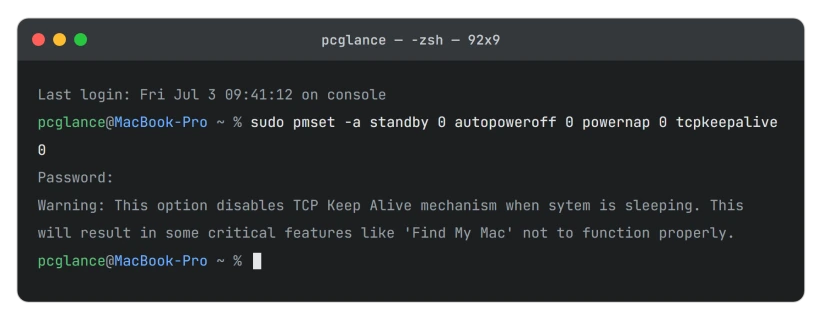
Enter your password (it stays invisible while you type).
Two trade-offs to know: battery use during long sleep rises a little since the Mac no longer hibernates, and as the command itself warns, Find My Mac stops working while the Mac sleeps.
Background iCloud and Time Machine activity during sleep pauses too.
When Apple ships a fix, put everything back with sudo pmset restoredefaults.
And skip the lidwake 0 command floating around forums for this problem: it disables waking when you open the lid, which adds a new problem on top.
The color bug (backlight on, screen black)
A backlight that is clearly glowing behind a black screen, often with audio still playing, points at a long-standing macOS color-management bug that Tahoe made worse.
The trigger is software that adjusts your display's color tables: BetterDisplay, f.lux, and similar apps.
In BetterDisplay, turning off "Enable color table adjustments" (labeled "Allow color table adjustments" in some versions) fixed the black wake for more than half a dozen users on the app's own support board.
One Mac mini owner went from failing constantly to waking normally about 80 percent of the time just by removing f.lux and a virtualization app.
If you run any display or color utility, disable or remove it, restart, and give it a few sleep cycles before judging.
Update macOS, with realistic expectations
Status: still broken for some Macs as of macOS 26.3, and Apple has not acknowledged it in any release notes.
The bug appeared with 26.0 in September 2025, alongside the rest of the launch problems in our macOS Tahoe fixes roundup.
The 26.1 update genuinely fixed it for some people, and one user called it fixed "kind of." For at least four others in the main thread it changed nothing, and one person's problem only began on 26.1.
Update anyway at System Settings > General > Software Update, since each point release has helped a slice of Macs.
Just do not stop troubleshooting because you are on the newest version, and add your report to Apple via Feedback Assistant, because pressure is what gets a silent bug fixed.
The reinstall that held, and the one that did not
The main thread's own author tried both.
Reinstalling macOS over the top from Recovery fixed his M1 Pro MacBook for a while, then the black wakes returned on the next update.
A clean install, wiping the disk and setting up fresh, held for weeks with no recurrence.
That points at leftover files from the upgrade clashing with Tahoe.
A clean install is a weekend job with a full backup, so treat it as the last resort, but know it is the one reinstall path with a confirmed lasting result.
What did not work for anyone
Worth naming, because every competing guide lists these anyway.
Safe Mode boots, NVRAM and SMC resets, and toggling settings like "Prevent automatic sleeping" or "Wake for network access" off and on: in every thread we read, not one user reported these curing the Tahoe wake failure.
NVRAM and SMC resets do not even exist on Apple Silicon.
Also ignore any guide telling you to set gpuswitch 0. That controls dual-GPU switching on old Intel MacBook Pros and does nothing on an M-series Mac.
Until Apple fixes it
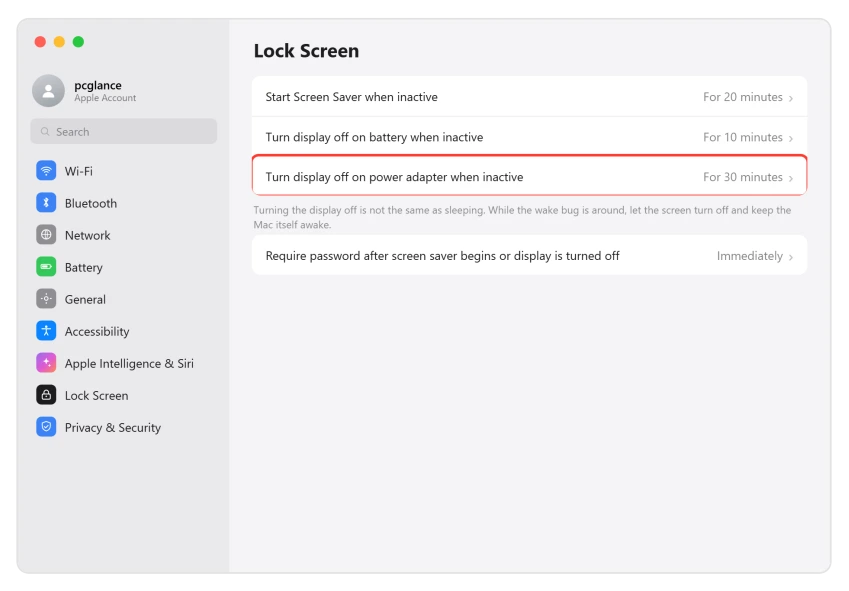
If the failures keep coming, stop the Mac from sleeping and let only the display turn off.
In System Settings > Lock Screen, set the display to turn off when inactive, and on a desktop set Energy so the Mac itself stays awake.
Also check what blocks or breaks sleep: open Activity Monitor, switch to the Energy tab, and look at the Preventing Sleep column, as Apple describes in If your Mac sleeps or wakes unexpectedly.
WhatsApp Desktop was caught holding Macs awake on 26.1 until users quit it or switched to WhatsApp Web.
And if Wi-Fi comes back broken after each wake, that is its own Tahoe bug with its own fixes: MacBook Wi-Fi dropping on macOS Tahoe.
Will I lose data if I force restart a Mac that won't wake?
Anything already saved is safe, and macOS autosaves most documents, so a force restart almost always costs nothing. You lose only unsaved changes in apps without autosave.
Given the alternative is a Mac stuck on a black screen, the 10-second power-button hold is the right call.
Did macOS 26.1 fix the wake problem?
Partially. Some Macs stopped failing after 26.1, and one main-thread user declared it solved.
At least four others saw no change, one person's failures started on 26.1, and reports continued through 26.2 and 26.3. So update, but treat it as one fix among several, not the cure.
How do I stop my Mac going into deep sleep?
Run sudo pmset -a standby 0 autopoweroff 0 powernap 0 tcpkeepalive 0 in Terminal.
Standby and autopoweroff drop a sleeping Mac into hibernation, the state Tahoe fails to wake from, while powernap and tcpkeepalive stop background wake events from re-triggering it.
Reverse it any time with sudo pmset restoredefaults.
The Short Version
- Right now: tap the power button once, and if that fails, hold it 10 seconds and boot fresh.
- Sort your failure first. Caps lock lights = display problem. Totally dead = deep sleep. Monitor No Signal = handshake, see the external monitor guide.
- Totally dead after sleep:
sudo pmset -a standby 0 autopoweroff 0 powernap 0 tcpkeepalive 0. Undo later withsudo pmset restoredefaults. - Backlight on but black: turn off color-table adjustments in BetterDisplay, or remove f.lux-type apps.
- Update to the latest 26.x, but know it fixed only some Macs, and file it in Feedback Assistant.
- Skip Safe Mode, NVRAM, and SMC rituals: zero confirmed successes, and they do not exist on Apple Silicon anyway. A clean install is the confirmed last resort.
Where to Next
Where the Mac wakes but then falls over, the model matters. The M4 Mac mini freezing and restarting on Tahoe has its own pattern worth ruling out.
Slow after logging in rather than slow to wake is a different screen entirely. The login items list is where apps that start themselves live.
- Monitor dead on wake: External monitor not detected after macOS Tahoe
- Wi-Fi broken after wake: MacBook Wi-Fi dropping on macOS Tahoe
- More Mac fixes: macOS Tahoe problems and fixes
- Back to the start: pcglance home

Isaac Smith is the founder and editor of PC Glance, a website that covers computers, laptops, and technology. He is a tech enthusiast and a computer geek who loves to share his insights and help his readers make smart choices when buying tech gadgets or laptops. He is always curious and updated about the latest tech trends.