
Typing works, the cursor does not, and half the internet tells you to re-pair the keyboard over Bluetooth. You cannot, and I will explain why before you waste an evening trying. You cannot: the Magic Keyboard has no Bluetooth, no battery, and no power switch, only three metal contacts.
That is why a dead trackpad on iPadOS 26 usually comes down to those contacts, one settings menu, and one genuine software bug, each with its own fix below.
The 30-second fix with the most confirmations
Across the biggest Apple Community thread on this problem, 4,483 people strong, one sequence comes up more than everything else combined: fully de-energize the keyboard.
Lift the iPad off the Magic Keyboard, unplug every cable from both the iPad and the keyboard's own USB-C port, and wait ten seconds. Then plug power back in and set the iPad back onto the connector.
The pointer usually returns the moment it docks. It can come back, though. The docked-charging trigger below is usually why.
If the whole iPad is unresponsive rather than just the pointer, restart it first: iPad frozen and won't force restart walks through the button combos per model.
Does Settings even show a Trackpad menu?
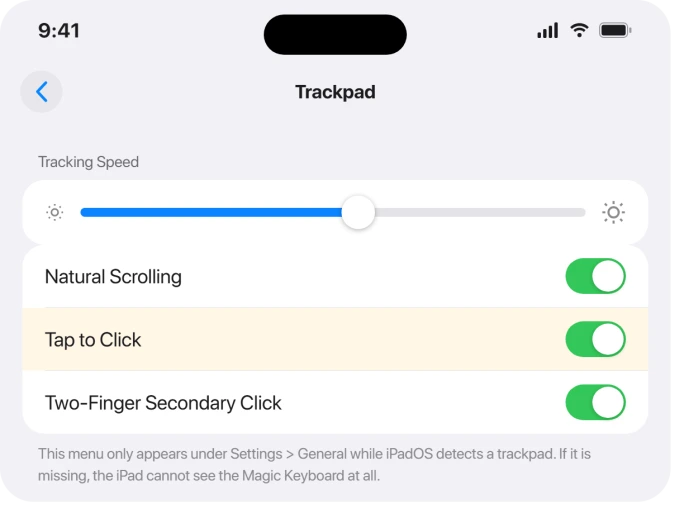
Open Settings > General and look for the Trackpad menu. Its presence splits the first two failures, and the third announces itself by when it happens.
- The Trackpad menu is missing entirely. The iPad is not detecting the trackpad at all. That is the connector path: cleaning and the docked-charging trigger below.
- The menu is there, the pointer moves, but clicks or gestures fail. That is the iPadOS 26 software bug. Jump to that section.
- It dies after sitting docked and charging for hours. That is the oldest trigger of all, and it has its own fix.
That menu check is worth remembering: iPadOS only shows Settings > General > Trackpad when it can see a pointing device, so its absence tells you the problem is physical, not settings.
Clean the Smart Connector, and skip the Bluetooth advice
Apple's official troubleshooting for the Magic Keyboard is short: check compatibility, update iPadOS, clean the Smart Connector with a soft lint-free cloth, remove any other case, reconnect, restart.
The cleaning step is the one with real confirmations. Wipe the three small magnetic contacts on the keyboard and the matching dots on the iPad's back.
In mid-2024, Apple Support walked one iPad Air owner through wiping both surfaces, and that alone solved his dead pointer.
And ignore any guide telling you to "forget the device and re-pair it." The Magic Keyboard for iPad connects through the Smart Connector, not Bluetooth: there is no pairing, so there is nothing to forget.
Advice like that was written for a different keyboard.
For first-time setup, identify whether the iPad keyboard uses Bluetooth or contacts before following a pairing procedure.
The docked-and-charging trigger
The classic version of this failure has a pattern: the iPad sits mounted on the keyboard for hours, usually plugged in, and the trackpad is dead when you come back.
Some users even watched the battery drain while the cable was connected, which is the same fault showing from the other side.
The de-energize sequence at the top clears it. To make it rarer, unplug or unmount when you walk away for long stretches.
One wiring rule from Apple worth knowing: the keyboard's own USB-C port is for power only, and you should never run a cable from the iPad's port to the keyboard's port.
If your battery drains while docked anyway, that overlaps another 26-era bug: iPad battery drain on iPadOS 26.
The iPadOS 26 bug: pointer alive, clicks dead
Status: user reports run from iPadOS 26.0 through at least 26.4, and Apple's release notes from 26.0.1 to 26.5.2 do not mention the trackpad once.
The 26-era failure looks different from the old one.
The pointer still moves, but clicks stop registering, apps in the Dock cannot be selected, sideways scrolling between apps dies, and three-finger gestures work only sometimes.
Restarting and remounting often does not help this variant.
The one fix a user confirmed on iPadOS 26: Settings > General > Transfer or Reset iPad > Reset > Reset All Settings.
Your apps, photos, and data stay, but Wi-Fi passwords, wallpapers, and preference toggles reset, so budget a few minutes to redo them.
Update iPadOS too, at Settings > General > Software Update, and file the bug in Feedback Assistant. Just know that updating alone has not cleanly fixed this for people so far.
Two settings that fake this bug
If the pointer vanishes when you stop moving it and you think it is "cutting out," check Settings > Accessibility > Pointer Control.
The Automatically Hide Pointer option makes the cursor disappear after seconds of idleness by design.
While you are in Settings, open General > Trackpad and confirm Tap to Click and the tracking speed are the way you expect.
An accidental change here reads as a half-broken trackpad, especially if taps stopped clicking.
Let the keyboard's own firmware update
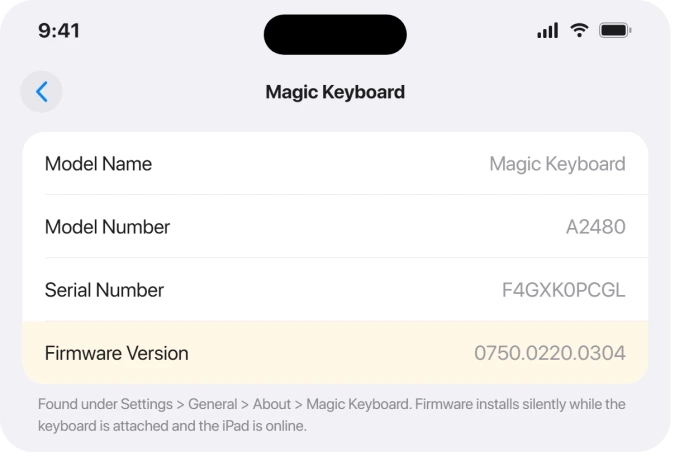
The Magic Keyboard runs its own firmware, and Apple updates it silently: no button, no notification.
In January 2026, months into the complaint wave, Apple shipped new firmware for the M4/M5 iPad Pro and iPad Air keyboards without publishing a word about what it fixed.
Check your version under Settings > General > About > Magic Keyboard. To give an update the chance to install, keep the iPad attached to the keyboard and connected to the internet overnight.
What did not work
Buying a replacement keyboard is the expensive disappointment here. In the big thread, multiple people swapped keyboards and the new one failed the same way, because the fault is usually on the iPad's side.
Wiping the iPad completely did not cure the related frozen-cursor bug for the user whose Genius Bar tried it. And on iPadOS 26 specifically, two users reported plain restarts and reconnects changed nothing.
If the trackpad stays dead on a second iPad, or the Trackpad menu never appears anywhere after cleaning, then the keyboard itself has genuinely failed, and that is the one case where service makes sense.
Why is the cursor not working on my iPad Magic Keyboard?
Usually one of three causes: the Smart Connector link dropped (fix by detaching, unplugging power, waiting ten seconds, and remounting), dirty connector contacts, or the iPadOS 26 software bug that breaks clicks while the pointer still moves.
The de-energize sequence resolves the most cases.
How do I turn on the trackpad on a Magic Keyboard?
There is no on switch. The trackpad activates automatically the moment the Smart Connector engages, with no pairing and no battery of its own.
If Settings > General > Trackpad is missing, the iPad is not detecting the keyboard: clean the contacts and reseat the iPad on the connector.
Why does my iPad cursor keep disappearing?
By design, the pointer hides after a few idle seconds: Settings > Accessibility > Pointer Control > Automatically Hide Pointer controls that.
If it vanishes and will not come back with a swipe on the trackpad, that is the dropout bug instead, and the detach-and-unplug sequence brings it back.
The Short Version
- Best first move: lift the iPad off, unplug all cables from both iPad and keyboard, wait ten seconds, replug, remount. Most-confirmed fix by far.
- Check Settings > General > Trackpad. Menu missing = physical problem: clean the Smart Connector contacts (Apple's own advice). Menu present but clicks dead = the iPadOS 26 bug.
- No Bluetooth pairing exists on this keyboard, so skip any forget-and-re-pair advice.
- For the iPadOS 26 click bug, Reset All Settings is the one user-confirmed fix. Update iPadOS and file Feedback, but reports still ran through 26.4.
- Pointer vanishing on idle is a setting: Accessibility > Pointer Control > Automatically Hide Pointer.
- Keyboard firmware updates silently: check it under About > Magic Keyboard, and do not buy a replacement keyboard first, since replacements failed the same way.
Where to Next
- iPad locked up entirely: iPad frozen and won't force restart
- Same era, other accessory: Apple Pencil not working on iPad
- More iPad fixes: iPad problems and fixes
- Back to the start: pcglance home

Isaac Smith is the founder and editor of PC Glance, a website that covers computers, laptops, and technology. He is a tech enthusiast and a computer geek who loves to share his insights and help his readers make smart choices when buying tech gadgets or laptops. He is always curious and updated about the latest tech trends.