
Your iPad was fine on iPadOS 18, then you updated to iPadOS 26 and now the battery falls off a cliff, drains overnight, and the back feels warm.
Most of that early drain is normal, not a bug. The iPad is reindexing search, re-scanning photos, and re-syncing iCloud, and that can hammer the battery for 24 to 72 hours.
Separate from that, early iPadOS 26.0 did ship a real drain bug tied to the new Liquid Glass look, which Apple calmed down in iPadOS 26.1.
So before you change a thing, read the one screen that tells you the actual cause, then work through the fixes.
Find the Real Culprit in Settings, Battery
This one screen names the cause instead of leaving you to guess, so you fix the right thing.
Here's what to do:
- Open Settings, then Battery.
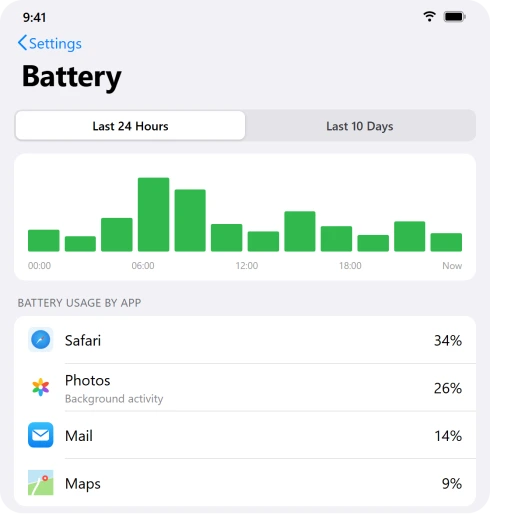
- Look at Last Charged and the Daily Usage chart. Tap between Last 24 Hours and Last 10 Days to see if usage is genuinely higher than normal.
- Read any Insights shown above the chart, like "Ongoing iOS Update," brightness too high, or auto-brightness off.
- Scroll to Battery Usage By App and tap an app to split Screen On time from Background activity.
Pro tip: Use the 40 percent rule. If one app you barely touch is showing around 40 percent or more of your usage, that app is your problem, not iPadOS.
If "Photos" or system activity is high right after updating, that is just the reindexing, and it is normal.
Give the Reindexing 24 to 48 Hours
The single most common cause fixes itself.
Heavy drain and warmth in the first couple of days is the iPad finishing its post-update housekeeping, and changing ten settings now just makes it impossible to tell what helped.
Here's what to do:
- Leave the iPad plugged in, on Wi-Fi, and locked overnight for a night or two so the background work finishes faster.
- Expect noticeably faster drain and a warm body during this window. That is normal.
- Only treat it as a real fault if the battery is still abnormal after about 72 hours of mostly idle, charged time.
Important: A big photo library or a nearly full iPad can stretch this to several days, even a week. Do not factory reset in this window. Resetting early just makes it start the whole reindex over again.
Install the Latest iPadOS 26 Update
If the drain is the early Liquid Glass bug, this is the actual fix. iPadOS 26.0 ran the new look too hard, and iPadOS 26.1 trimmed the worst of it and added a control to tone the glass effect down.
Later updates brought battery roughly back to where iPadOS 18 was for many people, and Apple's iPadOS 26 update notes list what each release changed.
Here's what to do:
- Open Settings, General, Software Update and install the newest iPadOS 26 release. Your data and settings stay put.
- Keep the iPad charged and on Wi-Fi so it can download and install. If Wi-Fi is not working after iPadOS 26, fix that first.
- Let it reindex for a day after updating before you judge the battery again.
Hunt Down the Rogue App
If the Battery screen showed one app eating the battery while you barely use it, fix that app instead of changing everything.
Here's what to do:
- Update your apps. Open the App Store, tap your profile picture, and choose Update All. Apps not yet updated for iPadOS 26 are common offenders.
- Cut its background use in Settings, General, Background App Refresh, and switch it off for that app.
- Restrict its location in Settings, Privacy & Security, Location Services, set it to While Using or Never.
- If it still dominates, go to Settings, General, iPad Storage, tap the app, and choose Offload App, then reinstall the latest version. Offloading keeps your data.
Calm the Liquid Glass Effects
The new transparent, glassy interface is always rendering blur and motion, which adds steady load. This is the drain you can actually tune down after the reindexing is done.
The same look drains iPhone batteries on iOS 26 too.
Here's what to do:
- Turn on Reduce Motion in Settings, Accessibility, Motion. This is the dependable one, it kills the most expensive animations.
- On an iPad Pro, turn on Limit Frame Rate in the same Motion screen to cap the display at 60Hz. Every other iPad, including the iPad Air, the iPad mini, and the base iPad, is already 60Hz, so skip this one.
- On iPadOS 26.1 and later, open Settings, Display & Brightness and pick the Tinted (more solid) glass look instead of Clear.
Pro tip: You will see advice to turn on Reduce Transparency too.
It is hit or miss, some people see no change or even slightly worse battery, so try it on its own and watch the Battery screen rather than trusting it blindly.
Trim Background App Refresh
Apps refreshing in the background are one of the biggest drains you control. One reader said turning it off cut their overnight drain by more than half.
Here's what to do:
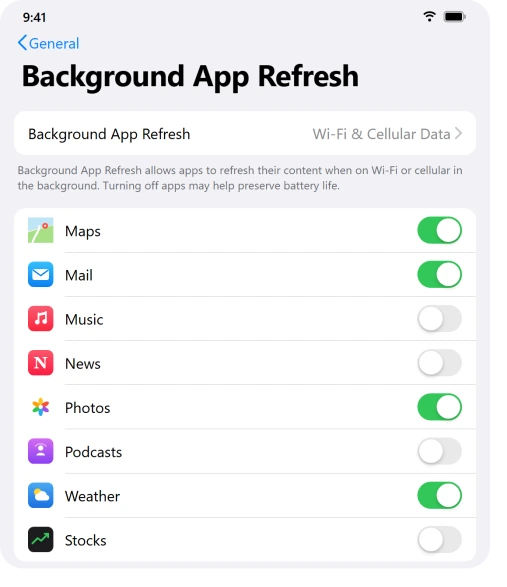
- Open Settings, General, Background App Refresh.
- Tap Background App Refresh at the top and choose Off, or Wi-Fi to stop cellular wake-ups.
- Better than a blanket off: leave it on but switch off only the heavy apps you do not need refreshing, like social, shopping, and games, while keeping Mail, Messages, and Maps on.
Important: Turning this off does not stop your iMessages or notifications, those come in a different way.
And do not bother force-closing apps to save battery, the iPad already freezes them, and reopening one actually uses more power.
Tame the Display, the Biggest Drain of All
The screen is the single biggest battery user on any iPad, so a few display tweaks do real work.
Here's what to do:
- Lower the brightness from Settings, Display & Brightness, or pull it down in Control Center.
- Turn on Auto-Brightness in Settings, Accessibility, Display & Text Size.
- Shorten Auto-Lock in Settings, Display & Brightness to 2 Minutes, the shortest an iPad offers, so the screen does not sit on needlessly.
Quiet Mail Push and Location Services
Two background drains people forget: email checking on a live connection, and apps tracking your location all the time.
Here's what to do:
- Stop Mail pushing. The path moved in iPadOS 18, so go to Settings, Apps, Mail, Mail Accounts, Fetch New Data, turn off Push, and set the schedule to Hourly or Manually. That screen is shared with Contacts and Calendar, so Manually stops calendar events updating in the background as well.
- Open Settings, Privacy & Security, Location Services and change apps set to Always down to While Using.
- Scroll to System Services and switch off the non-essential ones, especially Significant Locations, location based suggestions, and location based ads.
Important: Do not turn Location Services fully off or disable Find My to save power. The saving is tiny and you lose Maps, Weather, and the ability to find a lost iPad. Change it per app instead.
Force Restart, Then Check Battery Health
If the drain survives the reindexing window, an update, and the steps above, now it is worth the heavier moves.
Start with the same force restart used on an iPad that is frozen and will not respond.
Here's what to do:
- Force restart to clear a stuck background process. On a Face ID iPad, press and release Volume Up, press and release Volume Down, then hold the top button until the Apple logo appears. On a Home button iPad, hold the top and Home buttons together.
- On supported iPads, check Settings, Battery, Battery Health for maximum capacity. Apple's iPad battery usage and health guide explains the number. Very low capacity on a fairly new iPad is a hardware issue for Apple, not a settings fix.
- Still draining? Try Settings, General, Transfer or Reset iPad, Reset, Reset All Settings. This clears software conflicts and keeps your photos, apps, and data.
No Battery Health row at all? Only recent iPads have one, and the iPad Battery Health page lists them.
The Short Version
The first day or two of bad battery after iPadOS 26 is almost always normal reindexing, so do not panic.
Read the Battery screen to find the real cause, give the housekeeping time to finish, and get on the latest update to clear the early Liquid Glass bug.
Only then start tuning: deal with any rogue app, ease off the glass effects, trim background refresh, calm the display, and quiet Mail and Location.
If it still will not settle, force restart and check Battery Health. Most iPads land right back to normal.
Where to Next
More Apple fixes: This guide is part of pcglance, your plain-English home for Apple fixes.
For more help with your iPhone or Mac after an update, head to the pcglance homepage and pick your device.
If your iPad drained completely and now will not take a charge, an iPad 9th generation can need hours on the 20W charger.

Isaac Smith is the founder and editor of PC Glance, a website that covers computers, laptops, and technology. He is a tech enthusiast and a computer geek who loves to share his insights and help his readers make smart choices when buying tech gadgets or laptops. He is always curious and updated about the latest tech trends.