
Your iPad joined Wi-Fi fine until you updated to iPadOS 26, and now it will not connect, keeps dropping, or shows full bars with no internet.
Full bars in the corner and nothing loads is the strangest version of this, and on iPadOS 26 it usually traces back to one privacy setting almost nobody thinks to check.
Start with the two checks, then work the fixes top to bottom.
Let me go through them in order, and I would start with the ones that cost you nothing.
Start With Two Quick Checks
This 30 second test stops you from resetting the iPad when the real fault is the router or your provider.
If setup blocks you before Settings opens, match the iPad activation error to its server, account or connection route first.
Here's what to do:
- Test a phone or laptop on the same Wi-Fi. If an iPhone on iOS 26 has the same trouble, the iPhone Wi-Fi fixes cover that side.
- If other devices also have no internet, it is the router or your provider. Skip the iPad steps, restart your modem and router, and if it continues, contact your provider about an outage.
- If only the iPad fails, which is typical right after an iPadOS 26 update, it is iPad side, so keep going below.
- Quick iPad check: open Settings, Wi-Fi, tap the i next to your network, and look at IP Address. If it is blank or starts with 169.254, the iPad never got a real address from the router, which points straight at the fixes coming up.
Toggle Wi-Fi and Airplane Mode, Then Restart
Apple's first move for Wi-Fi trouble, and the one that clears a simple stuck connection, is also the fastest.
Here's what to do:
- In Settings, Wi-Fi, make sure Wi-Fi is on. A blue checkmark by the network name means you are connected.
- Open Control Center and check that Airplane Mode is off.
- Turn Wi-Fi off, wait a few seconds, and turn it back on. Or flip Airplane Mode on for about 20 seconds, then off.
- If the Wi-Fi switch looks greyed out and will not turn on, that is a sign the iPad just needs a restart. Go to Settings, General, Shut Down, wait 30 seconds, and power back on. If the screen will not respond to anything, the frozen iPad fixes get it back.
Forget the Network and Rejoin
The update often leaves a corrupted copy of your saved network. Forgetting it and joining fresh clears that out and forces a clean connection, which fixes "wrong password" loops and the stuck 169.254 address.
Here's what to do:
- Open Settings, Wi-Fi, and tap the i next to your network name.
- Tap Forget This Network and confirm.
- Go back to Settings, Wi-Fi, tap the network, and re-enter the password carefully. Watch for O versus 0 and l versus 1.
- Open the i again and make sure Auto-Join is on, so it reconnects on its own after sleep.
Turn Off Private Wi-Fi Address for That Network
This is the single most reported iPad fix after iPadOS 26, and it is the one people never guess. Your iPad uses a random, rotating hardware ID on each network for privacy.
If your router uses any kind of device list, parental controls, or a reserved address, that random ID gets blocked or handed a dead lease, so the iPad says Connected but has no real internet.
Here's what to do:
- Open Settings, Wi-Fi, and tap the i next to your network.
- Tap Private Wi-Fi Address and set it to Off (uses the real ID) or Fixed (a stable private one). The default, Rotating, is what causes the trouble on these routers.
- Rejoin the network when prompted so it reconnects with the stable ID.
- If your router uses an allow-list, find the iPad's ID under Settings, General, About, Wi-Fi Address, and add it to the router.
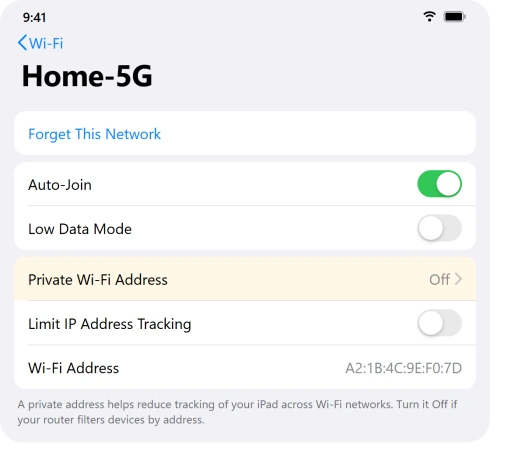
Pro tip: This is a per-network setting and a targeted fix. Leave Private Address on for normal networks that do not filter by device, like cafes and public Wi-Fi.
Power-Cycle the Modem and Router
A stale lease on the router side will single out one device while everything else works.
As one Apple Community regular put it, "you can have a router that works with 50 devices and not with one." Clearing both ends fixes that.
Here's what to do:
- Restart the iPad first.
- Unplug both the modem and the router for 30 to 60 seconds.
- Plug the modem back in first and wait a minute or two until its lights are solid.
- Plug the router back in next and wait until its Wi-Fi lights are steady.
- Reconnect the iPad and test.
Full Bars But Nothing Loads? Change the DNS
If the iPad is connected with an IP but pages will not open, the problem is usually how it is looking up websites, not the connection itself. Pointing it at a public lookup service fixes this without touching the router.
Here's what to do:
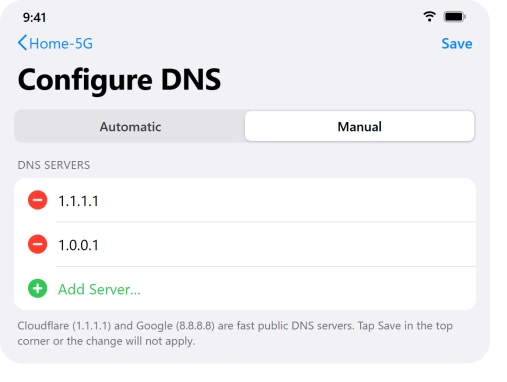
- Open Settings, Wi-Fi, tap the i, then Configure DNS, and switch to Manual.
- Tap Add Server and enter 1.1.1.1 then 1.0.0.1 (Cloudflare), or 8.8.8.8 then 8.8.4.4 (Google).
- Remove the old greyed-out entries with the minus button, then tap Save in the top corner. The change does not apply unless you tap Save.
- While you are here, you can also tap Renew Lease to grab a fresh address from the router.
Pro tip: Still connected but offline? Try turning off Limit IP Address Tracking on that same network info screen as a test. One user said the internet came back "as soon as" they did.
Note this also turns off iCloud Private Relay for that network on all your devices, so turn it back on if it does not help.
If Safari also shows This Connection Is Not Private on every site, that warning has its own order of checks, with the date and time near the top.
Remove VPNs and Security Apps That Block the Connection
A VPN profile or a third-party security app can wedge itself into the network and stop the iPad from getting a working address, which is the classic cause of that 169.254 dead address.
Here's what to do:
- Go to Settings, General, VPN & Device Management, and delete any third-party VPN profile entirely, not just toggle it off. Then restart.
- Remove third-party security or antivirus apps that manage the network, then reinstall only if things stay stable.
- Confirm Settings, General, Date & Time, Set Automatically is on, since a wrong clock can break the secure handshake.
Important: If a school or workplace set up your iPad, talk to their IT before deleting profiles. On managed iPads, the network is controlled by a profile you should not remove yourself.
Update iPadOS, Then Reset Network Settings
Wi-Fi behavior on iPadOS 26 changed between builds, so an update can help. If it still will not behave, the reset clears every network setting at once.
Here's what to do:
- Install the newest build from Settings, General, Software Update.
- If that does not do it, go to Settings, General, Transfer or Reset iPad, Reset, and tap Reset Network Settings.
- Confirm with your passcode. The iPad restarts, then rejoin your Wi-Fi and re-enter the password.
Important: Reset Network Settings erases every saved Wi-Fi password, plus your Bluetooth pairings and VPN settings. It does not touch your photos or apps, but have your Wi-Fi password on hand before you do it.
The iPad reset comparison distinguishes this network command from resetting all preferences or erasing personal content.
Fix It at the Router (Band Steering and Security)
If the drops happen after sleep, or one specific iPad cannot join while everything else can, the cure is often on the router, not the iPad.
The same settings trip up a MacBook Pro dropping Wi-Fi on Tahoe.
Here's what to do:
- Log into your router's settings page (often 192.168.1.1) and turn off "Band Steering" or "Smart Connect," then give the bands separate names like Home-2G and Home-5G. On the iPad, forget the old network and join one of them.
- If a base iPad throws a "wrong password" error on a network everything else joins, switch the router's security from WPA3 to WPA2/WPA3 Transitional. A known iPadOS 26 bug makes the newest base iPads fail pure WPA3, and there is no fix on the iPad side.
- Install any router firmware update and reboot the router.
- Avoid the old WPA/WPA2 (TKIP) security, which causes Apple Wi-Fi problems. Use AES.
Pro tip: Stuck on a hotel or cafe login page that will not open? Open Safari and go to captive.apple.com to force the sign-in screen, and do not tap Cancel, which kicks you off the network.
The Short Version
Do the two checks first. Find out whether it is the iPad or the router, and whether you cannot connect or cannot load.
After an iPadOS 26 update, when only the iPad is affected, the Private Wi-Fi Address is the fix more often than anything else, so set it to Off or Fixed for that network before you reset a single thing.
If the iPad connects but pages will not open, switch the DNS to 1.1.1.1 next.
Power-cycling the modem and router, deleting VPN profiles, and a network settings reset clean up the rest, and a stubborn "wrong password" on a base iPad usually means dropping the router from pure WPA3 to WPA2/WPA3 Transitional.
Where to Next
More Apple fixes: This guide is part of pcglance, your plain-English home for Apple fixes.
For more help with your iPhone or Mac after an update, head to the pcglance homepage and pick your device.

Isaac Smith is the founder and editor of PC Glance, a website that covers computers, laptops, and technology. He is a tech enthusiast and a computer geek who loves to share his insights and help his readers make smart choices when buying tech gadgets or laptops. He is always curious and updated about the latest tech trends.