

Your MacBook Pro keeps dropping Wi-Fi since the Tahoe update, and nothing you do in the network settings holds. Let me tell you the part nobody warns you about.
Turning Bluetooth off is the single fastest fix on Apple Silicon, and it feels backwards.
That same symptom (dropping, crawling, or the maddening "connected, but no internet") actually hides at least four separate causes, and the fixes pull in opposite directions.
As one person on Tahoe 26.3 put it, "this issue only started upon updating. Zero issues at all before this." The steps below are ordered to pin down your specific cause fast.
Update Tahoe First, Then Start Testing
Apple patched some of these Wi-Fi regressions in point updates, so get current before you dig in. If the update itself fails to install, fix that first.
Here's what to do:
- Open the Apple menu, System Settings, General, then Software Update.
- Install the latest macOS 26 release (26.0.1 fixed dropping for some early users).
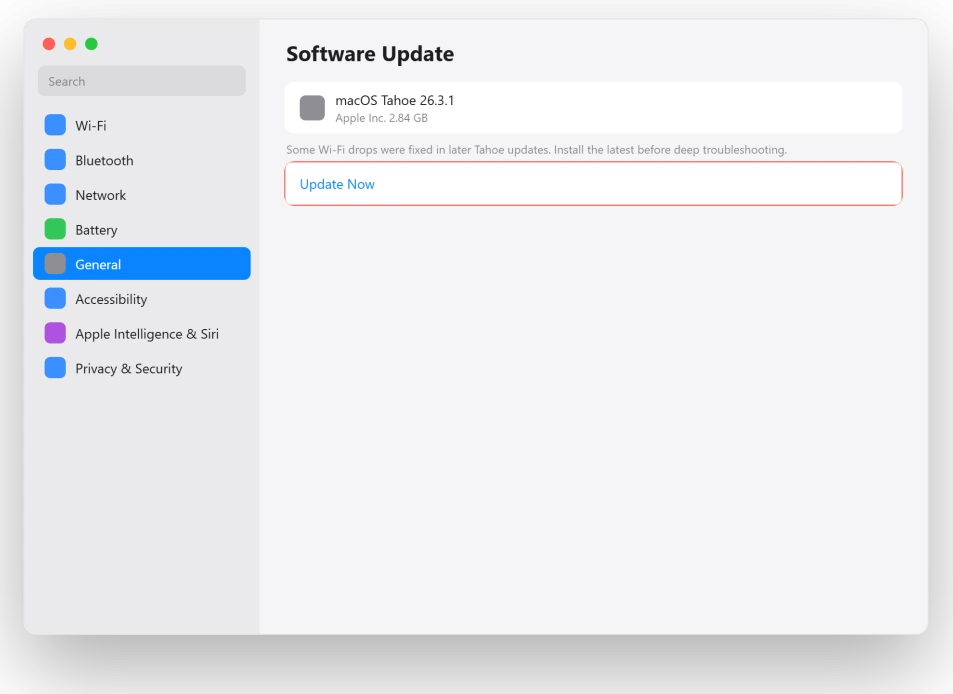
If it is still dropping after updating, work down the list.
Quiet the Radio: Bluetooth, AirDrop, and Handoff
This is the single most effective fix on Apple Silicon, and it surprises everyone. Bluetooth shares the radio with Wi-Fi, and on Tahoe they fight, which tanks your speed and spikes your ping.
The same root cause has a second half: AirDrop, Handoff, and AirPlay Receiver keep waking a background feature (called AWDL) that grabs the Wi-Fi radio, causing those little freezes and latency spikes.
Turn both sources off and re-test.
Here's what to do:
- Turn Bluetooth off from Control Center, or System Settings, Bluetooth, and toggle it off.
- Test your connection. If the speed jumps back and the drops stop, Bluetooth was the cause.
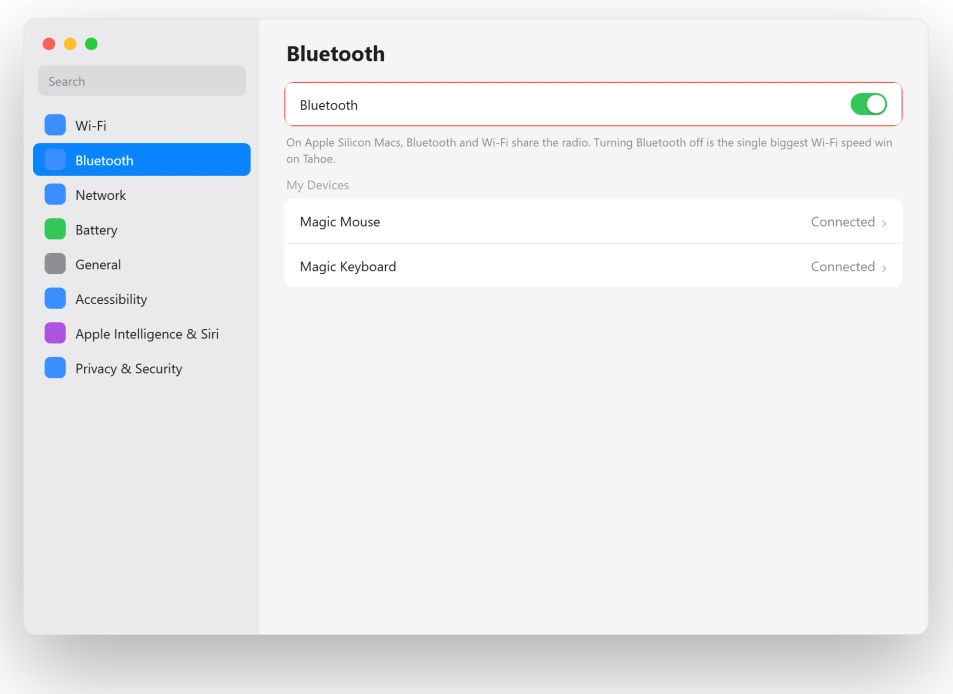
- Open System Settings, General, then AirDrop & Handoff.
- Set AirDrop to No One, turn Handoff off, and turn AirPlay Receiver off.
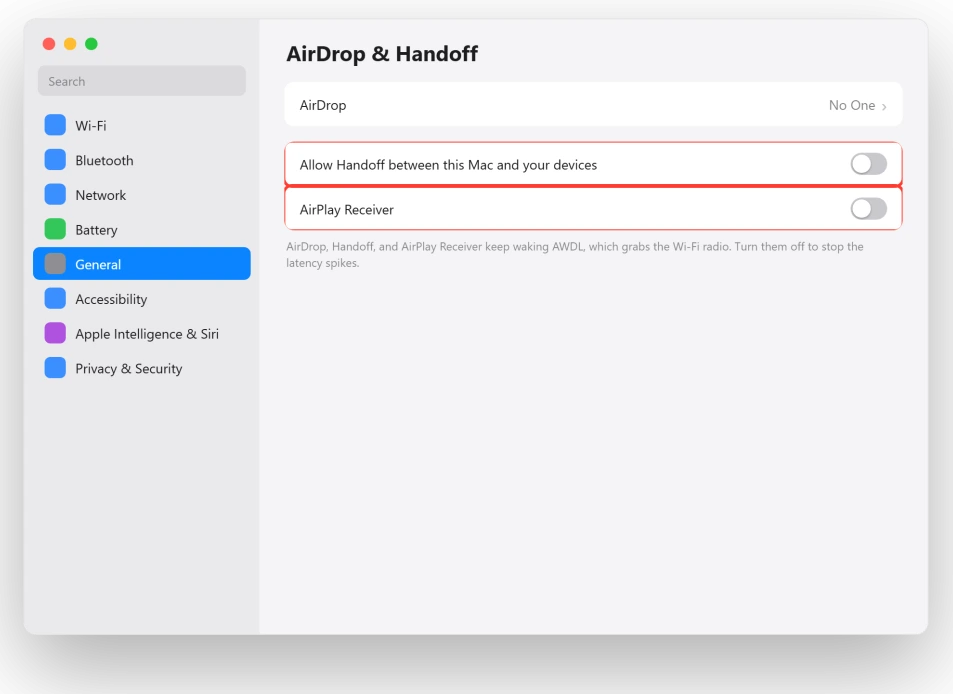
Users reported their connection "completely stabilized" after exactly this, going from 50 to 100 millisecond spikes back down to a steady 3 milliseconds.
Pro tip: If turning Bluetooth off fixes it but you need your mouse or keyboard, reconnect devices one at a time to find the offender, or move one to a USB receiver.
If a device won't pair again on Tahoe, that bug has its own fixes.
Forget the Network and Rejoin
A network profile carried over from the old macOS can get scrambled by the upgrade. Forgetting it and rejoining builds a clean one.
Here's what to do:
- Open System Settings, Network, then Wi-Fi.
- Click the three dots next to your network, choose Forget This Network, then reselect it and type the password back in.
Fix "Connected but No Internet" by Renewing the IP
If you are truly connected with no internet at all, and changing your DNS does nothing, this is a different beast: your Mac failed to get a real address from the router and gave itself a dead one (it starts with 169.254).
This is an IP problem, not a DNS one. Apple's guide to a Mac that won't connect to the internet over Wi-Fi covers the same dead-address state.
Here's what to do:
- Open System Settings, Network, Wi-Fi, then Details.
- Go to TCP/IP and click Renew DHCP Lease.
- If it keeps happening, set Configure IPv4 to Using DHCP with manual address and reserve that address on your router.
Check VPN and Filters for a Silent Blocker
Here is a cause that fools everyone, because Wi-Fi looks perfectly connected while nothing loads. A security tool like Little Snitch, or an old VPN, can silently block all your traffic after the update.
Here's what to do:
- Open System Settings, Network, then VPN & Filters.
- Disable any Little Snitch DNS Proxy filter or VPN you find, and test.
- If you use Little Snitch, update it to the Tahoe-compatible build (6.2.4 or later), then turn it back on.

Stop the Drop That Happens After Sleep
If your Wi-Fi is fine until the Mac sleeps and then dead when it wakes, the interface is getting stuck in a suspended state.
If the Mac itself won't wake from sleep at all, that is a different Tahoe fault. Two settings stop the loop.
Here's what to do:
- Open System Settings, Battery, click Options, and turn off Wake for network access.
- To recover a stuck connection without rebooting, open Terminal and run
sudo ifconfig en0 down, wait five seconds, thensudo ifconfig en0 up.
Turn Off the Privacy Features That Fight Routers
A few privacy settings clash with some routers on Tahoe and cause drops. Turning them off for your home network is a safe test.
Here's what to do:
- In System Settings, Network, Wi-Fi, Details, turn off Private Wi-Fi Address and Limit IP Address Tracking.
- Then open Apple Account, iCloud, and turn off Private Relay.
- Test, and leave them off only on your own trusted network.
Fix It at the Router for the Most Durable Cure
If the drops follow you no matter what you change on the Mac, the most lasting fix is on the router.
A couple of common settings cause exactly this after Tahoe, so check yours against Apple's recommended router settings.
Here's what to do:
- In your router settings, turn off WPA2/WPA3 mixed (transition) mode and run plain WPA2 or plain WPA3, not both.
- Disable 802.11r Fast Roaming (Fast Transition) and aggressive band steering.
- Split your network into separate 2.4GHz and 5GHz names, and connect your Mac to the 5GHz one. Several users said that alone ended it: "since then I haven't had any issues."
- Update your router or mesh firmware.
When Nothing Else Works: The Deeper Resets
If you have genuinely worked the list, it is time for the heavier stuff.
Here's what to do:
- Rebuild the network preferences. Turn Wi-Fi off, open Finder, press Shift + Command + G, go to
/Library/Preferences/SystemConfiguration/, and move these to your Desktop (do not trash them):com.apple.airport.preferences.plist,NetworkInterfaces.plist,preferences.plist. Restart and rejoin. - Make a new Network Location. System Settings, Network, the three dots, Locations, add a new one, then reconnect.
- Test a fresh user account. If Wi-Fi is perfect in a new account, the fault is in your old profile, not the OS or router.
- Run Wireless Diagnostics. Hold Option, click the Wi-Fi menu, and choose Open Wireless Diagnostics for a full report.
The Short Version
Stop reaching for the router first. On a Tahoe MacBook the fastest fixes are counterintuitive: turn Bluetooth off and quiet AirDrop and Handoff, because they are hijacking your Wi-Fi radio.
That alone steadies the connection for most people.
If it is still rough, forget and rejoin the network, renew the DHCP lease for "connected but no internet," rule out a silent blocker like Little Snitch, stop after-sleep drops with Wake for Network Access, and only then move to router settings and the deeper resets.
Where to Next
More macOS Tahoe help: This fix is part of our macOS Tahoe problems and fixes guide, a single place that rounds up every common Tahoe issue.
If something else on your Mac is acting up after the update, start there.

Isaac Smith is the founder and editor of PC Glance, a website that covers computers, laptops, and technology. He is a tech enthusiast and a computer geek who loves to share his insights and help his readers make smart choices when buying tech gadgets or laptops. He is always curious and updated about the latest tech trends.