

After the macOS Tahoe update, you click Photos, Passwords, or another app and nothing happens.
The icon bounces once in the Dock and quits, or it opens to a spinning beachball, or Passwords and Safari and Mail all crash together.
Resetting your fonts often revives them in one move. But half of the "Passwords won't open" reports are not crashes at all. The app just moved, and people are clicking a dead icon.
Let me show you what is actually blocking them, because the icon bouncing once is a clue rather than a crash.
First: Is the App Broken, or Just Moved?
Two quick truths that save a lot of people:
- Passwords is now its own app. It lives in your Applications folder and in Spotlight, not inside Safari anymore, as Apple's Passwords app guide explains. Press Command + Space, type Passwords, and open it from there.
- Launchpad is gone. If your old apps grid stopped working, that is by design. Use the new Applications app (in the Dock or Applications folder) instead, and drag the dead Launchpad icon off your Dock.
If your app genuinely crashes or refuses to open, start the fixes below.
Update macOS Before Anything Else
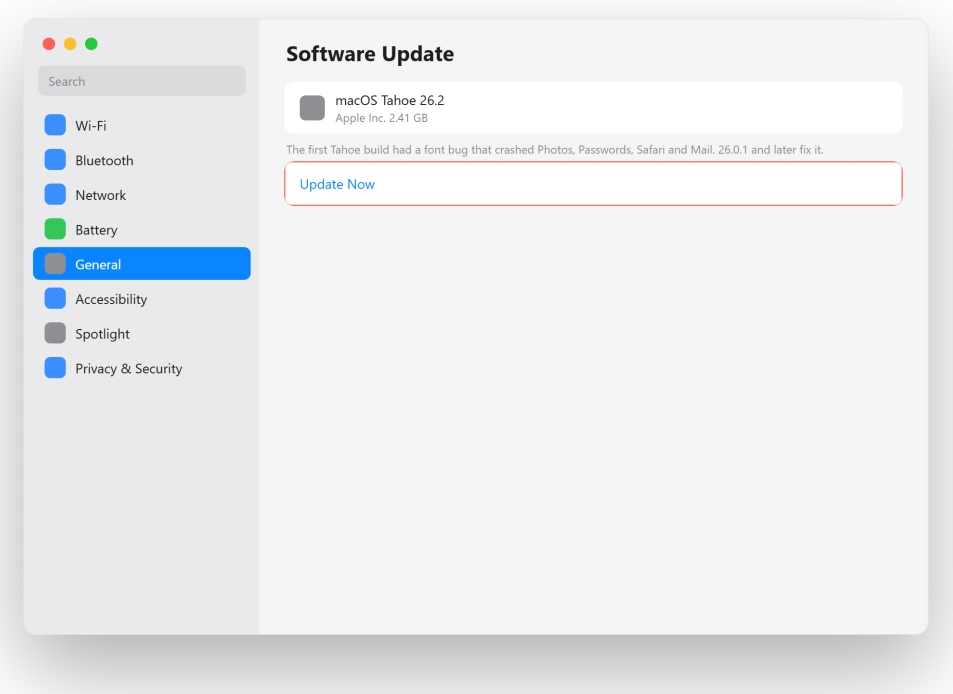
The very first Tahoe release shipped with a font-parsing bug that crashed exactly these apps. Apple fixed it in 26.0.1, with more stability in later updates, so this alone solves it for a lot of people.
Here's what to do:
- Open the Apple menu, System Settings, General, then Software Update.
- Install the latest macOS 26 release, and check App Store, Updates too.
Reset Your Fonts, the One-Shot Fix
This is the fix that brings Passwords, Safari, and Mail back together, because one bad font was crashing the shared text engine. It restores the default fonts and quarantines the rest.
Here's what to do:
- Open the Font Book app (Command + Space, type Font Book).
- In the menu bar, choose Font Book, Settings, then the Advanced tab.
- Click Reset Fonts, then Proceed, and authenticate.
- Relaunch the apps that were crashing.
Important: This moves your non-system fonts to a "Fonts (Removed)" folder. Once your apps are working, reinstall your custom fonts one at a time so you can catch the bad one before it breaks things again.
Rebuild the Photos Library
If it is specifically Photos that will not open, lags for minutes, or shows pixelated images, your photo library is likely corrupt, not the app.
Photos has a built-in repair for exactly this.
Here's what to do:
- Fully quit Photos with Command + Q.
- Hold Option + Command and launch Photos, and keep holding both keys until a Repair Library dialog appears. It can take a couple of tries.
- Click Repair and enter your admin password.
It can run from a few minutes to a while on a big or iCloud library, so let it finish. As one helpful user reassured people, "you do NOT need to wipe the Mac. You do NOT need to reinstall programs until Photos is stable."
Important: If your Photos library lives on an external drive, that drive must be formatted as APFS or Mac OS Extended (Journaled).
Running a library from a wrong-format drive can corrupt it.
Check the format in Disk Utility, and if the drive has stopped mounting since Tahoe, sort that out first.
If Photos opens but sits on Updating Library for hours with an external library, the Updating Library page has the First Aid order and the ownership box.
Delete the Crashing App's Preferences
A corrupted preference file can stop a single app from launching. Removing it makes the app build a fresh one.
Here's what to do:
- Quit the app. In Finder, press Shift + Command + G and go to
~/Library/Preferences/. - Find the file for the app, like
com.apple.Photos.plistorcom.apple.Passwords.plist, and drag it to your Desktop. - Relaunch the app. Keep the copy until you confirm it works.
Read the Real Error From Terminal
When an app silently bounces and quits, Terminal will tell you why instead of leaving you guessing.
Here's what to do:
- Open Terminal and run
open -a "Photos"(oropen -a "Passwords"). - Read the output for a clue like "Missing framework," "Permission denied," or "Code signature invalid."
- You can also open the Console app and check Crash Reports for the same app.
Stop the Spotlight Freezes
If apps open but then beachball and pin your Mac, a stuck Spotlight indexer is often the cause. Two toggles calm it down.
If Spotlight search itself has stopped working, that needs its own set of fixes.
Here's what to do:
- Open System Settings, then Spotlight.
- Turn off Show Related Content and Help Apple Improve Search.
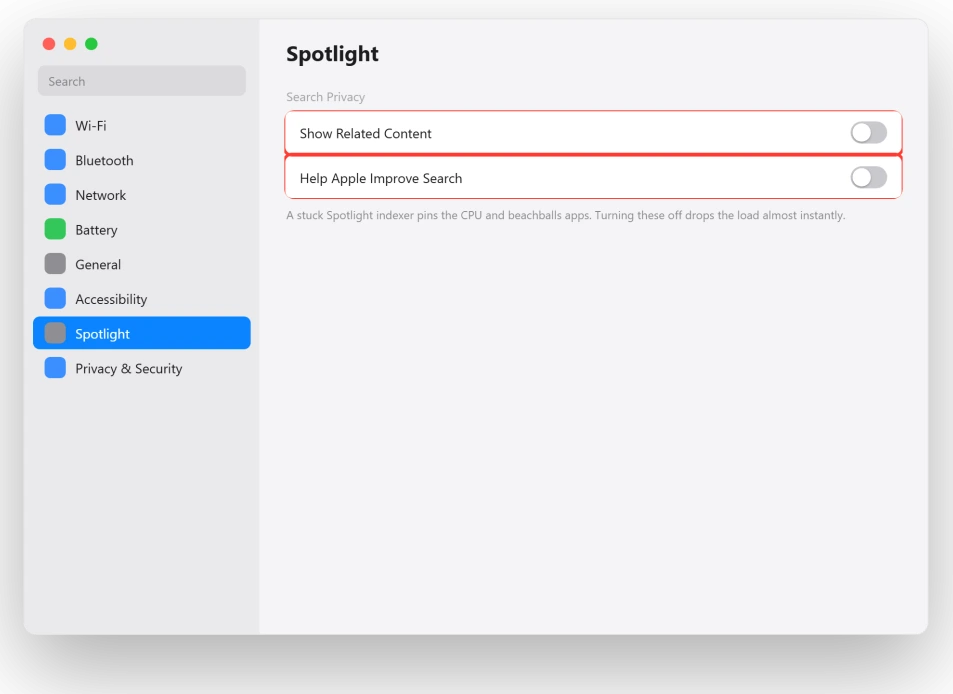
People reported the CPU load dropping almost instantly after this, with the runaway indexing process leaving the CPU list.
Re-Grant the App's Permissions
An update can drop an app's permissions, which can stop it working properly. Re-granting Full Disk Access fixes that.
Here's what to do:
- Open System Settings, Privacy & Security, then Full Disk Access.
- Make sure the affected app is turned on. If it already is, toggle it off and on, or remove it and add it back.
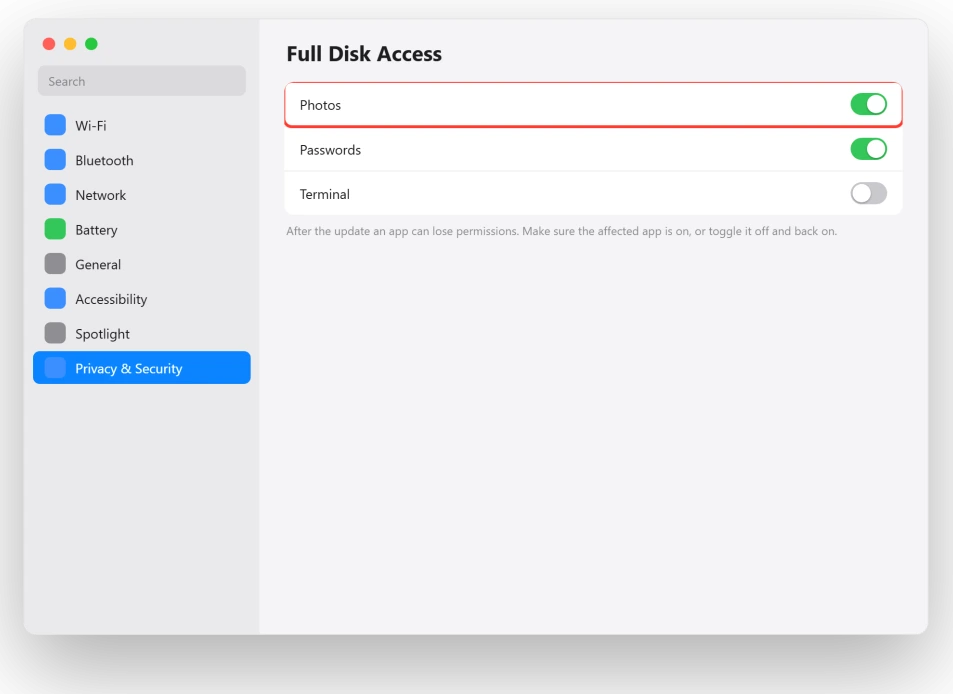
Terminal can lose that access too, and then it answers Operation not permitted; the Terminal page covers both switches it needs.
Boot Into Safe Mode
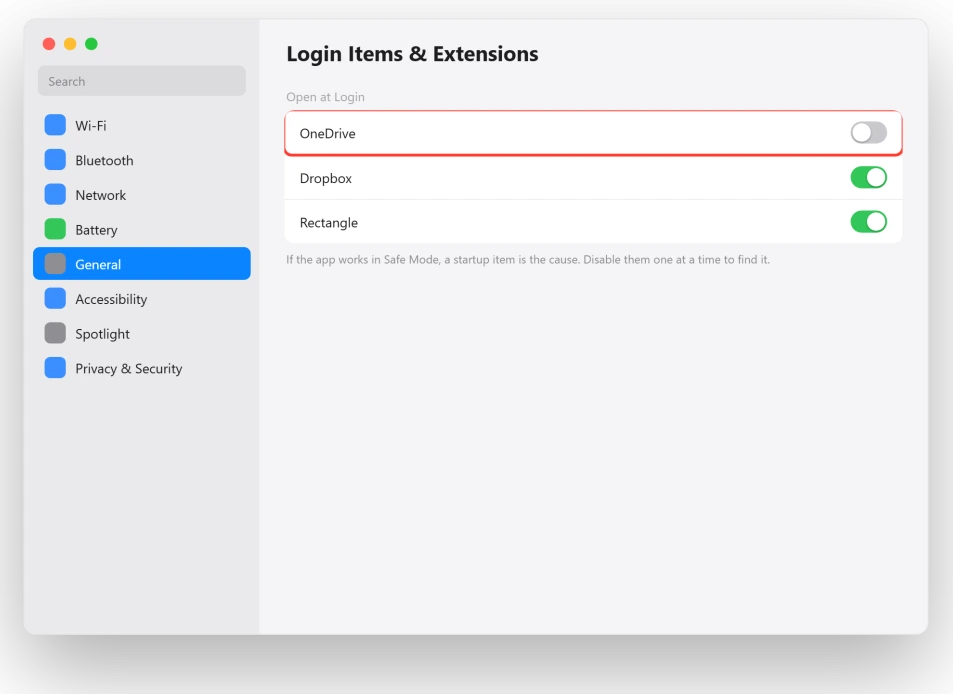
Safe Mode clears system caches and loads none of your third-party login items, fonts, or extensions, so it tells you fast whether one of those is the culprit.
Here's what to do:
- Shut down. Hold the power button until "Loading startup options" appears, pick your disk, hold Shift, and click Continue in Safe Mode (Intel: restart holding Shift).
- If the app works in Safe Mode, open System Settings, General, Login Items & Extensions, and disable items one at a time to find the offender.
The Last Resorts
If you have genuinely worked the list:
- Test a fresh admin account. System Settings, Users & Groups, add a user, and open the app there. If it works, the fault is in your old account's caches, not the OS. Set up the new account by hand rather than migrating, since migrating can carry the problem over.
- Repair the disk. Boot Recovery, open Disk Utility, and run First Aid on your volume.
- Reinstall macOS without erasing. As a final step, back up, then reinstall macOS Tahoe from Recovery. It keeps your files and replaces damaged system components.
The Short Version
Photos and Passwords failing are not two random bugs. Several Tahoe apps share one font engine, so when they crash together, reset your fonts first.
And before you panic over Passwords, remember it simply became its own app, so half the time nothing is broken at all.
Work the list in order: update Tahoe to patch the font crash, reset your fonts, rebuild the Photos library, then move on to preferences, Terminal, Spotlight, permissions, Safe Mode, and a fresh account only if you still need them.
Where to Next
More macOS Tahoe help: This fix is part of our macOS Tahoe problems and fixes guide, a single place that rounds up every common Tahoe issue.
If something else on your Mac is acting up after the update, start there.
If RAW photos stopped importing on macOS Sequoia 15.8 instead, the RAW page has the workarounds until 15.8.1.

Isaac Smith is the founder and editor of PC Glance, a website that covers computers, laptops, and technology. He is a tech enthusiast and a computer geek who loves to share his insights and help his readers make smart choices when buying tech gadgets or laptops. He is always curious and updated about the latest tech trends.