
The pairing animation just keeps spinning, or your watch sits there with a red iPhone icon and refuses to talk to your phone.
Maybe it froze partway through setup, maybe it dropped the link the second you walked into the next room.
There was also a real iOS 26 bug that dropped Wi-Fi and Bluetooth on the newest iPhones, fixed in iOS 26.0.1.
Start with the quick checks, then work up to the bigger fixes.
Let me take you through it properly, because the order genuinely matters on this one.
Read the Status Icon, Then Bring Them Close
The little icon on your watch tells you exactly what is wrong, so start there.
Here's what to do:
- Look at the watch face. A red iPhone icon or a red X means it is not connected. A green iPhone icon means it is.
- Press the side button to open Control Center, then tap the iPhone icon. If they are linked, your phone plays a ping sound.
- Bring the watch and its iPhone right next to each other so Bluetooth can reconnect, then wait a few seconds for the green icon to come back.
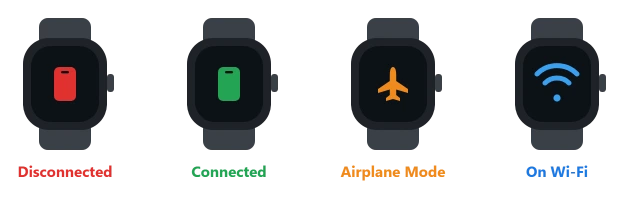
Pro tip: An orange airplane icon means Airplane Mode is on, and a Wi-Fi icon means the watch is connected through Wi-Fi instead of your phone. Learn these three and you will diagnose most issues in a glance.
Check the Radios and Cycle Them
The most common quick fix is a radio that got switched off by accident. If everything looks on but the watch still will not link, force the two devices to rebuild the connection. None of this erases anything.
Here's what to do:
- On the watch, open Control Center. If you see the orange airplane, tap it to turn Airplane Mode off.
- On the iPhone, open Control Center and make sure Airplane Mode is off and both Wi-Fi and Bluetooth are on and blue. Leave both on in iPhone Settings, because if Bluetooth drops and Wi-Fi is off, the watch has no backup path and disconnects the moment you step away.
- Still stuck? Cycle the radios. On the watch, turn Airplane Mode on, wait about 20 seconds, then turn it off. On the iPhone, open Settings, Bluetooth, turn it off, wait a moment, and turn it back on.
- Bring the devices together and wait for the green iPhone icon.
Charge It and Check Power Reserve
If the watch went dark or disconnected after sitting overnight, this is almost always the reason, and it is not a fault.
A battery that empties every night points to watchOS 26 battery drain instead.
Here's what to do:
- Put the watch on its charger. If the battery ran down, let it charge until it boots back up.
- If the screen only shows the time, dim, with no other icons, it is in Power Reserve. Press and hold the side button until the Apple logo appears to bring it back into watchOS.
- Make sure the iPhone has charge too. In Power Reserve, the watch and phone purposely will not talk, so the link returns on its own once both are awake.
Restart the Watch, Then the iPhone
A plain restart of both clears the glitches behind most stubborn drops, including ones that show up right after an update.
Here's what to do:
- Restart the watch (take it off the charger first): hold the side button until the sliders appear, tap the power button, and drag Power Off. Hold the side button again to turn it back on.
- Restart the iPhone using its shut down slider, then power it back on.
- Keep the two close and check the connection again.
Important: A force restart (holding the side button and the Digital Crown together for 10 seconds) is only for a watch that is frozen or stuck on the Apple logo. Do not use it as a routine fix.
Update Both, and Mind the Version Rule
Disconnects right after an update are often a version mismatch, and the big iPhone 17 Bluetooth bug was fixed in a phone update.
Here's what to do:
- On the iPhone, open Settings, General, Software Update and install the latest iOS 26. iOS 26.0.1 specifically fixed the Wi-Fi and Bluetooth drops on the iPhone 17, Air, and 17 Pro.
- Update the watch from the Apple Watch app, My Watch, General, Software Update. Keep it above 50 percent, on its charger, on Wi-Fi, and near the phone.
- Remember Apple's compatibility rule: a watch on watchOS 26 needs its iPhone on iOS 26. It will not pair with a phone still on iOS 18.
Pro tip: If you ever installed a beta, delete the beta profile on both devices, restart, and check for the update again. A leftover beta profile can block the very update that fixes things.
Once your watch is on watchOS 27, one new fault can follow the update: Siri says the Clock app is not on the watch. Turning Siri off and on from the iPhone fixed that for owners.
Turn Off a VPN, Then Reset Network Settings
If the watch only disconnects when you walk away from the phone, the Wi-Fi handoff is being blocked, and a VPN is the usual suspect.
If the iPhone's own Wi-Fi broke after the update, fix that with our iOS 26 Wi-Fi guide first.
Here's what to do:
- On the iPhone, open Settings, General, VPN & Device Management (or your VPN app) and turn the VPN off, then walk away from the phone to test.
- If the drop survives a restart, go to Settings, General, Transfer or Reset iPhone, Reset, Reset Network Settings to clear corrupted Wi-Fi and Bluetooth settings.
Important: Reset Network Settings erases all your saved Wi-Fi passwords, so have them handy. Do not change router or firewall settings to chase this. Turning the VPN off is the safe test.
If the Watch Will Not Pair At All
A watch that refuses to pair, or sticks on the pairing animation, usually has a block or a stuck state, not a hardware fault.
Apple's own pairing help page covers the same checks.
Here's what to do:
- On the iPhone, check Settings, Screen Time, Content & Privacy Restrictions. If it is on, turn it off to test, since it can silently block pairing.
- If the pairing animation stalls for minutes, press and hold the Digital Crown on the watch, tap Reset when it appears, and pair again.
- If the watch shows a red exclamation point, put it on its charger, hold it near an unlocked iPhone, double-click the side button, and follow the steps. Try a 2.4 GHz network rather than 5 GHz, and avoid public login networks.
Last Resort: Unpair and Re-Pair
If nothing above holds, rebuild the pairing from scratch. Unpairing makes a fresh backup first, so you get almost everything back.
Here's what to do:
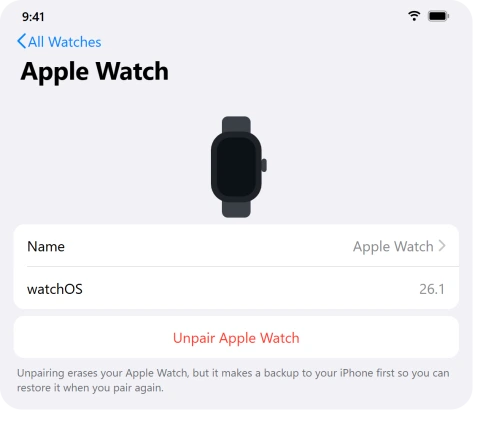
- Keep the watch and iPhone close together. Open the Apple Watch app, tap All Watches, then the i next to your watch, and tap Unpair Apple Watch.
- Enter your Apple Account password to turn off Activation Lock, then confirm. The watch backs up, then erases.
- When the pairing screen appears, tap Start Pairing and follow the steps. Choose Restore from Backup to bring your settings back.
Pro tip: If your trouble started only after the update, choose Set Up as New instead of restoring.
Several people found that restoring a backup carried the broken state forward, and only setting up as new fixed it for good.
Important: Never enter your Apple Account password into any third-party tool that claims to remove Activation Lock. Those are scams.
For a second-hand watch, the original owner has to remove it from their account first.
For a phone upgrade, move the watch to the replacement iPhone with its backup and Health data prepared.
The Short Version
The red icon almost always means the two devices just lost their link, not that your watch is dead.
Bring them close, make sure Airplane Mode is off with Wi-Fi and Bluetooth on, then restart both before you ever think about unpairing.
If the trouble started after an update, update both devices and confirm iOS 26 is paired with watchOS 26.
Only when nothing holds should you turn off a VPN, reset network settings, clear Screen Time, or unpair and start fresh, setting up as new if the problem began with that update.
Most Apple Watches reconnect in under a minute.
Where to Next
More Apple fixes: This guide is part of pcglance, your plain-English home for Apple fixes.
And if the watch is connected but Notes never updates, that has a separate set of checks.
Where the watch is connected and using the wrong name for you, that comes from somewhere specific.
For more help with your iPhone, iPad, or Mac after an update, head to the pcglance homepage and pick your device.

Isaac Smith is the founder and editor of PC Glance, a website that covers computers, laptops, and technology. He is a tech enthusiast and a computer geek who loves to share his insights and help his readers make smart choices when buying tech gadgets or laptops. He is always curious and updated about the latest tech trends.