
If your iPhone 17 keeps dropping Bluetooth, your AirPods skip mid-song, or CarPlay connects and disconnects on a loop, the first thing to know is that this is almost certainly not your phone's hardware.
The iPhone 17 shipped with Apple's brand new N1 wireless chip, and the early versions of iOS 26 did a clumsy job of driving it.
Let me take you through them in the order I would try, because one of these is a genuine bug and the rest are settings.
First, a 30-Second Sanity Check
Before changing anything, rule out the boring stuff. It saves a lot of people a long rabbit hole.
Here's what to do:
- Make sure your accessory is powered on, charged, and within a few feet of the phone.
- If it was connected to another phone, tablet, or laptop, turn that device's Bluetooth off. Many accessories only hold one connection at a time.
- If you are pairing something for the first time, put it in pairing mode (check its manual).
If that all checks out and Bluetooth still misbehaves, here are the real fixes.
Update to iOS 26.1 or Later (This Is the Big One)
I am putting this first because it is the single most reported fix. If your trouble started on iOS 26.0 or 26.0.1, you are likely sitting on the buggy build.
The 26.1 release, which landed on November 3, 2025, is the one people point to again and again.
Here's what to do:
- Open Settings, then General, then Software Update.
- Install iOS 26.1 or later. Plug in and stay on Wi-Fi while it runs.
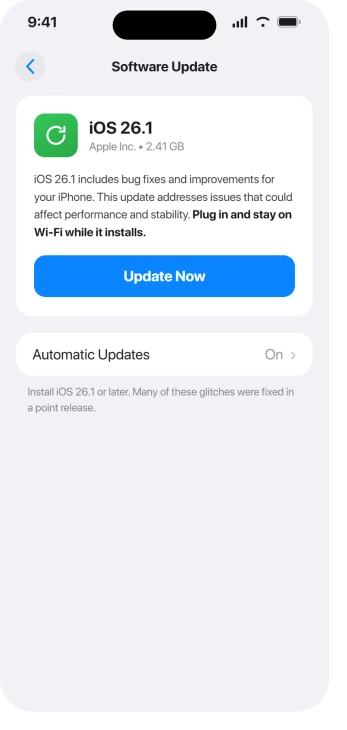
Important: Do not stop at 26.0.1. It only partly helped and left CarPlay still cycling for most people.
One driver summed it up: "iOS 26.1 and CarPlay now works fine, no connection or disconnection issues." Another: "26.1 update fixed the car Bluetooth issue for me." Get all the way to 26.1 or newer before you judge anything else on this list.
Lock or Take Off Your Apple Watch (the Hidden Trigger)
This is the fix almost no guide mentions, and it is the one that explains the weird, random drops.
On iOS 26, when you wake or unlock your iPhone 17, Wi-Fi and Bluetooth briefly blink off for about a second to re-negotiate with your other devices.
If your Wi-Fi has felt flaky too, that same blink feeds the Wi-Fi problems after iOS 26.
One user described it exactly: "WiFi goes to off for a second, then turns back on." That one-second blink is precisely when wireless CarPlay drops and AirPods skip.
An unlocked Apple Watch on your wrist is the single biggest amplifier of this, because unlocking the phone forces a fresh Bluetooth handshake between the phone and the watch. A nearby Vision Pro does the same thing.
Here's what to do:
- While driving or using AirPods for something important, take the Apple Watch off, or at least lock it.
- For a deeper test, turn off the things that wake the phone: Settings, Display & Brightness, Raise to Wake off, and Settings, Accessibility, Touch, Tap to Wake off.
Pro tip: This one varies by setup, so treat it as a test rather than a guarantee. For some people, taking off the watch stopped CarPlay dropping completely.
For others it did nothing, which usually means their problem is one of the steps below instead. Five minutes tells you which camp you are in.
Reset the Pairing the Right Way
This sounds too simple, but there is a catch that trips up almost everyone. The Bluetooth button in Control Center (the panel you swipe down) does NOT actually turn Bluetooth off.
Apple documents that behavior: it only disconnects your devices until the next morning. To truly reset it, you have to use Settings.
And if a single accessory is the problem, you often need to wipe its saved pairing too, since your iPhone keeps all its old pairings through a big update and sometimes one of them gets scrambled.
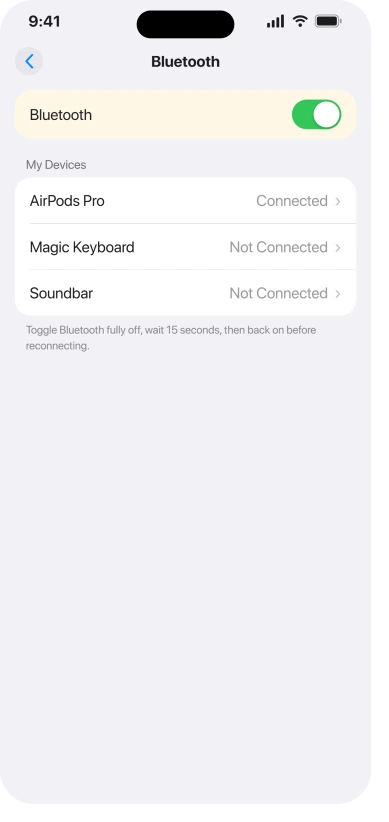
First, do a real off-and-on from Settings:
- Open Settings, then Bluetooth.
- Tap the toggle at the top to turn it fully off. Wait 15 full seconds.
- Tap it again to turn it back on, then try connecting.
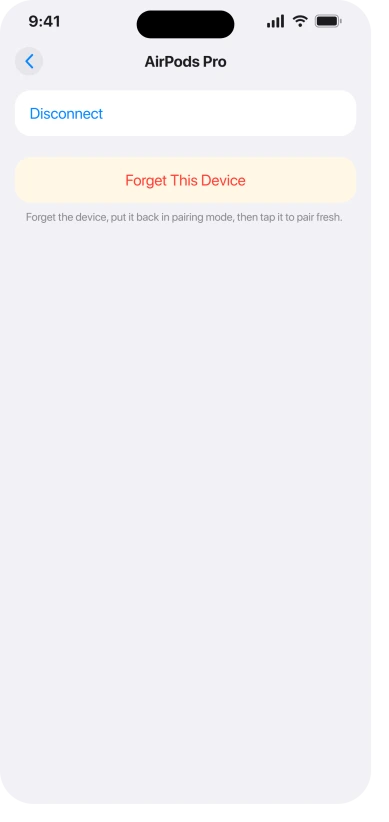
If one specific accessory is still acting up, forget it and pair it fresh. That wipes the bad record so you can start clean:
- Open Settings, then Bluetooth.
- Tap the blue (i) icon next to your accessory.
- Tap Forget This Device and confirm.
- Put the accessory back into pairing mode, wait for it to appear, and tap to re-pair.
Important: Know what this does and does not fix. For a normal dropped connection, it often works.
But if your problem is a specific speaker cutting out with static (the JBL situation I cover near the end), forgetting and re-pairing will not touch it. That is a different bug.
Remove Any VPN App or Profile
This is a quiet one. A VPN app or profile can interfere with how iOS 26 negotiates the Bluetooth connection.
One user with constant trouble uninstalled their VPN, TunnelBear in their case, and as they put it, "voila, it started working again."
Here's what to do:
- Open Settings, General, then VPN & Device Management.
- Remove any VPN profile you do not actively need.
- If you have a separate VPN app, try fully deleting it, then restart and test.
If It Is CarPlay, Do These Three Things
CarPlay has its own specific fixes on the iPhone 17, and they are not the obvious ones.
If it keeps cycling after all three, our guide to wireless CarPlay disconnecting digs into the stubborn cases.
Here's what to do:
- Update your car's firmware, not just your phone. The iPhone 17's tweaked Bluetooth will not handshake cleanly with a head unit running old software. For a lot of people the real cure was iOS 26.1 plus the car's own latest update. Check your carmaker's app or your dashboard settings.
- For wired CarPlay, swap the cable. Do not trust the "CarPlay compatible" label. Apple's own Beats USB-A-to-USB-C cable failed for some cars, while a short 1 meter Anker cable worked. As one owner put it, "The official Beats cable from Apple doesn't work with the iPhone 17 for CarPlay for some cars, but the Anker 1m cable does." Long cables (1.5 meters and up) are the usual culprits.
- Turn on Allow CarPlay While Locked. Go to Settings, General, CarPlay, tap your car, and switch Allow CarPlay While Locked on. This helped several wireless CarPlay users.
Check Your Bluetooth Permissions
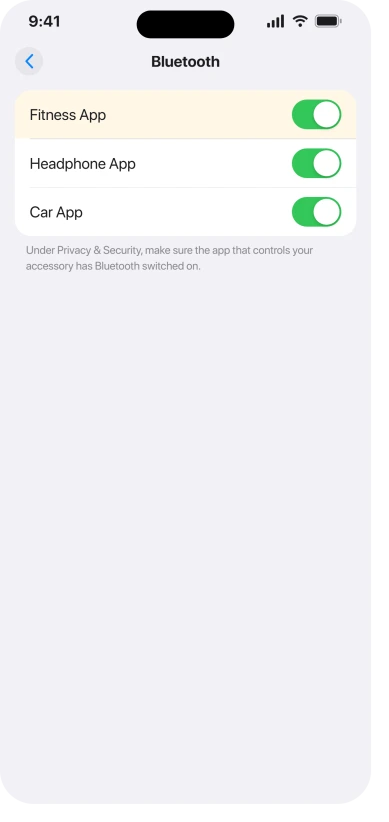
Some apps need Bluetooth permission to talk to your accessory, think fitness trackers, smart speakers, and headphone companion apps. An update can quietly switch one of those permissions off.
Here's what to do:
- Open Settings, Privacy & Security, then Bluetooth.
- Make sure the app that controls your accessory has its switch turned on.
Reset Network Settings as a Last Resort
If you are still stuck, this clears every saved Wi-Fi and Bluetooth record and rebuilds them fresh.
Results are mixed for the iPhone 17 bugs specifically, but it is quick and it does clear genuinely broken pairings left behind by the update.
Here's what to do:
- Open Settings, General, then Transfer or Reset iPhone.
- Tap Reset, then Reset Network Settings, and enter your passcode.
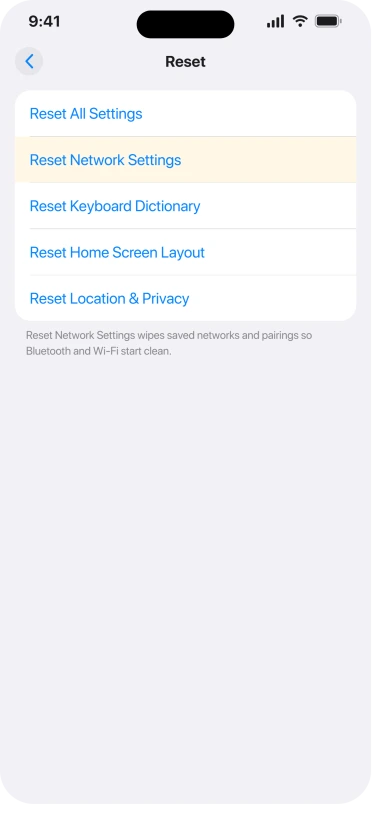
Important: This wipes all your saved Wi-Fi passwords and Bluetooth pairings, so know your home Wi-Fi password before you start. Your photos, messages, and apps are untouched.
Force Restart and Reset the Accessory
A force restart is a deeper reboot than a normal one, and it clears stuck wireless processes a normal restart misses.
It does not erase anything, and the button sequence comes straight from Apple's own force restart guide.
Here's what to do:
- Quickly press and release Volume Up, then quickly press and release Volume Down, then press and hold the Side button until the Apple logo appears. That can take 15 to 20 seconds, so do not let go early.
- After it restarts, open Control Center, toggle Airplane Mode on for 30 seconds, then off, to reload the radios.
- For AirPods specifically, reset them: put them in the case, hold the setup button on the back for about 15 seconds until the light flashes amber, then re-pair. If they still cut out afterward, match the AirPods symptom to its fix.
If a JBL or Specific Speaker Cuts Out, Read This
I want to be straight with you. There is one iPhone 17 Bluetooth bug that none of the steps above will fix, and you deserve to know before you waste a weekend on it.
Several JBL speakers (the Go 3, Go 4, Extreme 4, Charge 5) cut out, stutter, and play static on the iPhone 17, while the exact same speaker plays perfectly on an older iPhone.
As one person said, "Same problems here with my JBL Go4 and the JBL Extreme4. My old iPhone 15 Pro works perfect." This is a separate audio bug in how the N1 chip handles the audio stream, and people have tried everything, re-pairing, resetting the speaker, even iOS 26.1 and the later betas, with no improvement.
The reality is this:
- It is the phone's software at fault, not your speaker, so do not buy a replacement of the same model hoping it helps.
- As of now, no iOS 26 update has fixed this specific audio bug. The only reliable workaround people found was using a different speaker (an Anker Soundcore unit was mentioned as running for hours with no trouble).
- Keep an eye on Software Update. When Apple patches the audio stack, it should clear up. Until then, a different speaker is the only real fix.
Still Not Working? Here Is What Is Left
If you have genuinely worked the list and Bluetooth still will not behave:
- Contact Apple Support for remote diagnostics. One user was "mysteriously able to connect" right after Apple ran diagnostics and escalated their case. It is worth the call, especially if Bluetooth is grayed out and will not turn on at all.
- Mind your return window. If you bought the phone recently and it is a dealbreaker for you, do not wait so long for a fix that you pass your return date. Some people who bought in September were out of the window by December with the bug still open.
- Wait for the next update. Honestly, if your accessory works fine on other devices and only struggles on the iPhone 17, you may just be waiting on Apple. Keep installing the point updates as they come.
The Short Version
Your iPhone 17 is not broken. This is software, and for most people the cure is simply getting to iOS 26.1 and, if the drops are random, taking off the Apple Watch that keeps waking the connection.
Beyond those two, reset the pairing properly from Settings, pull any VPN, handle the CarPlay-specific cable and firmware fixes, check your Bluetooth permissions, and only then reach for Reset Network Settings or a force restart.
The one exception is the JBL-style audio bug, which is on Apple to patch. Work down the list calmly and test after each step, and your AirPods or car should be behaving again soon.
Where to Next
More iOS 26 help: This fix is part of our iOS 26 problems and fixes guide, a single place that rounds up every common iOS 26 issue.
Where Bluetooth switches itself back on rather than dropping, six answers cover that.
If something else on your iPhone is acting up after the update, start there.

Isaac Smith is the founder and editor of PC Glance, a website that covers computers, laptops, and technology. He is a tech enthusiast and a computer geek who loves to share his insights and help his readers make smart choices when buying tech gadgets or laptops. He is always curious and updated about the latest tech trends.