
One earbud thins out and drops while you are walking, but the other keeps playing fine. Later, a song you start in the kitchen jumps straight to the HomePod instead of your ears.
Both land in your head as the same four words, my AirPods cut out. They are actually two different faults with two different fixes.
"AirPods cutting out" on iOS 26 is not one bug. It is at least four different problems wearing the same complaint, plus a hardware look-alike, and the right fix depends on which one you have.
So sort by symptom first, then take the exact fix. Start with the quick sorter below.
First, which cutting out is this?
Read these and pick the one that matches what you hear:
- Both buds drop for a moment, on every app, and it started right after the update. That points to the iOS 26 connectivity bug. Update iOS and the firmware first.
- The sound does not stop, it jumps to a speaker, your car, or AirPlay. That is auto-switching, not a dropout. The "Keep Audio with Headphones" fix is for you.
- Only one earbud cuts out. That is almost always hardware, wax, or debris, not iOS. Cleaning fixes most of these.
- It is only on phone calls, and the voice sounds robotic or tinny. That is the call-audio bug, a separate issue with a separate answer.
- A faint hiss or static when nothing is playing, mostly on AirPods Pro 3. That one is hardware, and Apple is replacing units.
Found yours? Jump to that section. If you are not sure, just work down the page in order. The early steps are free and fix the most common cases.
Update iOS before anything else
This is the single highest-value step, so do it even if you think you are past it.
The first iOS 26 build shipped a real Bluetooth bug, the same one behind iPhone 17 Bluetooth dropping, and Apple fixed it fast in iOS 26.0.1.
That update's notes named the problem directly: "Wi-Fi and Bluetooth may occasionally disconnect on iPhone 17, iPhone Air, and iPhone 17 Pro models."
Go to Settings > General > Software Update and install whatever is offered.
Plenty of people on iPhone 17 reported their AirPods steadied up the moment they moved off the launch build onto a later point release.
One user on Apple's forums put it simply after updating: "Wi-Fi is stable, Bluetooth with AirPods, stable."
If you are reading this on the day of a fresh iOS 26 release and something just broke, this is very often the whole answer. Restart the phone once after the update lands.
Let the AirPods firmware catch up
Your AirPods run their own firmware, separate from iOS, and a stale build is a common cause of dropouts after a big update.
AirPods firmware has no "update now" button. Apple's firmware update notes say it installs on its own, and only under the right conditions.
To force it along, put both AirPods in the case, plug the case into power, and leave it next to your iPhone (on Wi-Fi, Bluetooth on) for at least 30 minutes. Play some audio through them first to wake the link.
To check the build, open Settings, tap your AirPods name near the top of the screen, then tap About and look at Firmware Version. Both buds should report the same version.
If one bud is on an older build than the other, that mismatch alone can cause the stutter. Letting them sit and charge together usually syncs them up.
If the audio jumps to a speaker or your car
This one fools people. The audio is not really cutting out, it is being handed to another device, and it feels like a dropout because your ears go quiet.
iOS 26 added a setting built for exactly this. Go to Settings > General > AirPlay & Continuity and turn on Keep Audio with Headphones.
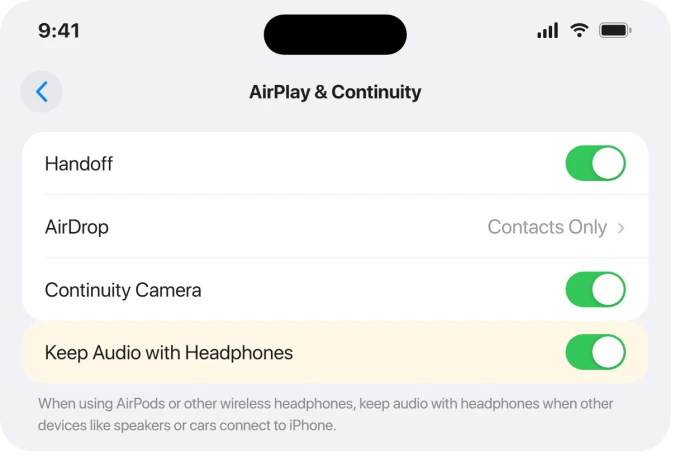
Apple describes it plainly: it keeps "audio with headphones when other devices like speakers or cars connect to iPhone." It ships off by default, which is why most people have never seen it.
As 9to5Mac noted when it appeared, this is the cleanest fix for audio that "randomly" leaves your AirPods for the car stereo or a HomePod.
There is a second lever if your AirPods keep getting pulled to your iPad or Mac mid-listen.
Tap your AirPods name at the top of Settings, tap Connect to This iPhone, and choose When Last Connected to This iPhone instead of Automatically.
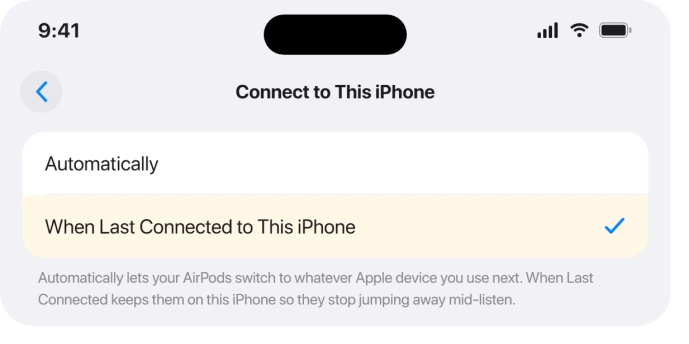
That stops them auto-switching to whatever device pinged them last, which is a frequent cause of "it dropped" when really it answered another room.
Phantom pauses when you move or talk
If the audio pauses for a beat when you turn your head, chew, or talk, that is the ear-detection sensor misreading, not a connection drop.
Tap your AirPods name at the top of Settings and turn off Automatic Ear Detection.
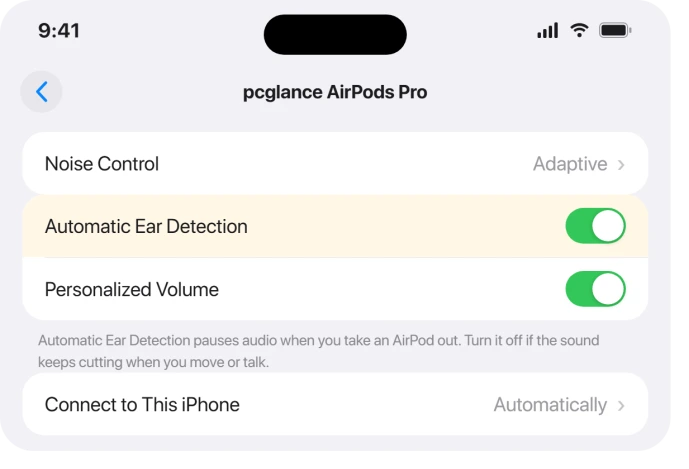
The trade-off is that audio no longer auto-pauses when you pull a bud out, so you give up a little convenience. But if false pauses were your "cutting out," this kills them.
Rule out interference and range
AirPods talk to your phone over the crowded 2.4GHz band, and that band gets noisy.
Microwaves, busy Wi-Fi routers in dense buildings, and USB-3 hubs or external drives on your desk all leak interference there. A USB-3 hub alone can swamp 2.4GHz reception from a foot away.
A quick test: hold the phone in your hand instead of a back pocket, and walk away from your desk and the kitchen. If the dropouts stop, it was interference or your own body blocking the signal.
That last part is real. Your body is mostly water, and water absorbs 2.4GHz, so a phone buried in a back pocket behind you drops far more than one in a front pocket or your hand.
If this is your case, the answer is not a setting. Keep the phone closer and in line of sight, and the link holds.
If it is only one earbud
When the problem lives in one ear and the other is perfect, software is almost never the cause.
Try the quick test: swap which bud goes in which ear. If the dead spot follows the bud, that bud needs cleaning, not a reset.
Pop off the silicone tip and look at the speaker mesh underneath. Earwax and lint clog it and choke the sound. Clean it gently with a dry soft brush or a press of Blu-Tack, never water or compressed air.
Wipe the charging contacts on the bud and inside the case too. A bud that charges poorly runs low and drops the link long before the other one does.
While you are in there, check Settings > Accessibility > Audio & Visual and make sure the Balance slider sits dead center. A slider nudged left or right makes one side sound like it cut out.
If it is only on phone calls
This is its own beast, and it is worth separating because the usual reset advice will not touch it.
And if callers say your voice is the muffled one, that is a different fault: AirPods microphone muffled on calls.
A wave of iOS 26 users report audio that is fine for music but turns robotic, metallic, or tinny the instant a call or a mic starts.
One described it on Apple's forums as "distortion similar to a blown speaker on VOICE CALLS ONLY. Music plays fine."
What pins it on software: people swapped in replacement AirPods, and some even swapped iPhones, and the distortion stayed.
The same AirPods sounded fine on an older iPhone running iOS 18, which points at iOS, not your gear.
The realistic fix is to get on the latest point release. Many users said the call distortion eased on iOS 26.3, so check Settings > General > Software Update again.
One caveat, though: a handful reported it crept back, and Apple has not formally called this one out yet.
One odd workaround worth a single try: tap your AirPods name at the top of Settings and toggle Personalized Volume.
A few people found flipping it changed the distortion, though it helps some and not others, so do not count on it.
If calls are still rough after the latest update, you are likely waiting on Apple for this specific one. No toggle on your end will fix it.
The hiss-in-silence look-alike
There is a separate complaint that gets mixed in here, mostly on AirPods Pro 3: a faint static or seashell hiss when noise cancellation is on but nothing is playing, sometimes louder in one ear.
That is not a dropout and it is not a setting you can fix. Apple has treated it as a hardware fault and directed stores to exchange affected units.
So if your "cutting out" is really a constant hiss in a quiet room, that is a different problem with its own guide: AirPods Pro 3 hissing or weak ANC.
The reset ladder, if you are still stuck
If you have ruled out the cases above and both buds still drop on everything, work through these in order. They get heavier as you go.
Forget and re-pair. Tap your AirPods name at the top of Settings, choose Forget This Device, restart the phone, then open the case lid next to it and set them up fresh.
Reset the AirPods. Apple's reset steps depend on your model.
On AirPods Pro 2 and older, put them in the case, close the lid 30 seconds, open it, then hold the setup button on the back about 15 seconds until the light flashes amber then white.
On AirPods 4 and AirPods Pro 3 there is no button, so instead double-tap the front of the case, watching the status light, until it flashes amber then white.
Reset Network Settings. This clears deeper Bluetooth and Wi-Fi conflicts. Go to Settings > General > Transfer or Reset iPhone > Reset > Reset Network Settings.
You will re-enter Wi-Fi passwords afterward, so it is the last software step to try, not the first.
After any of these, pair again and test for a day before deciding it worked.
AirPods Max owners have one more check before any reset: an ear cushion fitted upside down can cover the head sensor.
When it is the hardware, not iOS
If you have updated, cleaned, re-paired, and reset, and one specific pair still drops, prove it.
Connect the AirPods to a different iPhone or a Mac and listen. If they cut out there too, the problem traveled with the AirPods, and it is time for service rather than more settings.
AirPods Pro 2 and later carry a warranty, and the hiss-in-silence fault on AirPods Pro 3 is a known exchange. Do not keep resetting hardware that is actually failing.
The Short Version
- "Cutting out" is several different problems. Match your symptom first, then fix that one.
- Update iOS at Settings > General > Software Update, then let the AirPods firmware sync (in the case, on power, near the phone, 30 minutes). This fixes most post-update dropouts.
- If audio jumps to a speaker or car, turn on Keep Audio with Headphones in Settings > General > AirPlay & Continuity, and set Connect to This iPhone to When Last Connected.
- False pauses are Automatic Ear Detection. One ear is cleaning. Desk and pocket dropouts are 2.4GHz interference.
- Calls-only robotic audio is a software bug helped by iOS 26.3, not a reset job. A constant hiss on AirPods Pro 3 is hardware, so book an exchange.
- Still stuck on both buds? Forget and re-pair, reset the AirPods (button hold on Pro 2 and older; on AirPods 4 and Pro 3, double-tap the case front until the light flashes amber then white), then Reset Network Settings.
Where to Next
Where the dropouts only happen during a Watch workout, that combination has causes of its own.
And if one ear squeals rather than cutting out, there is a two-minute swap test for that.
- More iOS 26 fixes: iOS 26 problems and fixes
- Related: iPhone 17 Bluetooth dropping after iOS 26
- Back to the start: pcglance home
If your AirPods Pro 2 disconnect completely rather than cutting out, the AirPods Pro 2 disconnect page covers that.

Isaac Smith is the founder and editor of PC Glance, a website that covers computers, laptops, and technology. He is a tech enthusiast and a computer geek who loves to share his insights and help his readers make smart choices when buying tech gadgets or laptops. He is always curious and updated about the latest tech trends.