
You sit down at the Mac, hit play on a video, and nothing comes through your AirPods. The sound is still stuck on the phone in the other room, so you open the Bluetooth menu and pick them by hand. Again.
Automatic switching is supposed to move the audio to whatever you are using. When it stops doing that, the manual reconnecting gets old fast.
So the order here is: rule out the settings that quietly disable switching, then meet Apple's requirements, then update and reset. Most people are fixed before the requirements section.
Let me take you through it, because this one has a very specific cause and a very quick fix.
The setting that turns switching off
Each device has its own switch for this, and it is the first thing to check.
On the iPhone, open Settings, tap your AirPods name near the top of the screen, then tap Connect to This iPhone. Set it to Automatically.
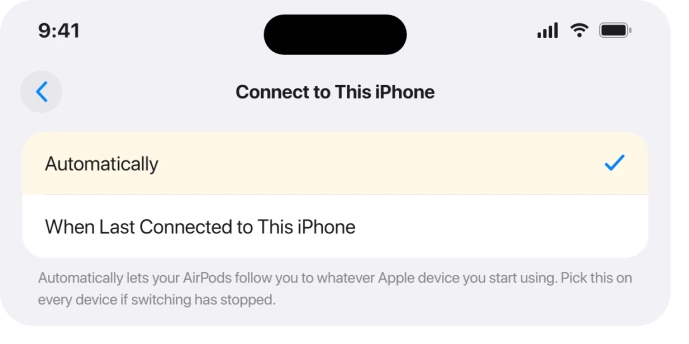
The other option, When Last Connected to This iPhone, does exactly what it says: the AirPods cling to the last device and refuse to follow you. If switching used to work and then stopped, this is the usual culprit.
This setting lives on every device separately. If your Mac is the one that will not take the audio, you have to fix it there too, not just on the phone.
On the Mac, open the Apple menu > System Settings > Bluetooth, click the Info (i) button next to your AirPods, find Connect to This Mac, and set it to Automatically.
If that dropdown looks greyed out and will not change, a known macOS quirk, try right-clicking directly on the field to force the menu open.
Do not get sidetracked by Keep Audio with Headphones
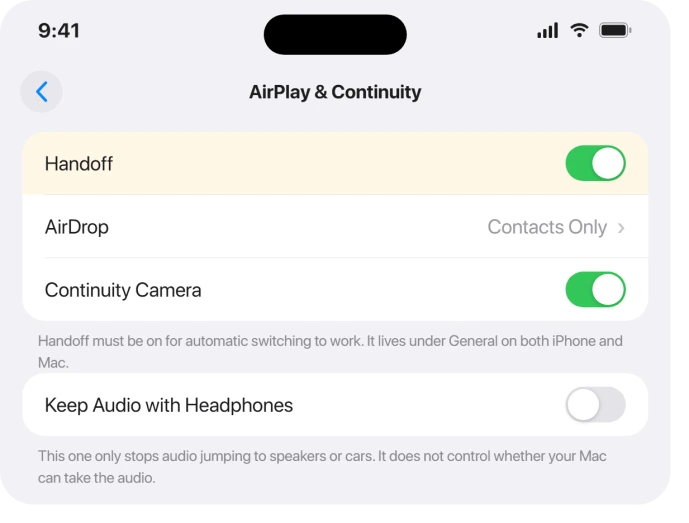
iOS 26 added a toggle called Keep Audio with Headphones under Settings > General > AirPlay & Continuity, and it gets blamed for this a lot.
It is worth clearing up, because it is not the thing stopping your Mac from taking the audio.
What it actually does is keep sound in your AirPods when a nearby speaker or car tries to grab it. It has no say over whether your iPhone hands audio across to your Mac.
So set it however you like for the speaker and car situation. The real iPhone to Mac blocker is the Connect to This setting above, plus the requirements below.
If your actual problem is the reverse, audio leaving your AirPods for a speaker or car when it should not, that toggle is what you want, and AirPods cutting out on iOS 26 walks through it.
Make sure your devices actually qualify
Automatic switching is not magic. Apple gates it behind a short list of requirements, and missing any one of them silently switches the feature off.
Run through these on both the iPhone and the Mac:
- Same Apple Account, with two-factor on. Both devices must be signed in to iCloud with the identical Apple Account. Check the iPhone at Settings > your name and the Mac at System Settings > your name.
- Bluetooth and Wi-Fi both on. Switching uses both radios to hand off, so Wi-Fi off, or Wi-Fi broken by the iOS 26 update, quietly disables it even though Bluetooth alone plays audio.
- Handoff on. This is the requirement people forget. On the iPhone: Settings > General > AirPlay & Continuity > Handoff. On the Mac: System Settings > General > AirDrop & Continuity, then turn on Allow Handoff between this Mac and your iCloud devices.
- Both devices in range and updated. Keep them close, and make sure both are on the latest iOS 26 and macOS Tahoe.
Apple's own wording is blunt about the core of it: to switch automatically, "sign in to your devices with the same Apple Account using two-factor authentication." No shared account, no switching.
If your Mac is on a different Apple Account
This is the honest dealbreaker, and it catches people with a work Mac and a personal iPhone.
Automatic switching only works across devices on the same Apple Account. A work-managed Mac signed in to a different account cannot pull the audio over automatically, no matter what you toggle.
There is no setting that fixes this. Your options are to sign both into the same account, or to keep picking the AirPods by hand from the Mac's Bluetooth menu or Control Center.
Update, then nudge the firmware
If the settings all look right and it still will not switch, get current next.
Update the iPhone at Settings > General > Software Update and the Mac at System Settings > General > Software Update.
macOS Tahoe shipped with real Bluetooth and handoff hiccups, and later point releases are where those got fixed.
Your AirPods carry their own firmware too, and it only updates on its own.
To nudge it along, put both AirPods in the case, plug the case into power, and leave it near your iPhone, with Wi-Fi and Bluetooth on, for at least half an hour.
Then check that both buds show the same version under the AirPods name in Settings.
One thing worth being straight about.
One user reported that Apple Support told them iOS 26 has a bug in automatic switching, where a quick resume tap gets read as a switch command, with a fix promised in a later update.
Apple has not said this publicly, so treat it as a reason to stay updated rather than a confirmed fault.
The reset ladder
Still stuck after all of that? Now it is worth resetting, in this order.
Reconnect once by hand. A surprising number of people fix this by manually selecting the AirPods one time on each device after an update.
One user put it plainly: after connecting them by hand "on both my iphone and ipad, they automatically switch perfectly." Do that pass on every device first.
Forget and re-pair. On each device, open Bluetooth, tap the Info (i) next to the AirPods, choose Forget This Device, then pair them again fresh.
Reset the AirPods. Put them in the case, close the lid 30 seconds, then open it.
On AirPods Pro 2 and older, hold the setup button on the back about 15 seconds until the light flashes amber then white.
On AirPods 4 and AirPods Pro 3 there is no button, so instead double-tap the front of the case, watching the status light, until it flashes amber then white. Re-pair afterward.
When your AirPods simply cannot do it
One quick reality check before you spend an afternoon on this.
The original first-generation AirPods (model A1523 or A1722) never supported automatic switching at all. It is not a setting you are missing, the hardware just does not do it.
Every model since, AirPods 2 and later, all the AirPods Pro, AirPods 4, and AirPods Max, supports it once the requirements above are met.
If your AirPods Max drop the connection outright rather than failing to switch, the ear cushion page covers a cause one owner found.
The Short Version
- First, the setting: Connect to This iPhone (and Connect to This Mac) set to Automatically, on every device, not just one.
- Do not blame iOS 26's Keep Audio with Headphones toggle (Settings > General > AirPlay & Continuity). It only stops audio jumping to speakers or cars, not iPhone to Mac switching.
- Switching needs the same Apple Account with two-factor, Bluetooth and Wi-Fi on, Handoff on, both devices close and updated. A work Mac on a different account cannot switch, by design.
- Update iOS 26 and macOS Tahoe, let the AirPods firmware catch up, then reconnect by hand once on each device.
- Last resort: forget and re-pair, then reset the AirPods (button hold on Pro 2 and older; on AirPods 4 and Pro 3, double-tap the case front, watching the light, until it flashes amber then white).
- First-generation AirPods (A1523 / A1722) never did automatic switching at all.
Where to Next
Where finding them is the problem rather than switching between devices, Precision Finding has requirements most people do not meet.
- The opposite problem: AirPods cutting out on iOS 26
- Hearing aids that will not hand the sound back: hearing aid audio to the iPhone speaker on iOS 27
- More iOS 26 fixes: iOS 26 problems and fixes
- More Mac fixes: macOS Tahoe problems and fixes
- Back to the start: pcglance home

Isaac Smith is the founder and editor of PC Glance, a website that covers computers, laptops, and technology. He is a tech enthusiast and a computer geek who loves to share his insights and help his readers make smart choices when buying tech gadgets or laptops. He is always curious and updated about the latest tech trends.