
Your texts, calls, and app alerts stopped buzzing your wrist and keep landing on your iPhone instead.
Before you dig through settings, one rule explains most of these cases, and almost nobody knows it: your alerts go to your watch or your iPhone, never both.
The watch only buzzes when three things are true at once. It is on your wrist, it is unlocked, and your iPhone is locked or asleep.
There are real causes too, including genuine iOS 26 and watchOS 26 bugs, but rule out the simple rule first.
This guide is ordered from the one-second check to the last-resort fix, so try them in order.
Test Whether It Is Actually Broken
This one test saves most people from changing settings they never needed to touch.
- Lock your iPhone by pressing the side button, or set it down so the screen sleeps.
- Make sure the watch is on your wrist and unlocked, with no padlock on the face.
- Send yourself a text or have someone call you.
- If the alert now buzzes the watch, nothing was broken. You were simply using the phone. If it still fails with the phone locked, keep going.
Pro tip: Remember Apple's delivery rule: watch on wrist, watch unlocked, iPhone locked. Miss any one of the three and your alerts go to the iPhone.
Clear Silent Mode, Theater Mode, and Any Focus
Silent Mode, Theater Mode, and Focus are the fastest things to rule out, and the second one fools almost everyone.
A Focus left on, especially an overnight Sleep schedule, is one of the most common reasons a watch goes quiet, and because Focus syncs between your devices, one set on the phone quiets the watch.
Start on the watch:
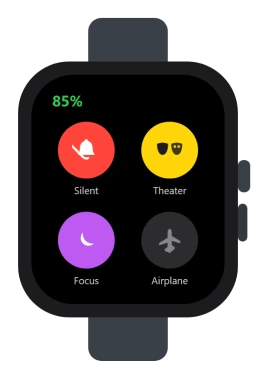
- Press the side button to open Control Center.
- Tap the bell icon so Silent Mode is off.
- Tap the two-masks icon so Theater Mode is off. This one silences alerts and keeps the screen dark, so notifications feel completely gone even when they are not.
- Tap the crescent moon to turn off Do Not Disturb or any Focus.
Then check the iPhone, since a Focus running there silences the watch too:
- Open Settings, Focus, tap any Focus that is on (Do Not Disturb, Sleep, Work), and turn it off.
- Check that a Sleep schedule is not still running during the day.
- To stop one device silencing the other, open the Focus and turn off Share Across Devices.
Pro tip: "No sound but it still buzzes" means Silent or Theater Mode, because haptics still fire.
"No buzz at all" means a Focus, the watch off your wrist or locked, haptics turned off, or a real bug. That tells you where to look.
Confirm Wrist Detection Is On and the Band Is Snug
Wrist Detection is what tells the watch it is actually on you. If it is off, or the band is loose, the watch decides it is off your wrist and sends everything to the phone.
- On the iPhone, open the Apple Watch app, My Watch, Passcode, and make sure Wrist Detection is on.
- Wear the watch snugly above the wrist bone, with the back touching skin, not over a sleeve.
Important: Do not turn Wrist Detection off to force alerts through. It only works by brute force and it also disables heart rate, auto-lock, and fall detection. Leave it on.
Raise the Haptics and Turn Off Cover to Mute
If alerts are arriving but you never feel them, the problem is how strong the buzz is, or an accidental mute.
- On the watch, open Settings, Sounds & Haptics.
- Set Haptics to Default or Prominent, not Off or low.
- Turn off Cover to Mute if you keep silencing alerts by resting your palm on the screen.
Fix Per-App Mirroring in the Apple Watch App
Your watch copies the iPhone by default, but a single app switched to silent or off will never reach your wrist.
- First make sure the app can alert on the phone: Settings, Notifications, the app, Allow Notifications on.
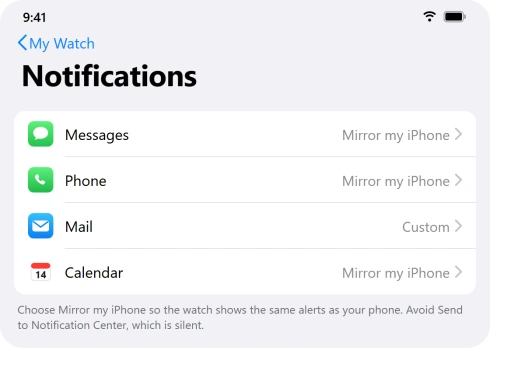
- On the iPhone, open the Apple Watch app, My Watch, Notifications.
- Tap the app and choose Mirror my iPhone, or Custom with Allow Notifications on.
- Avoid Send to Notification Center, which delivers silently with no alert at all.
The opposite fault happens too. If one app, like a Blink camera, keeps buzzing your wrist with the same old alerts, that is a separate problem with its own fix.
A keyboard notice that keeps appearing on your iPhone for the watch is another one, and the watch keyboard page covers it.
Re-Enable iMessage if Texts Stopped After the Update
This is the specific fix for messages going missing after iOS 26, and Apple Support itself confirmed the cause: the update quietly switched off iMessage for some people.
- On the iPhone, open Settings, Apps, Messages. The Messages settings moved under Apps in iOS 26.
- Tap Send & Receive.
- Make sure your phone number and Apple Account email are ticked under both lists. If nothing is selected, toggle iMessage off and back on, then re-select your number.
One reader who called Apple summed it up: "That completely fixed the issue I was having."
Update Both, Then Reconnect or Re-Pair
Some missing alerts are genuine bugs that point releases fixed, and others come down to the watch and phone losing their link, in which case every alert falls back to the iPhone.
If you own two watches, alerts go to the one on your wrist. The two watches page explains how Auto Switch picks it.
- Update the iPhone in Settings, General, Software Update, and the watch in the Apple Watch app, My Watch, General, Software Update.
- If notifications only vanish overnight on watchOS 26.4, that is a known Sleep Focus bug, not your settings. Stop relying on Sleep Focus at night and use Theater Mode instead, which keeps the screen dark but still lets alerts collect.
- Open the watch Control Center and check the connection icon. A green iPhone means connected, a red iPhone or red X means not.
- Toggle Airplane Mode on and off on both devices to force a reconnect, then restart the watch and the iPhone.
- If it still fails, open the Apple Watch app, All Watches, tap the i, and Unpair Apple Watch. It backs up first, then you re-pair and restore. Several people on watchOS 26 said this is what finally fixed it.
Important: You can spot the overnight bug because the red unread dot stops showing up and alerts never hit the watch at all, even though they appear fine on the phone.
It mostly drops third-party apps like WhatsApp while iMessage and calls still come through.
The Short Version
Most "my watch stopped getting notifications" is the hand-off rule, your phone simply won the alert. Lock the phone and test first.
If that is not it, the quick wins are clearing Theater Mode and a stuck Focus. Check that Wrist Detection is on with a snug band, raise the haptics, and set each app to Mirror my iPhone.
For missing texts after the update, re-enable iMessage Send & Receive, that one switch fixes it for a lot of people.
If alerts only disappear overnight, lean on Theater Mode instead of Sleep Focus, and when nothing else works, update both devices, reconnect, and re-pair as a last resort.
Where to Next
More Apple fixes: This guide is part of pcglance, your plain-English home for Apple fixes.
For more help with your iPhone, iPad, or Mac after an update, head to the pcglance homepage and pick your device.

Isaac Smith is the founder and editor of PC Glance, a website that covers computers, laptops, and technology. He is a tech enthusiast and a computer geek who loves to share his insights and help his readers make smart choices when buying tech gadgets or laptops. He is always curious and updated about the latest tech trends.