
Your Apple Watch sits on Verifying for ages, hangs on Preparing Update, or spins a wheel that never seems to end.
Before you start pulling it off the charger, know that most of these cases are not actually frozen.
A watchOS update can genuinely take up to an hour, much of it with nothing visible happening on screen.
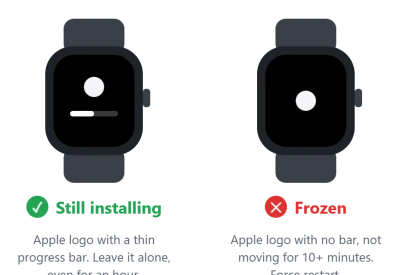
If there is a spinning wheel, a Verifying or Preparing screen, or an Apple logo with a thin progress bar under it, it is still installing. Leave it.
No padded list of nine tricks. Just the few that actually move a stuck install, in order.
Stuck on watchOS 27? Start it from the watch
The watchOS 27 update has its own snag. One owner wrote: "There is no option to apply the update, and it did not install overnight." Another could not find it at all: "There simply is no 'Install' button anywhere."
The fix owners confirmed was to skip the iPhone. The top reply in the thread: "Try this in your watch (not on the phone): go to Settings -> General -> Software Updates -> Install."
Another owner agreed: "Going to settings on the watch and hit install there fixed the problem". Leave it on the charger while it installs. As one helper put it, "The watch has to be on its charging puck".
Update the iPhone first if you have not. One owner found "It wouldn't install until I updated my iPhone 13 mini to iOS 27."
Apple's rule: "Updating to watchOS 27 requires iPhone 11 or later, or iPhone SE (2nd generation) or later, with iOS 27."
Check that your watch can take it, too. Two owners who could not get it to install had a Series 8 and an SE (2nd generation), and neither is on Apple's watchOS 27 list.
Apple says: "If your Apple Watch isn't compatible with the latest version of watchOS, Software Update will show you the newest version that your watch can use."
The first Apple Watch Ultra is not on the list either. Apple's watchOS 27 list starts at the Ultra 2, the Series 9 and the SE 3, so an Ultra 1 stays on watchOS 26.
Older watch stuck on watchOS 26.6 after iOS 27
Owners report a second snag in a thread with 145 Me too clicks. Once the iPhone moves to iOS 27, a watch that stays on watchOS 26 cannot finish the watchOS 26.6 update.
What worked was deleting the downloaded watchOS file from the watch's storage. One owner did it on the watch itself, on power and Wi-Fi, under Settings, General, Storage. The watch then downloaded the update again.
The first poster did it from a borrowed iPhone still on iOS 26. They paired the watch, deleted the corrupted watchOS file under Storage in the Watch app, then unpaired and installed from their own phone.
Another owner confirmed that route: "This worked for me. Time-consuming but less expensive than a repair job." A third wrote "Deleting the watchOS worked." after a service centre had called their watch dead.
Erasing the watch with its buttons, the same steps as on the forgotten passcode page, fixed it for one more owner. That wipes the watch, so try the storage route first.
On a new Series 12 or Ultra 4 that keeps restarting, the fix is an update of its own, and the restart page shows how to install watchOS 27.0.1.
Meet the Requirements, Then Give It Time
Most "stuck" updates are one missing condition or simple impatience, so get the setup right and then leave it alone.
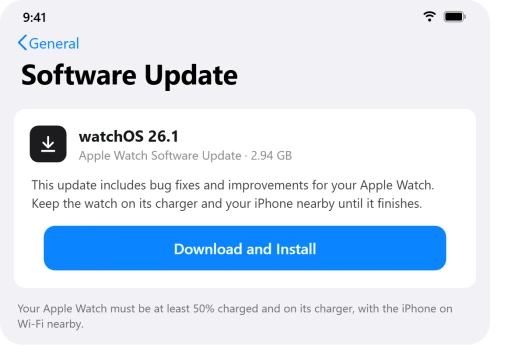
- Update the iPhone to iOS 26 first. watchOS 26 will not install against an older iPhone, and it needs an Apple Watch SE (2nd generation), Series 6, Ultra, or newer.
- Charge the watch to at least 50 percent and keep it on its charger. Apple's update requirements call for both, even if it already reads 100 percent.
- One exception: if the screen is lifting away from the case, keep the watch off the charger. A lifting Apple Watch screen points to a swelling battery.
- Put the iPhone on Wi-Fi and keep it right next to the watch the whole time. If the phone's Wi-Fi has been flaky since iOS 26, sort that out first.
- Now wait. Give it a full hour, or tap Update Tonight and let it run overnight on the charger.
Restart Both the iPhone and the Watch
This is the one that actually fixed it for the most people on watchOS 26, and the reason is surprising: the hold-up is often the iPhone, not the watch.
- Restart the watch: hold the side button, drag Power Off, then power it back on.
- Restart the iPhone, ideally powering it all the way off for a couple of minutes first.
- With the watch back on its charger and the iPhone nearby, try the update again. If the watch shows a red iPhone icon and refuses to connect, fix that before retrying.
One person who had been stuck for hours put it simply: "Restarted both the Apple Watch and the iPhone. The update then progressed and finished successfully."
Turn Off Any VPN and Use a Solid Connection
watchOS downloads are fussy about the network, and a VPN is a repeat offender because it interferes with how the update is verified.
- On the iPhone, turn off any VPN before updating. This is the specific cure for the "Unable to Verify Update" error.
- Use a strong, stable Wi-Fi network, not one that keeps switching or dropping.
Make Room, or Replace a Bad Download
If you see "not enough storage" or an install error, it is usually one of these two things.
- For a space error, open Settings, General, Storage on the watch and remove some synced music, podcasts, or photos, then a few apps if needed.
- For a Preparing loop or install error, the downloaded file is likely corrupted. In the Apple Watch app, My Watch, General, Storage, delete the watchOS update file, then download it fresh.
Force Restart Only If It Is Genuinely Frozen
This is the one step that can actually cause harm, so it comes near the end. Interrupting a normal install can corrupt it.
- Make sure it is truly frozen: a static Apple logo with no progress bar for more than about 10 minutes. If a thin bar is showing, leave it.
- Take the watch off its charger first, then hold the side button and Digital Crown together for at least 10 seconds, until the Apple logo reappears. These are Apple's own steps for a watch stuck on the logo.
Last Resort: Unpair and Re-Pair
When nothing above works, a clean unpair rebuilds things and frees the most space, often a couple of gigabytes of leftover files.
- Confirm a recent backup, then in the Apple Watch app tap All Watches, the i, and Unpair Apple Watch. It backs up and erases the watch.
- Set it back up, choosing Restore from Backup, or Set Up as New if the backup keeps bringing the problem back, then run the update. If the battery drains fast once watchOS 26 lands, that has its own fix.
- If even this fails, that points to a hardware fault or a bad update wave, so contact Apple Support, and it is sometimes worth waiting for the next watchOS release.
Once watchOS 27 is on, check that Siri still sets timers. If it says the Clock app is missing, leaving the Siri AI beta for Siri Classic helped two owners.
The Short Version
A watch on Verifying for a while is usually fine, so do not interrupt it. Get the iPhone on iOS 26, keep the watch above 50 percent and on its charger, and give it an hour.
If it really is stuck, restart both devices before anything drastic. That one move clears most watchOS 26 update jams on its own.
Where to Next
More Apple fixes: This guide is part of pcglance, your plain-English home for Apple fixes.
For help with your iPhone, iPad, or Mac after an update, head to the pcglance homepage and pick your device.

Isaac Smith is the founder and editor of PC Glance, a website that covers computers, laptops, and technology. He is a tech enthusiast and a computer geek who loves to share his insights and help his readers make smart choices when buying tech gadgets or laptops. He is always curious and updated about the latest tech trends.