

Your iPad is frozen on a black screen, stuck on the Apple logo, or just dead to the touch, and the force restart everyone swears by does nothing.
Before you panic, sort it into one of two camps: an iPad that is genuinely dead and one that is just stuck.
The first is the button combo. The iPad Air M4 and every recent iPad have no Home button, so they use a quick Volume Up, Volume Down, hold the Top button sequence.
The second is power. A drained iPad ignores the buttons until it has charged for a while. Figure out which yours is, then work the matching fix.
First: Which Kind of Frozen Is It?
Two quick checks decide everything that follows.
Here's what to do:
- Can you reach anything? If you can still swipe or open the App Switcher and only one app is stuck, you do not need to restart the whole iPad. Jump to the force-quit fix below.
- Is it totally dead? Plug it into a wall charger and wait. If a battery or charging icon shows up after a few minutes, your problem was power, not a crash, so the charging steps below are the real fix.
- The split is simple. If a known good charger eventually wakes it, it was empty. If it charges fine but the screen stays frozen, it is software, and a force restart is your tool. If neither does anything, it is hardware.
Force-Quit Just the Stuck App
If the rest of the iPad still responds and only one app is hung, this is the lightest fix there is, and it touches none of your data.
A responsive interface with one persistent bright point calls for an iPad display-mark assessment rather than repeated restarts.
For a responsive tablet needing an ordinary restart, use the iPad shutdown controls before choosing a forced restart.
Here's what to do:
- On an iPad with no Home button, swipe up from the very bottom edge and pause in the middle of the screen to open the App Switcher. On a Home button iPad, double-click the Home button.
- Find the frozen app's card and flick it up and off the top of the screen.
- Open the app again.
- If the App Switcher itself will not respond, treat this as a full freeze and force restart instead.
Force Restart the Right Way for Your iPad
This is the fix people get wrong more than any other, because the steps are completely different depending on whether your iPad has a Home button.
A force restart does not erase anything, and it works even on a black screen. The steps below match Apple's own guide for an iPad that won't turn on or is frozen.
If your iPad has no Home button (iPad Air M4, every iPad Pro since 2018, recent iPad and iPad mini):
- Press and quickly release the volume button closest to the top button.
- Press and quickly release the volume button farthest from the top button.
- Now press and hold the top button, and keep holding it even after the screen goes black.
- Let go only when the Apple logo appears. This often takes 10 to 20 seconds, longer than feels right, so do not quit at the black screen.
If your iPad has a Home button (older models):
- Press and hold the Home button and the top button at the same time.
- Keep holding both until the Apple logo appears, about 10 seconds, then release.
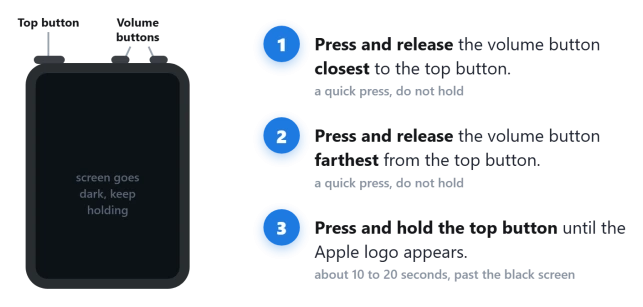
Pro tip: Go by physical position, closest to and farthest from the top button, not the on-screen up and down.
The volume buttons swap roles when you flip the iPad around, so holding it upside down is an easy way to press them in the wrong order.
For everyday audio, check how your iPad maps its volume buttons; restart instructions still use physical positions.
Plug In First, Then Check the Charging Chain
A frozen iPad with a flat battery will not react to the buttons at all until it is back on power, so the order matters, and a frozen-looking iPad is often a broken charging chain rather than a broken iPad.
Here's what to do:
- Connect the iPad to a wall outlet, not a computer or a keyboard or monitor USB port, using a good cable and a 20W or higher USB-C adapter. The iPad Air M4 ships with a 20W brick for a reason, and a 5W phone block can be too weak to revive it.
- Leave it alone for at least 30 to 60 minutes, which lines up with Apple's advice for an iPad that won't charge. The screen can stay blank for up to two minutes before even a low-battery image shows.
- While it is still plugged in, run the correct force restart for your model.
- If nothing happens, change one link at a time. Try a different known good USB-C cable, since plenty of cheap cables carry data but barely any power and most die at the bend. Try a different adapter rated 20W or higher, ideally Apple or a certified USB-C charger. Plug straight into a wall outlet, skipping power strips and extension cords.
- Shine a light into the USB-C port. If the cable does not click in fully, lint is likely packed in there. Ease it out with a wooden or plastic toothpick.
- Do not sit there swapping cables and tapping every minute. Pick one good cable and charger and let it sit.
One Apple Community regular put the official line plainly: "connect your iPad to its Power Adapter and allow the iPad to charge undisturbed for at least an hour, or possibly overnight." For an iPad that has been in a drawer for months, give it 12 to 36 hours before you write off the battery.
Important: Never use a pin, needle, or paper clip in the port. Metal can short or bend the contacts. A warm cable or charger after a few minutes is a good sign, it usually means power is actually flowing.
Stuck During iPadOS 26 Setup at "Set Up Apple Pay"
If your iPad froze partway through setup right after the iPadOS 26 update, this is a specific known hang, and restarting alone just loops you back to the same screen.
Here's what to do:
- The easy escape: when the Apple Pay prompt appears, add a real credit or debit card, let setup finish, then remove the card from Wallet afterward.
- Or turn your Wi-Fi router off and restart the iPad. Setup often sails past Apple Pay with no internet.
- If it is plugged into a Mac or PC during setup, try simply unplugging it from the computer.
One person who hit this wall summed up the fix: "I tried just adding a real credit card I had with me to it. It worked. Then just removed the credit card from Apple Wallet after."
Calm the iPadOS 26 Lag, Then Update
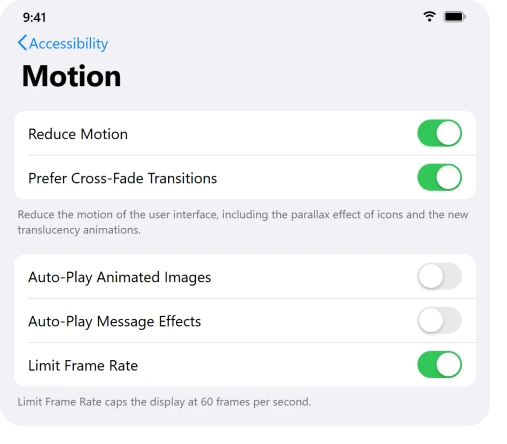
A lot of "iPadOS 26 keeps freezing" is really the new Liquid Glass animations stuttering so hard that it reads as a freeze. Lighten the load, then get on the latest update, where Apple has quietly fixed much of it.
The same heavy effects sit behind a lot of iPad battery drain on iPadOS 26, so this step pays off twice.
Here's what to do:
- Once the iPad responds, open Settings, then Accessibility, then Motion, and turn on Reduce Motion.
- Back in Accessibility, Display & Text Size, you can also turn on Reduce Transparency to ease the graphics further.
- Open Settings, General, Software Update and install the newest iPadOS 26 build, kept on Wi-Fi and plugged in. If the iPad's Wi-Fi broke after the update, fix that first so the download can run. The 26.3 update is the one users credit with a real speed jump.
Pro tip: If a third-party screen protector is on the iPad, peel it off and test waking the screen. One documented iPad Pro M4 black-screen-on-wake case turned out to be the screen protector, not the iPad.
Use Recovery Mode From a Computer
If a force restart will not get you past the Apple logo, a red or blue screen, or a failed update, recovery mode reinstalls iPadOS using a computer. Done right, it keeps your data.
Here's what to do:
- Connect the iPad to a computer with a cable. Use Finder on a Mac, or the Apple Devices app on Windows.
- Put the iPad into recovery: on a no-Home-button iPad, quick-press the volume button closest to the top, quick-press the one farthest from the top, then hold the top button and keep holding past the Apple logo until a cable-to-computer screen appears.
- When the computer offers Update or Restore, choose Update first. This reinstalls iPadOS without erasing your data.
- If the download runs past 15 minutes and the iPad drops out of the recovery screen, let the download finish, then repeat the recovery steps.
Important: Update keeps your files. Restore wipes the iPad clean. Only choose Restore if Update fails and you have a backup, and know your Apple ID password first, since Activation Lock can block a restore.
If restarting brings you to an activation failure, follow the iPad activation checks rather than repeating the frozen-screen procedure.
Let It Die, Then Charge It Back
When nothing responds and no button combo does a thing, the community's last resort before a computer is almost stupidly simple, and it works.
Here's what to do:
- Stop trying button combos. Leave the iPad unplugged so the battery runs all the way down, which forces a true power off. This can take many hours.
- Once it is fully dead, plug it into a wall charger and leave it undisturbed for at least an hour before you expect any screen activity.
- When it has some charge, run the normal force restart for your model. It usually boots clean.
One family that tried everything else reported the ending plainly: "We eventually let the iPad completely run out of battery, left it for 24hrs, and then recharged it. This worked." It is slow, but it is real.
Know When It Is Hardware
If charging, force restart, and a recovery Update all fail, or you see the warning signs below, this is no longer a button-combo problem.
Here's what to do:
- Look for a swollen battery: a screen lifting from the frame, a gap along the edges, a bowed back, or the iPad rocking on a flat table. If you see any of that, stop. Do not charge it, press it, or puncture it, and move it somewhere cool and non-flammable. A bulging battery is a genuine fire risk.
- If the iPad got wet or took a hard drop right before it went dark, treat it as possible liquid or hardware damage and do not keep charging it.
- For everything else that survives all of the above, book service through Apple at support.apple.com/ipad/repair, the Apple Support app, or a Genius Bar.
The Short Version
A force restart that "does nothing" is almost always one of two things: the wrong button combo for your model, or a battery that is simply too low to respond.
Get those two right, charge first and use the Volume Up, Volume Down, hold Top sequence on no-Home-button models, and most frozen iPads come straight back.
If only one app is stuck, force-quit it instead of restarting the whole thing.
If it stays frozen after charging, work down through recovery mode, a full battery drain and recharge, and finally a hardware check for a swollen battery or damage.
Where to Next
More Apple fixes: This guide is part of pcglance, your one place for plain-English Apple fixes.
On a Mac that panics rather than freezing, a 240Hz monitor is worth suspecting first.
For more help with your iPhone or Mac after an update, head to the pcglance homepage and pick your device.

Isaac Smith is the founder and editor of PC Glance, a website that covers computers, laptops, and technology. He is a tech enthusiast and a computer geek who loves to share his insights and help his readers make smart choices when buying tech gadgets or laptops. He is always curious and updated about the latest tech trends.