
Let me guess. You updated to iOS 26, and now your iPhone is gasping for a charger by lunch when it used to coast until bedtime.
Before you blame the battery or book a repair, there are two things almost nobody tells you up front.
First, most of this drain is your iPhone quietly finishing its homework after the update, and it sorts itself out.
Second, the Battery screen will actively lie to you about it.
The day-one mistake is to start flipping switches the moment you notice the drain. Don't. Wait first. If it is still bad, one specific bug the generic fix-it posts miss is worth chasing.
If you just updated to iOS 27
Everything below still applies on iOS 27. The one difference is that the settling-in period runs longer this time.
Apple says as much on its page about software updates: "Immediately after completing an update, particularly a major release, you might notice a temporary impact on battery life and thermal performance."
The same page gives the reason. Your phone is busy "indexing data and files for search, downloading new assets, and updating apps."
A Level 10 adviser on Apple's forum put numbers on it: "For most that takes about 4 days, but with iOS 27 there are additional Search & Siri Optimizations that are performed so you may see a couple days more."
That thread has 274 people reporting fast drain after iOS 27, including on the new iPhone 18 Pro Max. One owner even saw iOS warn that the phone had "been used more than usual since upgrading ios, and this may affect battery life".
So give iOS 27 closer to a week than 48 hours. Leave your phone on the charger overnight, on Wi-Fi, for a few nights, and judge the battery after that.
Update, 2 October 2026: Apple's battery page names one sign to look for. While update tasks are still running, Settings, Battery can show an Insight called Ongoing iOS Update.
And iOS 27.0.1 has helped at least one owner, whose 16 Pro Max lasted the whole of its second day: "Usually I have to throw my phone on the charger during the day but not today."
Give It 48 Hours Before You Touch Anything
Before you change a single setting, understand the number one cause of post-update drain. Your iPhone is busy.
When you install something as big as iOS 26, the phone re-indexes your files for Spotlight, re-scans your entire Photos library, finishes downloading Apple Intelligence models, re-optimizes your apps for the new code, and re-syncs with iCloud.
All of that runs at once, and none of it shows up in the Battery screen. That is why the worst drain, the first couple of days, looks like a ghost.
Here's what to do:
- Plug the phone in overnight and leave it on Wi-Fi. It finishes the heavy work far faster while charging and connected.
- Give it 24 to 72 hours before you judge it. A big photo library or a nearly full phone can take up to 3 days.
- Resist the urge to factory reset or restore in those first days. People who do that just restart the indexing clock and make it look worse.
Important: The phone may run a little warm during this window. That is the background work, not a fault. As long as it is not painfully hot to hold, let it run.
If it is genuinely overheating, that is a separate problem to fix.
If you only updated a day or two ago, honestly the kindest fix is to leave it alone until the weekend.
If it has already been more than three days, or the drain is genuinely brutal, keep going.
Read the Battery Screen Correctly
Now you can look at the evidence, as long as you know how to read it. iOS 26 has a solid battery breakdown, but the trick is knowing what its silence means.
Here's what to do:
- Open Settings, then Battery.
- Switch from Last 24 Hours to the Last 10 Days tab. A single bad day lies, ten days tells the truth.
- Scroll to the app list and tap Show Activity to see screen time versus background time.
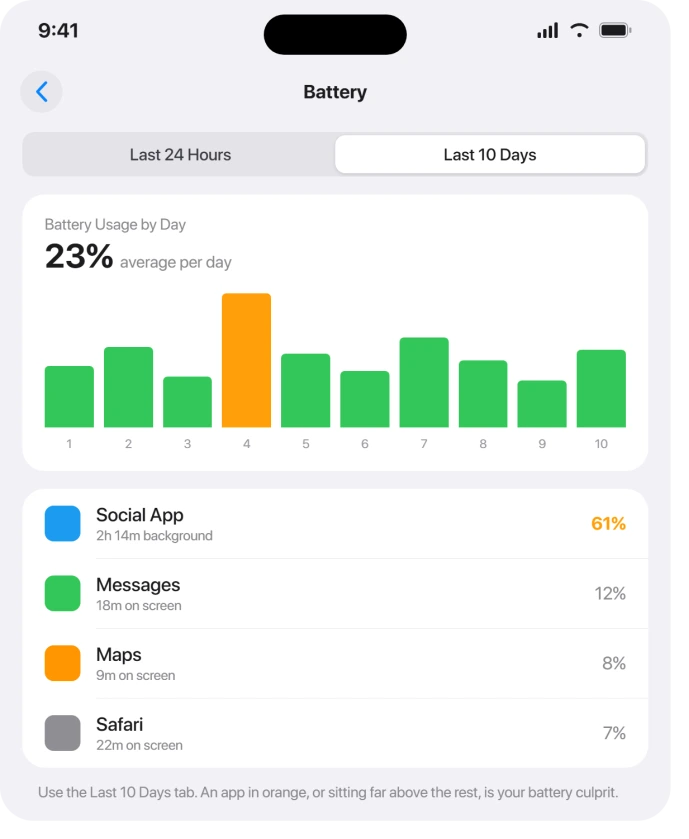
Most guides read this backwards. If one app is sitting way above the rest, great, that one is your battery hog, so deal with it.
But if nothing stands out and the list looks unremarkable, that emptiness is the diagnosis.
It means the drain is background system work, and the answer is "wait and charge," not "start toggling settings." Do not go hunting for a setting to blame when the real cause is invisible to this screen.
Turn Off Find My (the Bug Almost No Guide Mentions)
This is the one real iOS 26 software bug that users isolated by hand, and you will not find it in the usual lists. Several people, after ruling out indexing, traced their drain straight to Find My.
One reported going "from 120% usage to 40% usage in 1 day" just by switching it off. Another said it plainly: "Its not indexing, I narrowed it down to Find My."
Here's what to do:
- Open Settings, tap your name at the very top, then Find My.
- Tap Find My iPhone and turn it off (you will need your Apple Account password).
- Watch your battery for a day. If the drain stops, this was it.
Important: The tradeoff is real. With Find My iPhone off, you cannot locate the phone if it is lost or stolen, and Activation Lock theft protection is disabled.
So treat this as a temporary test. If it fixes your battery, leave it off only until Apple ships a point update that patches the bug, then switch it back on.
This is a borrow-now, return-later move, not forever.
Turn On Adaptive Power, the New iOS 26 Saver
This is the headline battery feature in iOS 26, and a lot of people have it switched off without realizing.
Trimming background work has a cost on the Lock Screen: a delivery or workout tracker that relies on the app waking up sits on an old figure instead of updating.
Our guide to Live Activities not showing covers what you can and cannot control there.
Adaptive Power uses on-device intelligence to make small adjustments on your heavy days, easing brightness a touch and trimming background activity, so the battery stretches without you really noticing.
Here's what to do:
- Open Settings, tap Battery, then Power Mode.
- Turn on the switch next to Adaptive Power.
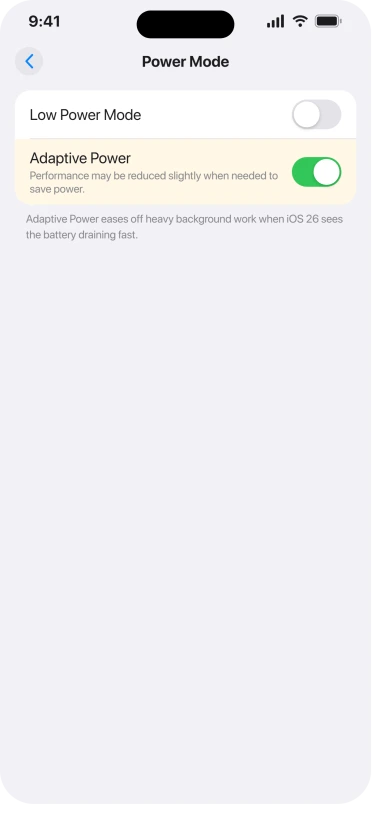
Worth knowing: Apple's Adaptive Power page confirms it is already on by default on the iPhone 17 family and the iPhone Air, but it stays off until you flip it on yourself on the iPhone 16 line and the iPhone 15 Pro models.
So a huge number of people have this sitting there unused.
Important: It needs about 7 days to learn your habits before it really pays off, so turn it on today and give it the week.
While you are on that screen, you can also flip Low Power Mode on any time you need an instant stopgap to get through a day.
Update Every App, Then Restart
Here is something people get wrong constantly: they blame iOS for what is actually a bad app update. Heavy apps that updated around the same time as your iOS are often the real drain.
TikTok was called out for jumping to nearly triple its battery use after frequent updates, and the Meta apps update more than ten times a month, where "not all of those updates have been good for battery performance."
Here's what to do:
- Open the App Store, tap your profile picture, scroll down and tap Update All. Do it while plugged in.
- Then restart the phone (a force restart is best): press and quickly release Volume Up, press and quickly release Volume Down, then press and hold the Side button until the Apple logo appears. That can take 15 to 20 seconds, so do not let go early.
Pro tip: Do not sit there swiping all your apps closed to "save" battery. It backfires.
As one forum moderator warned, "Do not close your apps, it uses more power." Force-quitting just makes iOS cold-start them again later, which costs more energy, not less.
If one specific app shows wild background activity in the Battery list, delete and reinstall just that one and watch it for a couple of days.
Trim Background Refresh, Location, and Mail Push
Several quiet drains live here, and you do not need to nuke any of them. You just need to stop the apps that do not deserve the access from running all day.
Here's what to do:
- Before you trim it, our guide to Background App Refresh on iOS 26 sets out what the setting actually costs you and who should leave it alone.
- For background refresh: Settings, General, Background App Refresh. Tap it again at the top to set it to Wi-Fi only, or switch off the individual apps you barely open.
- For location: Settings, Privacy & Security, Location Services. Go down the list and move non-essential apps from Always to While Using the App.
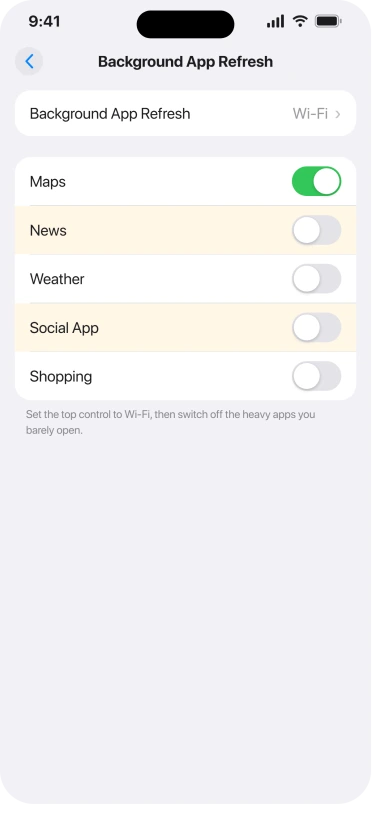
Pay special attention to anything set to Always. Weather apps, delivery apps, and social apps love that setting and almost none of them truly need it.
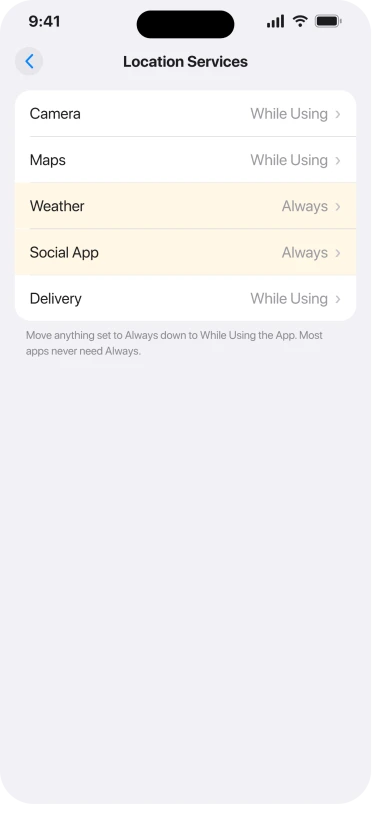
Pro tip: Leave location on for Find My (if you kept it enabled) and your maps app. Those two genuinely earn it.
While you are tidying, if you use a Mail account set to Push, try Settings, Apps, Mail, Accounts, Fetch New Data, and set it to Manual.
One thing to know before you do: that screen is shared by Mail, Contacts and Calendar, so Manual stops your calendar updating in the background too.
If events later seem to go missing, our guide to iPhone calendar events disappearing starts there.
Constant push fetch hammers the radio, and switching to manual fixed nonstop drain for more than one person.
Test It With Mobile Data Off
This one surprises people.
A few users found that the update changed how their phone handled mobile data, and a weak cell signal made it far worse, because the phone keeps cranking up the radio hunting for bars.
The quickest way to test it is to take cellular out of the equation for a bit.
Here's what to do:
- At home on good Wi-Fi, open Control Center and turn Mobile Data off (or switch on Airplane Mode, then turn Wi-Fi and Bluetooth back on).
- Use the phone normally for a few hours and watch the drain.
If your battery suddenly behaves, your problem is cellular related, most likely weak signal in your area or the modem behavior the update changed.
If the phone also shows No Service or 5G dropping after iOS 26, start there.
That points you at your coverage and carrier settings rather than at a phone fault. It is a test, not a permanent setting, but it tells you a lot in an afternoon.
Calm Down the Liquid Glass Effects
iOS 26's new Liquid Glass look is genuinely pretty, but all that translucency, the 3D lock screen, and the new transition animations ask a little more from the screen and chip.
If you would trade some sparkle for hours, quiet it down.
Here's what to do:
- Open Settings, Accessibility, Motion.
- Turn on Reduce Motion to kill the lock-screen parallax and heavy slides.
- Turn on Prefer Cross-Fade Transitions to swap the fancy animations for plain fades.
Important: You may have read that turning on Reduce Transparency saves battery.
In practice it does not make a meaningful difference, so do not count on it. Turn it on if you prefer the look, but Reduce Motion is the reliable one.
The bigger, simpler wins are lowering your brightness a notch and letting Auto-Brightness do its job.
Pause Apple Intelligence While the Phone Settles
This one is specific to the iOS 26 era. Apple Intelligence runs AI models right on your phone, and just after an update it is busy downloading and re-calibrating them, which burns real battery.
If you are still in the rough early days and want every hour you can get, switch it off temporarily.
Here's what to do:
- Open Settings, then Apple Intelligence & Siri.
- Turn off Apple Intelligence, then restart so the change fully takes hold.
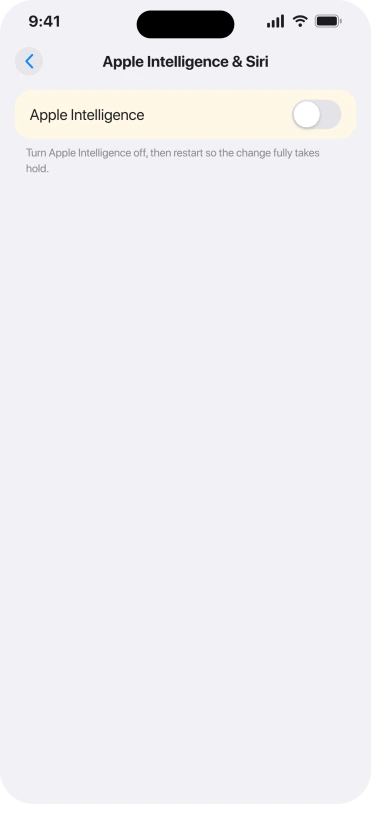
On iOS 27 that single switch is gone. Turning Apple Intelligence off on iOS 27 now takes a few separate switches instead.
To be fair, Apple Intelligence is a genuinely useful set of features, and most of the heavy battery use is that initial setup burst.
So think of this as borrowing battery for a few days, not a permanent change. Once the phone settles, turn it back on and see if the drain returns. If it does not, you have your answer.
Update to the Latest iOS 26 and Check Battery Health
Apple ships point updates (26.1, 26.2, 26.3, and on) that quietly fix bugs, and battery drain is a regular target.
Keeping iOS current is the first thing Apple's own battery guidance recommends.
If you updated early and then stopped, you may be stuck on a version with a known issue that Apple has already patched.
Here's what to do:
- Open Settings, General, Software Update, and install whatever is waiting, on charge.
- Then, one last check: Settings, Battery, Battery Health & Charging. If Maximum Capacity is well under 80 percent, the battery is simply worn out, and no setting will fix that. A replacement will.
- iPhone 17 about a year old? The one-year battery page shows the health figures launch day owners report, and whether a charge limit helped.
- If that screen carries a warning rather than a number, read it before acting on it. Apple documents several causes for an unverified battery and only one is a counterfeit, which our page on the Unknown battery label sets out in full.
Important: Do not waste time trying to downgrade out of the problem. Apple stops signing the older versions soon after a release, so for most people reverting is not even an option.
The plan is to fix forward, not roll back. And remember the 48 hour rule, give any new version its own settling time before you judge it.
Still Draining? The Last Resort
If you have genuinely waited it out, worked the list, and your iPhone is still dying far too fast after a week, it is time for some real talk.
- Run Apple's diagnostics. Battery Health can read fine and the cell still be failing. Apple Support can run deeper tests. And do not assume good numbers clear iOS, one person with 100 percent health and just 22 charge cycles still watched their phone fall from 90 to 45 percent in eight hours.
- Do a clean restore, but not from your old backup. A full restore through a Mac or PC can clear a corrupted state, but if you restore from your existing backup you "will just put those same apps back and return the state to exactly as it was before." Set it up fresh and re-add apps by hand.
- Replace the battery if Health is low. If you are below 80 percent, the update is not the culprit. It just exposed a battery that was already tired. A fresh battery in an older iPhone can feel like a new phone.
Status: iOS 27.0, checked 24 September 2026. Apple says a major update costs battery and runs warm for a while as the phone indexes, and a Level 10 adviser on Apple's forum puts iOS 27 at about four days plus a couple more. The iOS 26 fixes above still apply once that has finished.
The Short Version
Most "my battery died after the update" panic clears up on its own within a couple of days, because the worst of it is invisible background work, not a fault.
So give it time and a charger first, and remember that a boring, empty usage list on the Last 10 Days view means "keep waiting," not "start tweaking." If it is still bad after that, the two fixes that actually move the needle are turning off Find My, the real iOS 26 bug people isolated by hand, and updating your apps before you force restart.
The rest of the list, Adaptive Power, trimming background refresh and location, the mobile data test, calming Liquid Glass, pausing Apple Intelligence, and installing the latest point update, are real but secondary.
Work them only if the two big ones do not settle it.
Where to Next
More iOS 26 help: This fix is part of our iOS 26 problems and fixes guide, a single place that rounds up every common iOS 26 issue.
Where the phone dies the moment the cable comes out, that is a different problem and there are six tests in order.
When the pad stops working but the cable is fine, wireless charging has six checks of its own.
Where the phone questions the battery itself rather than draining fast, Unable to Verify has its own explanation.
Cutting the on-screen effects is a smaller change that some people prefer to make anyway. How to turn off the iOS 26 animations lists the switches involved.
If it charges as slowly as it drains, the charging half has its own causes. Apple delays charging past 80 percent on purpose.
If Contacts search has slowed down since iOS 27 as well, searching one account's list is the workaround owners use.
If the charge drops even while the phone is switched off, a restore from a Mac fixed that for one owner.
If something else on your iPhone is acting up after the update, start there.

Isaac Smith is the founder and editor of PC Glance, a website that covers computers, laptops, and technology. He is a tech enthusiast and a computer geek who loves to share his insights and help his readers make smart choices when buying tech gadgets or laptops. He is always curious and updated about the latest tech trends.