An iPad that won't update to iOS 17 may be too old: the iPad release is iPadOS 17, which starts at the sixth-generation standard iPad. Check your exact model, then install the newest update it offers.
A newer update offer isn't an error, and a newer iPad doesn't need to pass through version 17 before using its current software. If the iPad is eligible but the offered update fails, work through storage, connection and download checks.
In this guide
1. Find the model and compare the iPadOS 17 list
Open Settings > General > About. Read Model Name and the installed software version. An iPad's screen size alone doesn't identify its generation, and similar-looking models can stop at different software releases.
The original iPadOS 17 compatibility list includes these families:
- iPad: sixth generation and later models available when iPadOS 17 was released.
- iPad mini: fifth generation and later models available when iPadOS 17 was released.
- iPad Air: third generation and later models available when iPadOS 17 was released.
- iPad Pro 12.9-inch: second generation and later models available when iPadOS 17 was released.
- iPad Pro 10.5-inch: supported.
- iPad Pro 11-inch: first generation and later models available when iPadOS 17 was released.
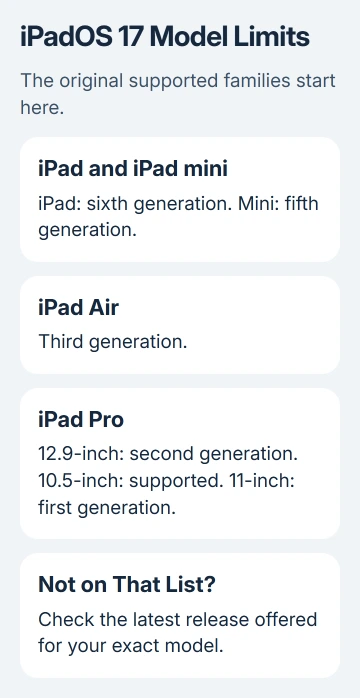
Apple states these limits in its iPadOS 17 release announcement. A fifth-generation standard iPad, fourth-generation mini, second-generation Air or first-generation 12.9-inch Pro isn't supported.
The 9.7-inch iPad Pro also isn't on the list. Being a Pro model doesn't make every generation eligible. Check the size and generation together before spending time deleting files or resetting settings.
If your iPad isn't on the list, use the latest update offered for its model. A computer can't install a major version the hardware doesn't support. For an app requiring newer iPadOS, ask its developer about a supported alternative.
2. Separate a missing version from a failed update
Open Settings > General > Software Update and read both the installed version and the offered release. A message saying it's current means that iPad has its latest offered software. It doesn't mean all iPads run the same version.
If an eligible iPad offers a release newer than 17, install that supported update; you don't need a separate 17 button. Software Update isn't a catalog of every historical version.
The old announcement's reference to later generations doesn't cover iPads that shipped with software newer than 17. For example, a device that shipped with a newer iPadOS doesn't need to install 17 to satisfy an old how-to page.
If iPadOS 17 is already installed, an app that demands a newer version needs a different eligibility check. The iPad upgrade compatibility guide covers the limits of a later major release.
For an old iPad that won't meet an app's requirement, the incompatible iPad app checks explain the difference between system support and an app download failure.
I'd check the model and the offered number before trying a factory reset. Those two details often answer the question without risking the iPad's contents.
3. Free device storage for an offered update
When the update is offered but reports insufficient storage, open Settings > General > iPad Storage. This is the space inside the iPad; a larger iCloud plan won't expand that capacity.
Use the storage recommendations or Offload Unused Apps when shown. Offloading removes app files while leaving your documents and data in place. Start with replaceable downloads, leaving personal files alone until they're backed up.
Make a current backup before the major update. Plug the iPad into power, connect Wi-Fi and retry Software Update. The exact free space needed depends on the release, so use the update's message rather than a fixed target.
If the next attempt starts downloading, leave it connected and watch its progress. An installation error after a completed download needs different attention than a storage alert that prevents downloading.
Don't delete unfamiliar system entries from storage to chase the version number. Use the normal app and download controls, then move to a computer if the wireless update repeatedly fails.
4. Retry a failed connection, then replace the download
For Unable to Check for Update, verification trouble or a download message about internet access, retry on the same Wi-Fi first. If it repeats, connect to another working Wi-Fi network and check again.
Pause other large downloads while the iPad retrieves the update. Download time varies with the update size and the connection. A slow transfer can still be working; it doesn't need repeated restarts simply because the estimate changes.
A VPN or proxy may prevent access to update servers. Check your connection settings; on a managed iPad, involve its administrator. A school-managed device may also have update controls set by its organization.
If the same downloaded update won't install, open Settings > General > iPad Storage, select the update entry and tap Delete Update. Use Software Update again to download the current offered release.
The wireless update repair steps use this route after repeated failures. If the update isn't in the storage list, don't remove an unrelated app expecting it to clear the installer. Continue with a computer.
5. Update through the right computer app
Connect the unlocked iPad by cable and approve Trust if asked. For macOS Catalina or later, launch Finder and choose the sidebar entry for your iPad. Open General, then choose Check for Update.
Choose Download and Update if the Mac offers an update. On a Windows PC with Apple Devices, select the iPad, choose General > Check for Update, then Update and follow the prompts.
On macOS Mojave or earlier, use iTunes instead. Select the device button, open Summary, choose Check for Update, then Download and Update. Keep the iPad connected while the process completes.
Windows computers using iTunes follow that Summary sequence too.
Choose the update route for this repair, not Restore iPad. Restore erases the device. The computer still checks which software your model supports. It can't bypass that limit or install any old release you choose.
If the iPad is already installing and its progress bar moves slowly, leave it on power. A boot screen without a progress bar or a device the computer can't recognize needs the recovery guidance for that specific state.
When a supported iPad still won't install
Ask Apple Support to troubleshoot the iPad update, with the Model Name, installed version, offered version and exact error. Report the results from another Wi-Fi network and from a computer.
If an organization manages the iPad, send IT those details first. If your model isn't supported, use its last offered software, find an alternative app or consider a newer iPad. Retrying the download won't change which versions it supports.
The Short Version
Read the offered release and compare your iPad generation with iPadOS 17 support. For a supported update that fails, check storage and Wi-Fi, replace the download, then use Finder, Apple Devices or iTunes.
Checked November 15, 2026.