An existing Apple ID still signs in when the screen says Apple Account. Enter the email you use for that account, or its phone number, then enter the password. For the device login, open Settings on an iPhone; use System Settings on a Mac.
Use account.apple.com when you want to manage the account in a browser instead.
A browser login and a device login do different jobs. Signing in on a website won't automatically connect an iPhone's photos, purchases or Messages to that account.
In this guide
Choose the sign-in that matches what you need
For a new or signed-out iPhone, start in Settings. For a Mac, start in System Settings. Signing in there connects your account to the device, and you can then choose which services to use.
To change account details, open account.apple.com. To read mail, view photos or use other available iCloud apps in a browser, open icloud.com. The same account can work on both sites, but each site gives you different controls.
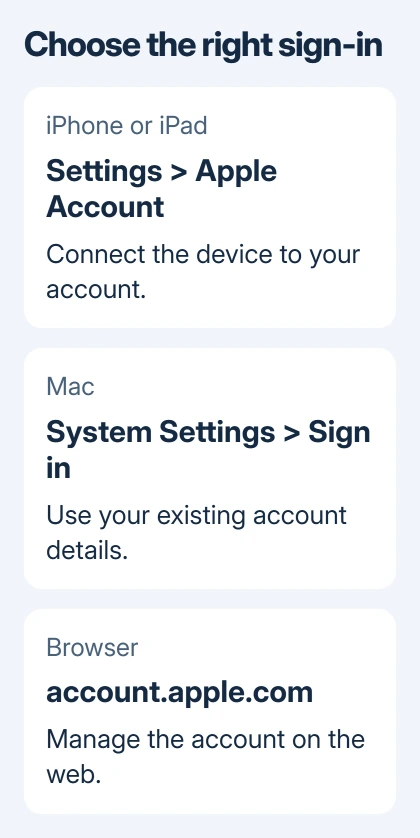
Keep using the account with your purchases and iCloud content. A new account leaves that content tied to the old login. Check which Apple ID is already signed in when the address isn't clear.
I'd start with the device's own settings when setting up a personal phone or computer. You can check the result right there: your name appears in the account area, rather than just in a browser tab.
Connect the account in iPhone or iPad Settings
- Open Settings and tap Apple Account at the top. Older software can show Sign in to your iPhone or Sign in to your iPad instead.
- Choose Sign in Manually, then enter your account email or phone number, plus the password.
- Enter the six-digit verification code when requested. It can arrive on a trusted device or your trusted phone number.
- Finish the prompts on the device. Return to Settings and check that the account area shows your name.
The Use Another Apple Device option lets you sign in with help from a nearby iPhone or iPad that's already signed in. Follow the prompts on each screen and keep Bluetooth on for both devices.
That nearby-device option needs compatible software. When it isn't offered or doesn't work, update both devices or use the manual route. A missing nearby-device button doesn't mean the account itself has stopped working.
When Settings already shows another person's name, pause before entering your own details elsewhere. That's an account change, rather than an initial login. Follow the iPhone account-switching steps to handle the existing data first.
Use System Settings on a Mac
- Open the Apple menu > System Settings.
- Select Sign in in the sidebar.
- Enter the email or number linked to your account, followed by its password.
- Complete the verification-code prompt if it appears.
On macOS Monterey and earlier, open System Preferences and use its Apple ID sign-in area. The window has a different name, but your login details stay the same: the account email or number, followed by the password.
After sign-in, return to the account section and check the displayed name and address. Don't assume that signing into one separate app, such as Music, has also signed the Mac into all iCloud services.
Messages has its own account settings, too. A Mac can be signed into System Settings while Messages still needs its sign-in completed. Open the app that needs the account after the main device sign-in finishes.
Log in through the Apple Account website
Open https://account.apple.com by typing the address into your browser. Choose the sign-in control, enter your account details, and complete any verification request. The site opens the account-management area when sign-in succeeds.
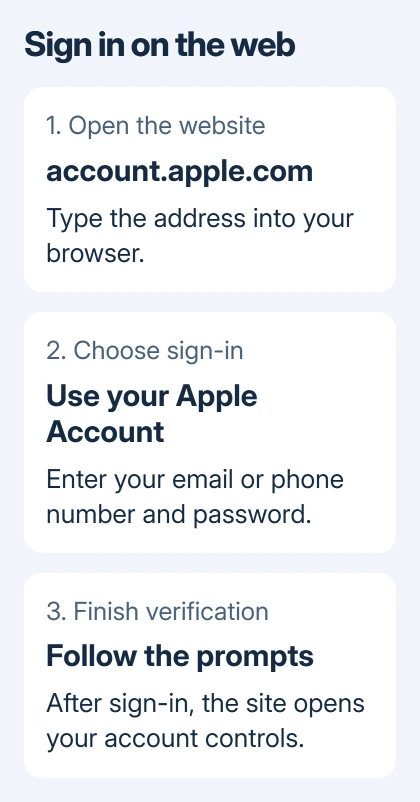
Use this route to manage the account itself. For iCloud content, visit icloud.com and sign in there. Apple explains these destinations in its device and website sign-in instructions.
On a borrowed computer, I'd use the website instead of adding your account to the computer's settings. Finish by signing out of the website. Decline the browser's offer to store a password on a borrowed computer.
A Sign in with Apple button inside another company's app is a separate choice. It uses your account to access that app; it isn't the screen for connecting your whole iPhone or Mac to iCloud.
Sign in from Windows or Android
The browser routes work on Windows PCs too. For file and photo integration in Windows, open iCloud for Windows and sign in when the app prompts for your account details.
Apple Music and Apple TV for Windows have their own sign-in controls. Open the app, choose Sign In in the sidebar, select the sign-in option in the menu, then enter your details and any requested code.
Android can use the account websites in a browser, along with the Apple Music or Apple TV apps where available. An Android phone doesn't gain the iPhone's Settings account panel by signing into one of those apps.
Sign into the service you need. If Music accepts your login, you're signed into Music; to reach your iCloud content, use the iCloud website or a supported iCloud app.
Deal with a rejected password or missing code
A rejected password needs a password reset, rather than repeated guesses. On an iPhone or iPad you already trust, use Settings > your name > Sign-In & Security > Change Password and follow the prompts.
For a missing code, check the trusted device first. On the code screen, use the option for a code you didn't receive and request delivery by text or call using the trusted number.
If the login address or number isn't clear, find it before resetting a password. Changing a different account's password won't unlock the account holding your photos or purchases.
If the screen says the account is locked, inactive or disabled, follow the help link for that exact message on the sign-in support page. For continued failure, tell Apple Support the exact warning and which device or app shows it.
The Short Version
Use Settings on an iPhone, System Settings on a Mac, account.apple.com for account management, or iCloud.com for browser access to iCloud. The credentials haven't changed; complete verification and confirm the displayed account name.
Checked November 15, 2026.